
Support center
Provide you with comprehensive product operation guidelines
Installer
This page provides general instructions for configuring Alfen chargers with the enjoyelec App. For detailed configuration support on specific models, please contact us.
Step 1. Retrieve OCPP information from enjoyelec HEMS App
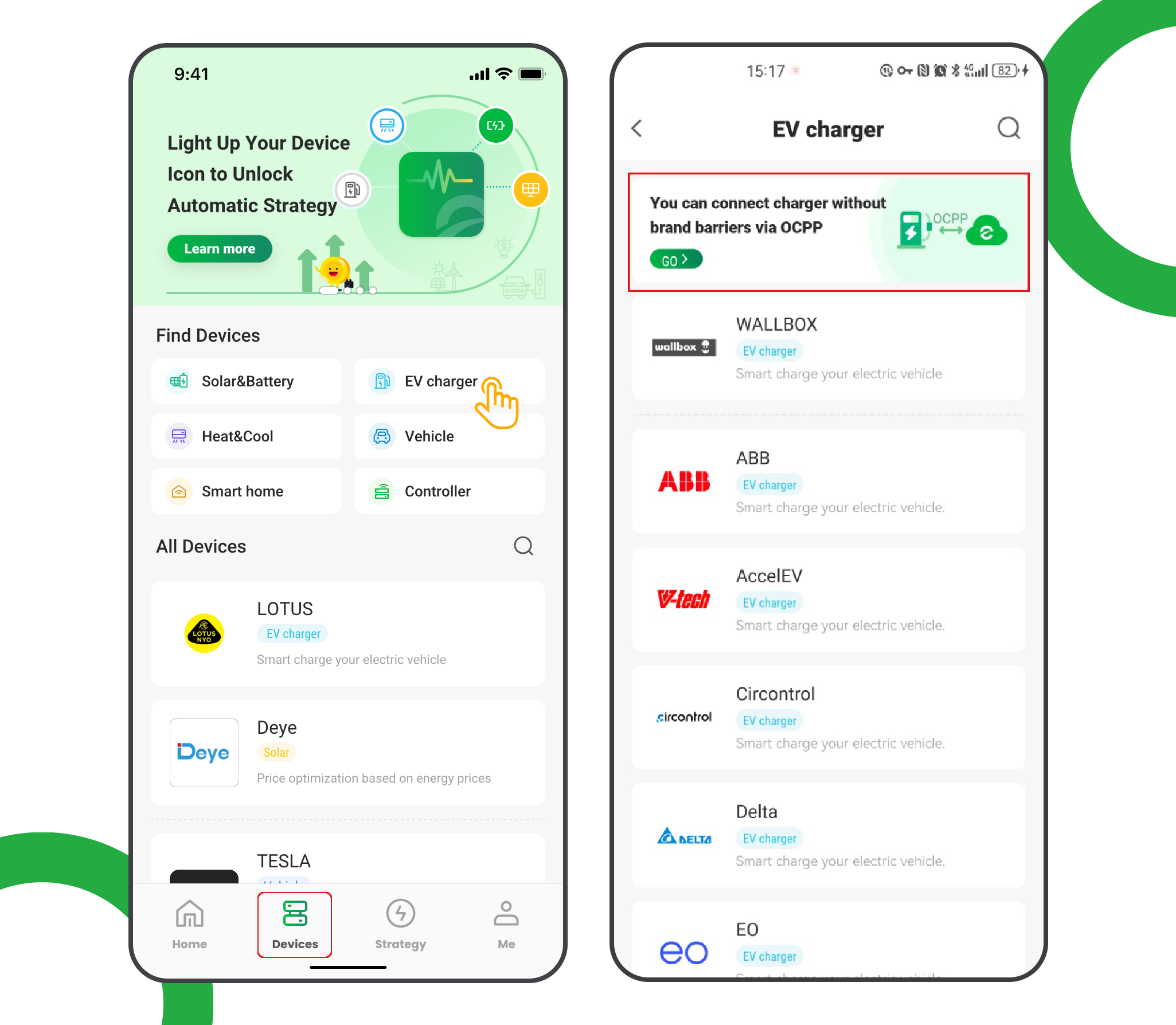
- Enter the app and open ‘Devices’
- Select ‘EV charger’
- Tap the ‘OCPP connection’ banner
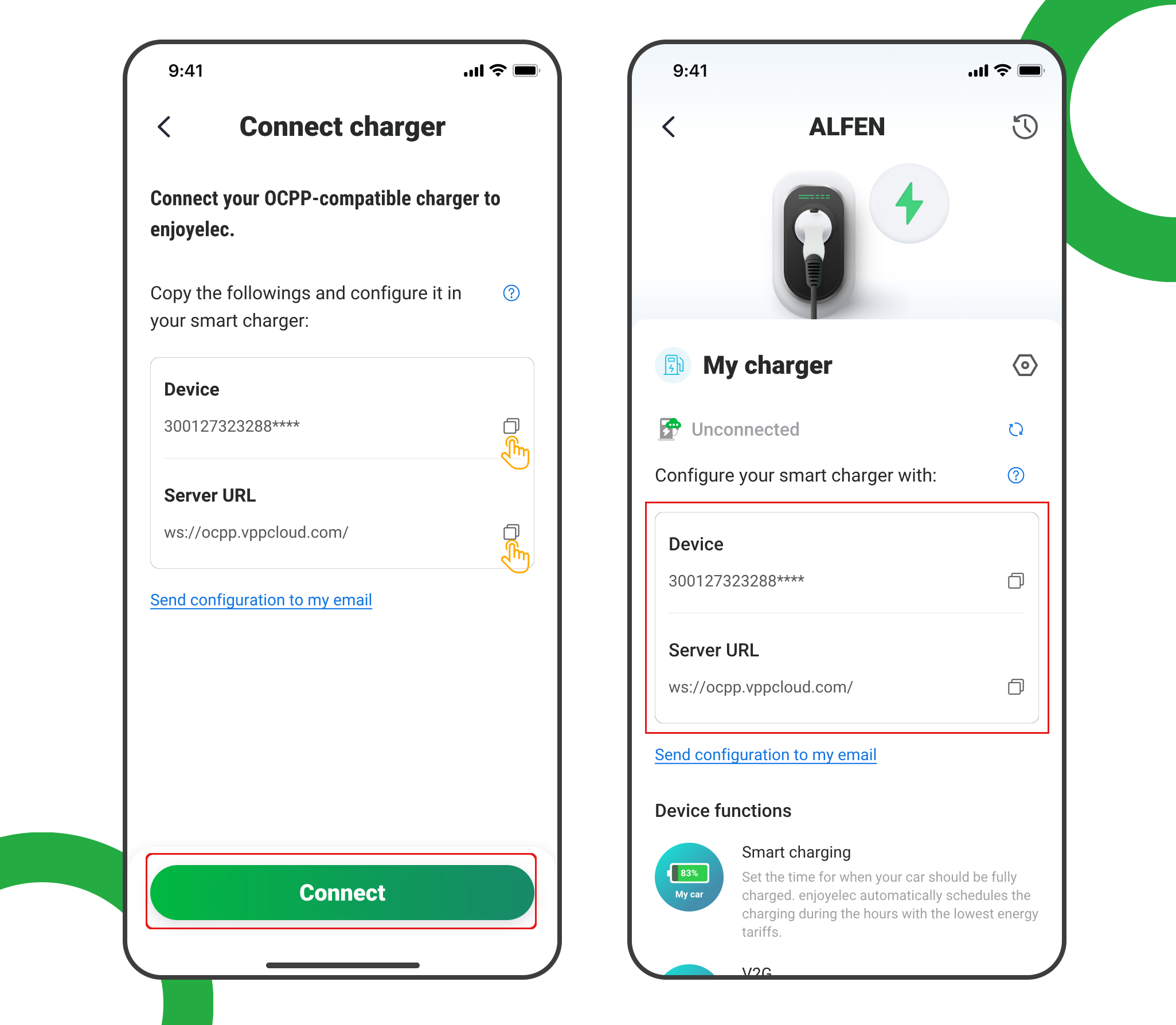
- Tap ‘Connect’ to access the OCPP information retrieval page
- Copy the Server URL and Device ID, which will be used later when configuring the charging station.
Example: ws://ocpp.vppcloud.com/300127323288****
Step 2. Download the ACE Service Installer
- The Alfen ACE Service Installer is software (Windows only) that can be used to configure and troubleshoot an Alfen charger on location.
- The latest version can be downloaded below.
https://knowledge.alfen.com/space/IN/1627488257/Download+the+ACE+Service+Installer
Step 3.Installation in the ACE Service Installer
- Open the ACE Service Installer and log in.
- Select the correct station from your network.
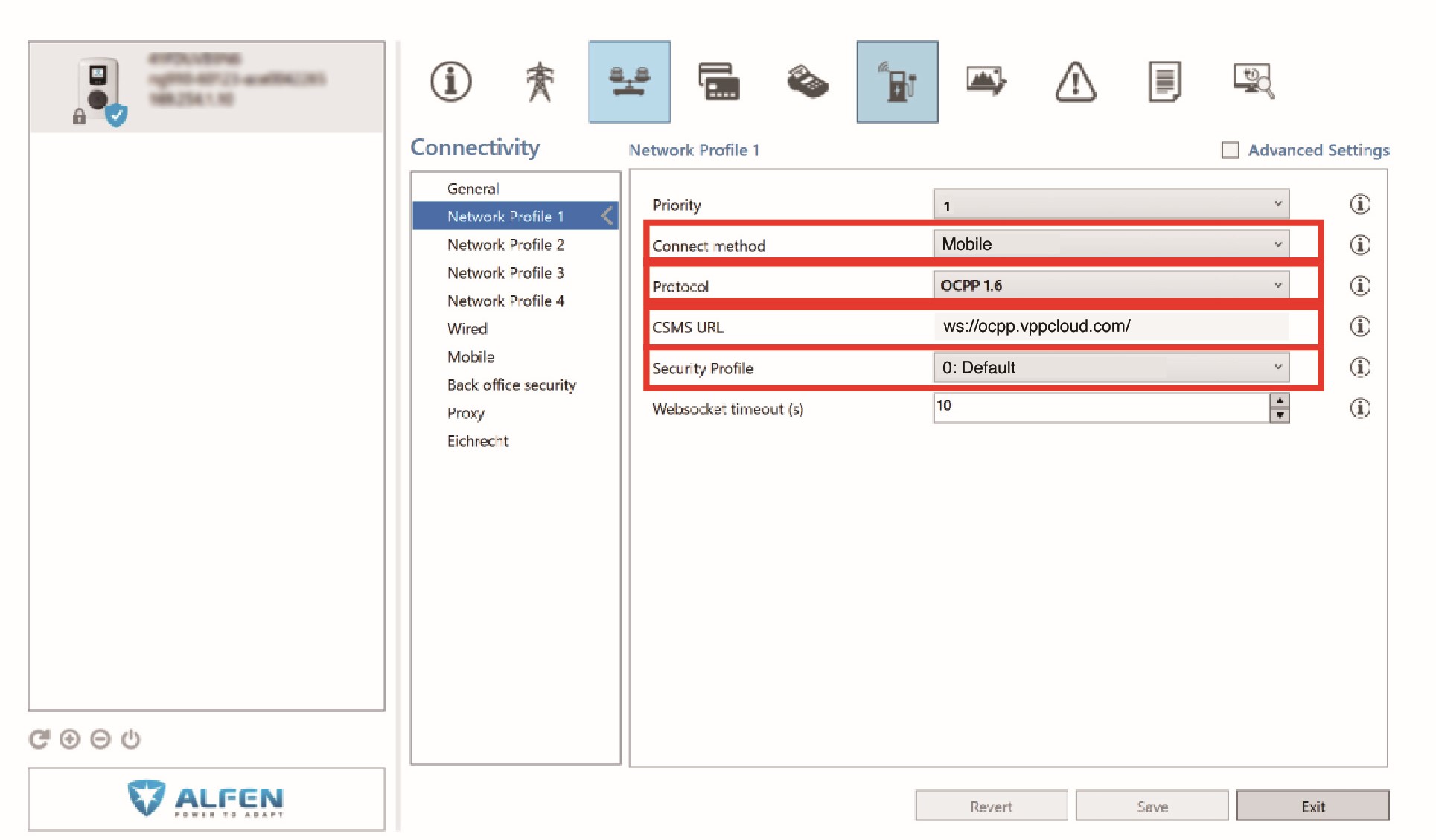
- Set the “Connect method” to “Wired” (for operation via LAN) or “GPRS” (for operation with SIM card).
- Set the “Protocol” to “OCPP 1.6”.
- Enter the “Service url” in the “Back office path” field.
- Select the ‘General’ tab.
- Enter the “Device ID” in the “Customer Ident. number” field.
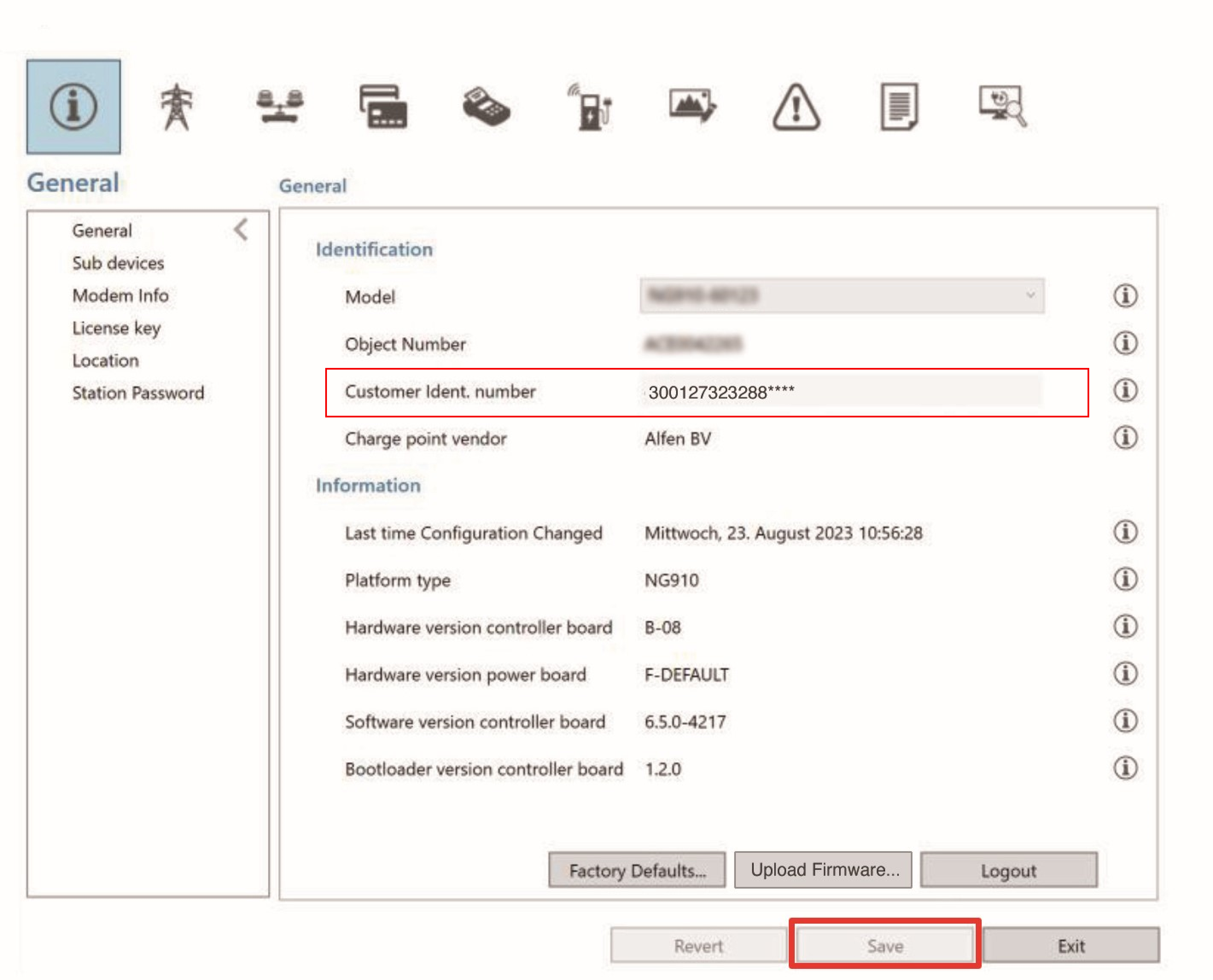
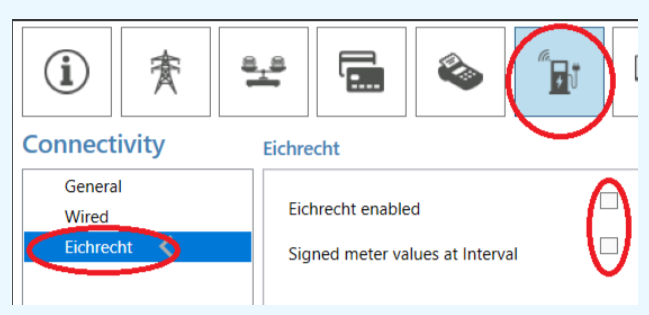
- Check the settings of the Eichrecht tab.
Step 4. Complete the Setup
After a few minutes, the charging station will be successfully added to the app. You can now see and manage it within your enjoyelec HEMS App.
