Support center
Provide you with comprehensive product operation guidelines
Installer
Aqara Smart Plug Usage Instructions:
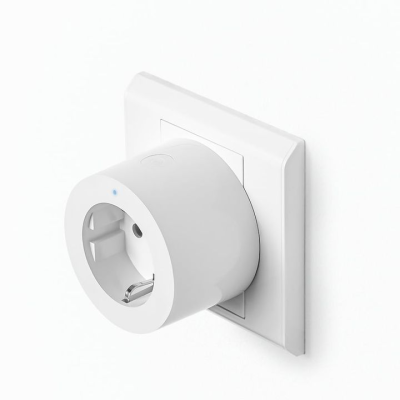
Step 1 – Plug the Smart Plug into the socket to provide power.
- Applicable range: 250VAC, 50/60Hz; Maximum current: 10A.
Step 2 – Connect the Smart Plug to the app.
- For detailed configuration steps, refer to the document below.
Step 3 – Plug the electrical device into the Smart Plug to enable control.
- Control the device and monitor power consumption through the app.
Explanation
- Insert Smart Plug pins into socket
- During the app configuration process, when prompted to search for the Zigbee connection, press and hold the button for 5 seconds.
Smart Plug configuration process in the app:
Step 1
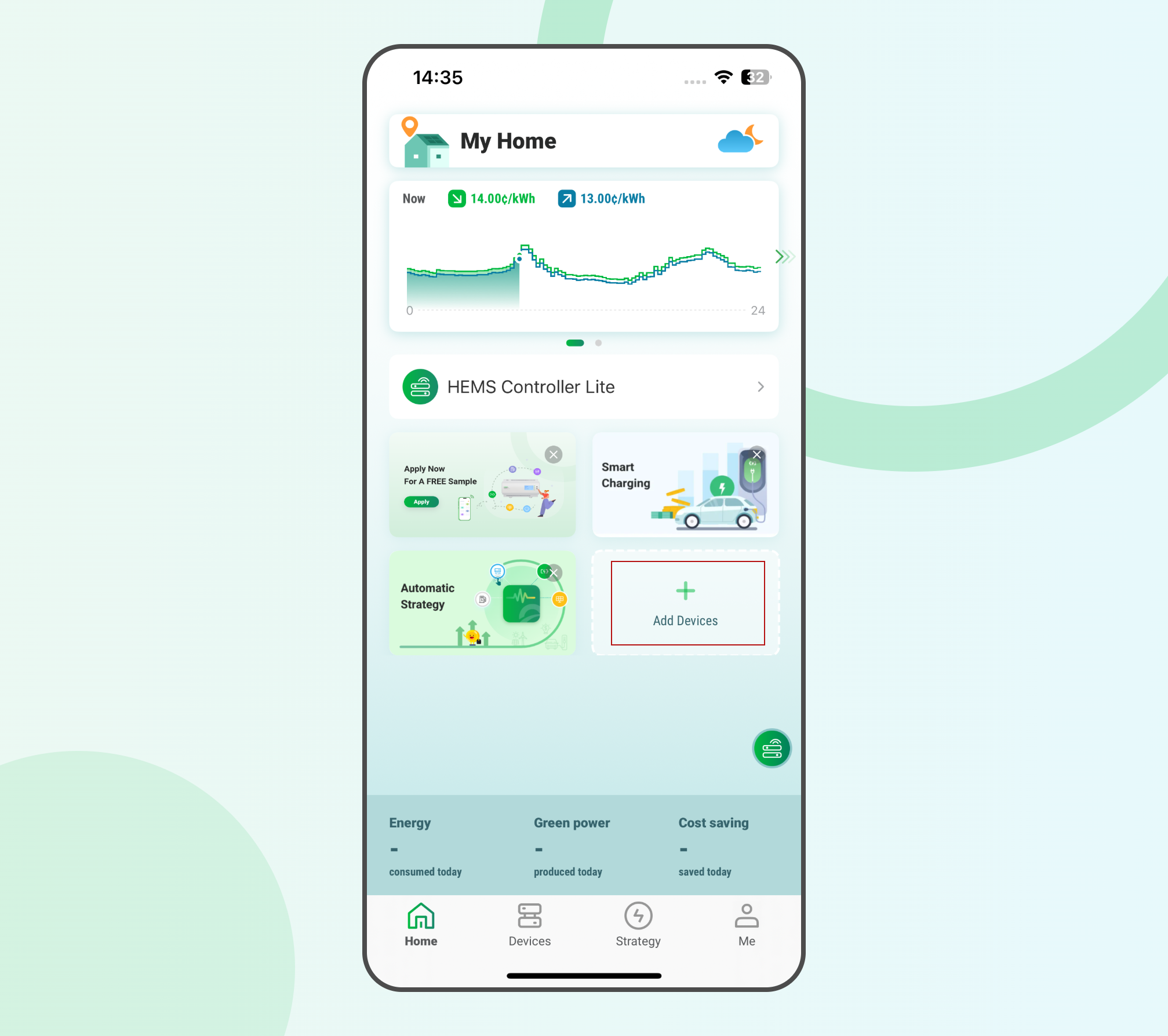
- Open the enjoyelec app, and on the homepage or Controller page, find “Add device.”
Step 2
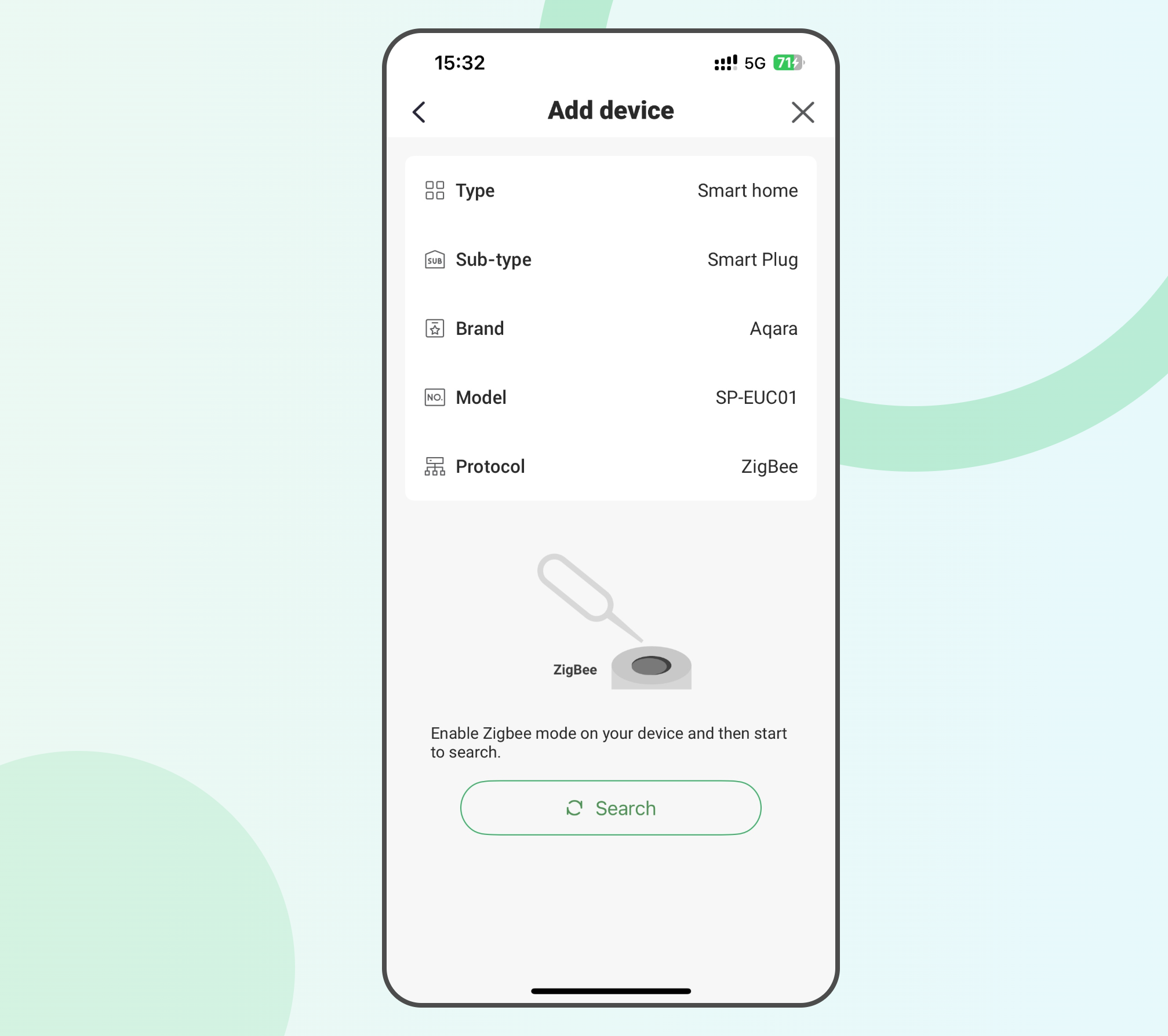
- On the “Add device” page, select the relevant parameters for configuring the Smart Plug from the list.
Type: Smart home.
Sub-type: Smart Plug.
Brand: Aqara
Model: SP-EUC01
Connection: Zigbee.
Step 3
- Click “Search” to start searching for nearby Zigbee devices.
- At this point, press and hold the button on the Smart Plug for 5 seconds to enable the Zigbee connection.
Step 4
- After successfully establishing the Zigbee connection, the device model of the Smart Plug will be displayed on the app.
- Click “Connect” to add the Smart Plug to the app.
Step 5
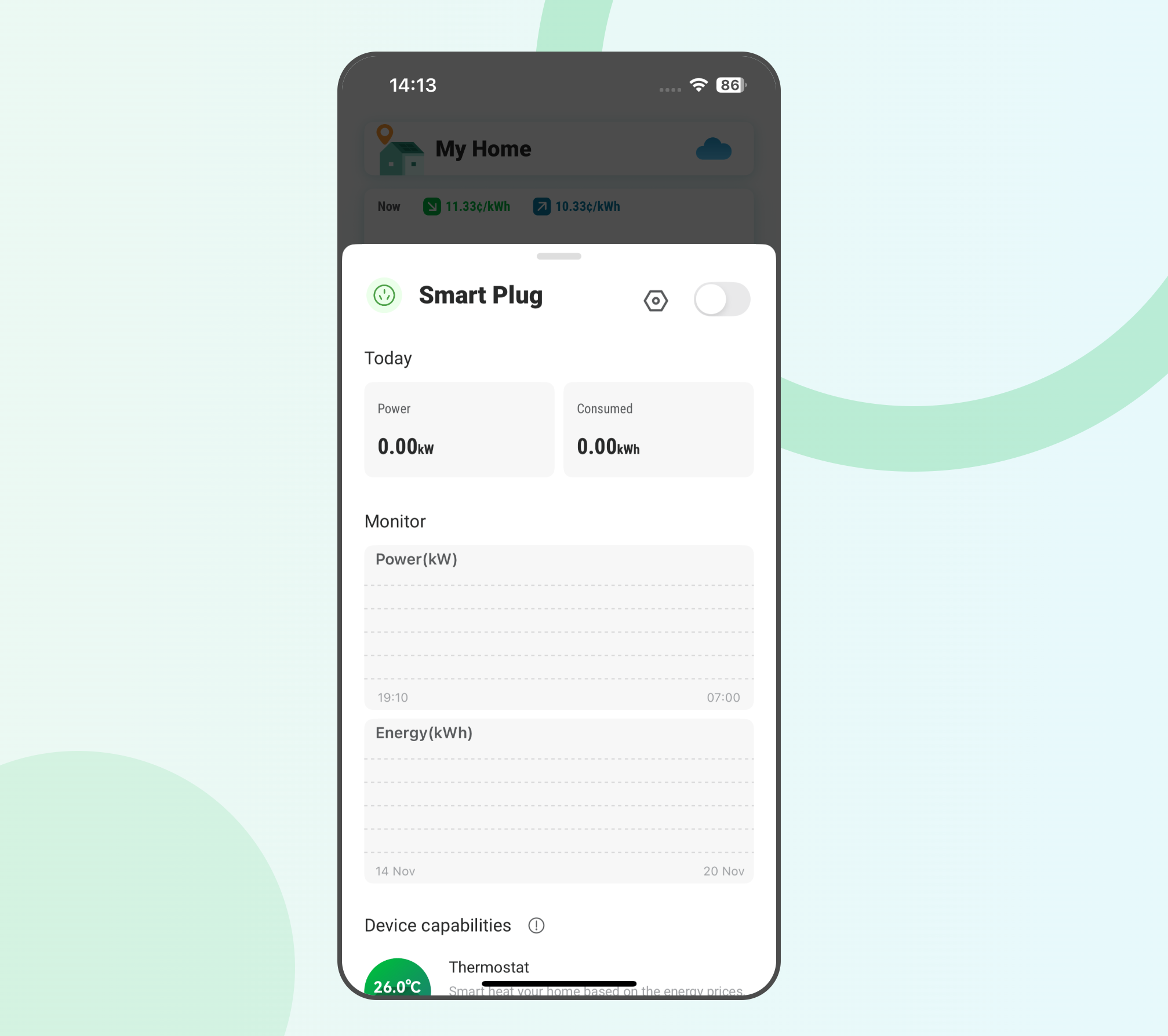
- You can enter the Smart Plug management page on the app to control the switch or check the power consumption.