
Support center
Provide you with comprehensive product operation guidelines
Installer
This page provides general instructions for configuring Circontrol Chargers with the enjoyelec App. For detailed configuration support on specific models, please contact us.
Step 1. Retrieve OCPP information from enjoyelec HEMS App
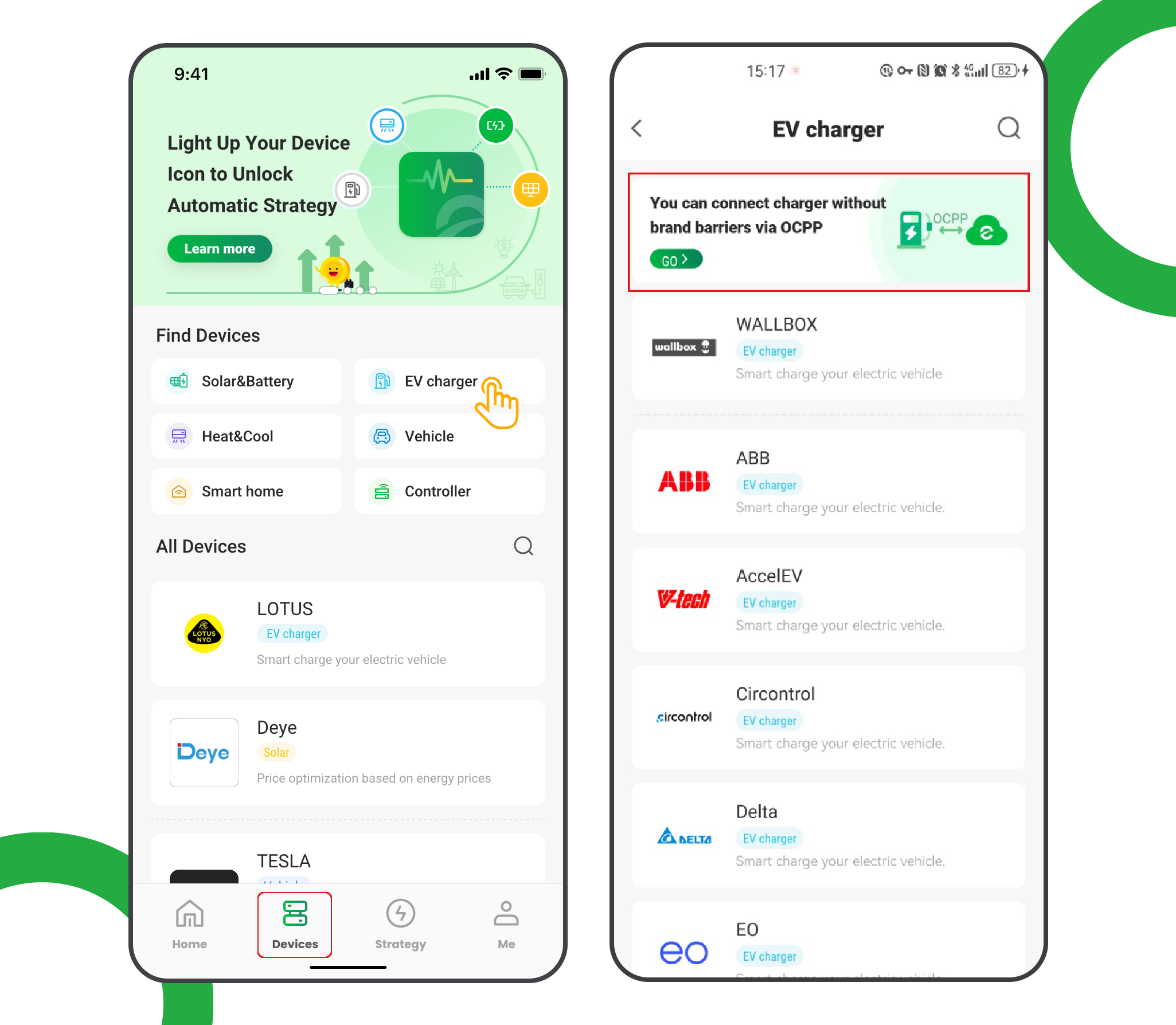
- Enter the app and open ‘Devices’
- Select ‘EV charger’
- Tap the ‘OCPP connection’ banner
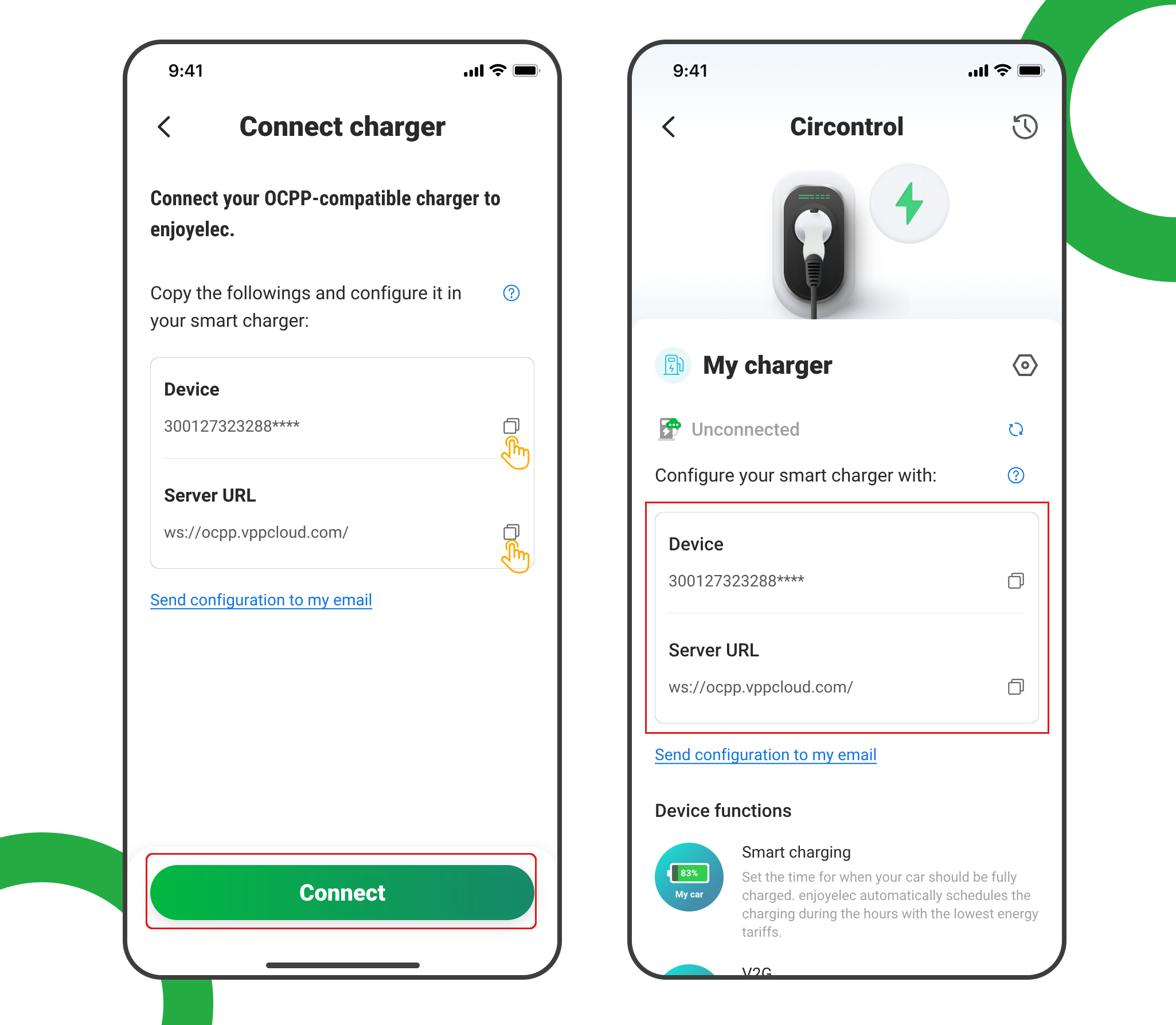
- Tap ‘Connect’ to access the OCPP information retrieval page
- Copy the Server URL and Device ID, which will be used later when configuring the charging station
Step 2. Connect the Charger to Wi-Fi
- Connect your laptop to the station.
- Please take the current IP address of the station from the enclosed manual.
- Then enter the IP address in the web browser.
- Dashboard of Circontrol appears.
- Select connection type (GSM, LAN…)
Step 3. Configure Identification Method
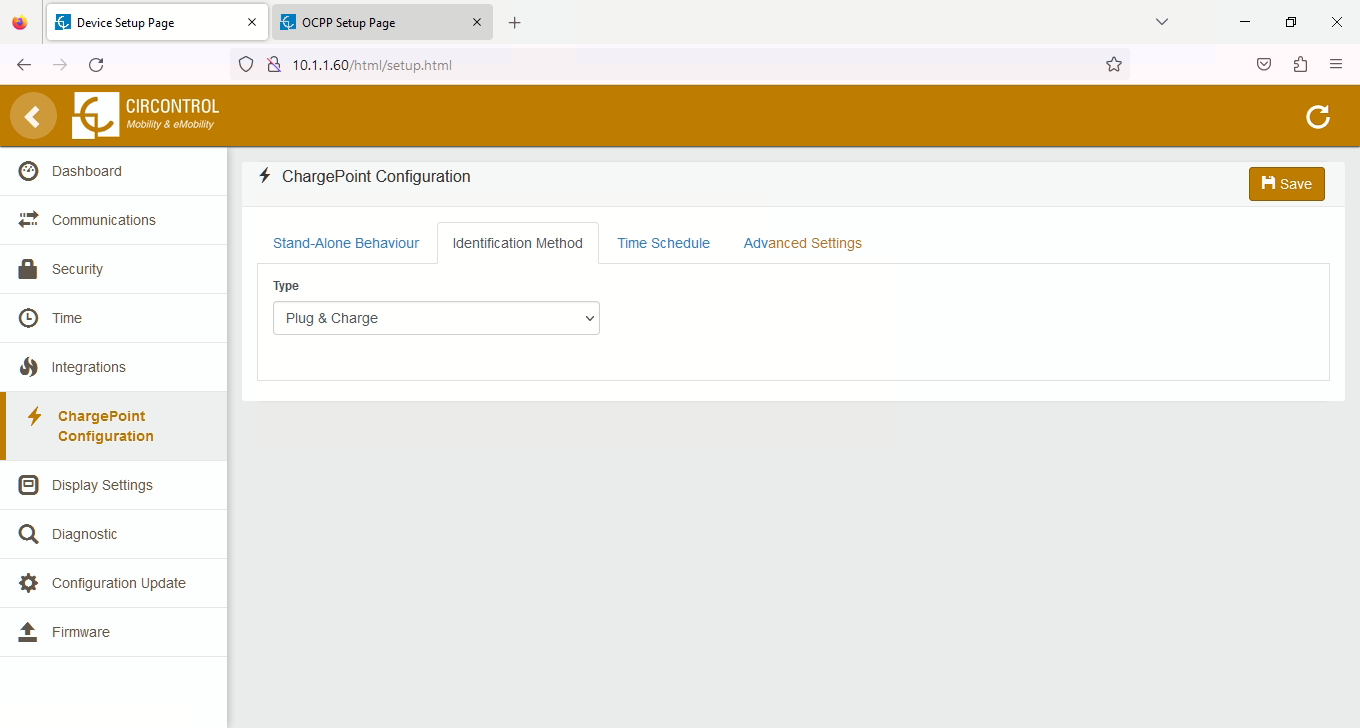
- In the Circontrol Setup Webpage, navigate to “ChargePoint Configuration” menu
- Select the “Identification Method” tab
- In the Type drop down menu select “Plug & Charge”
- Click the “Save” button in the top right-hand corner
Step 4. Access the OCPP settings
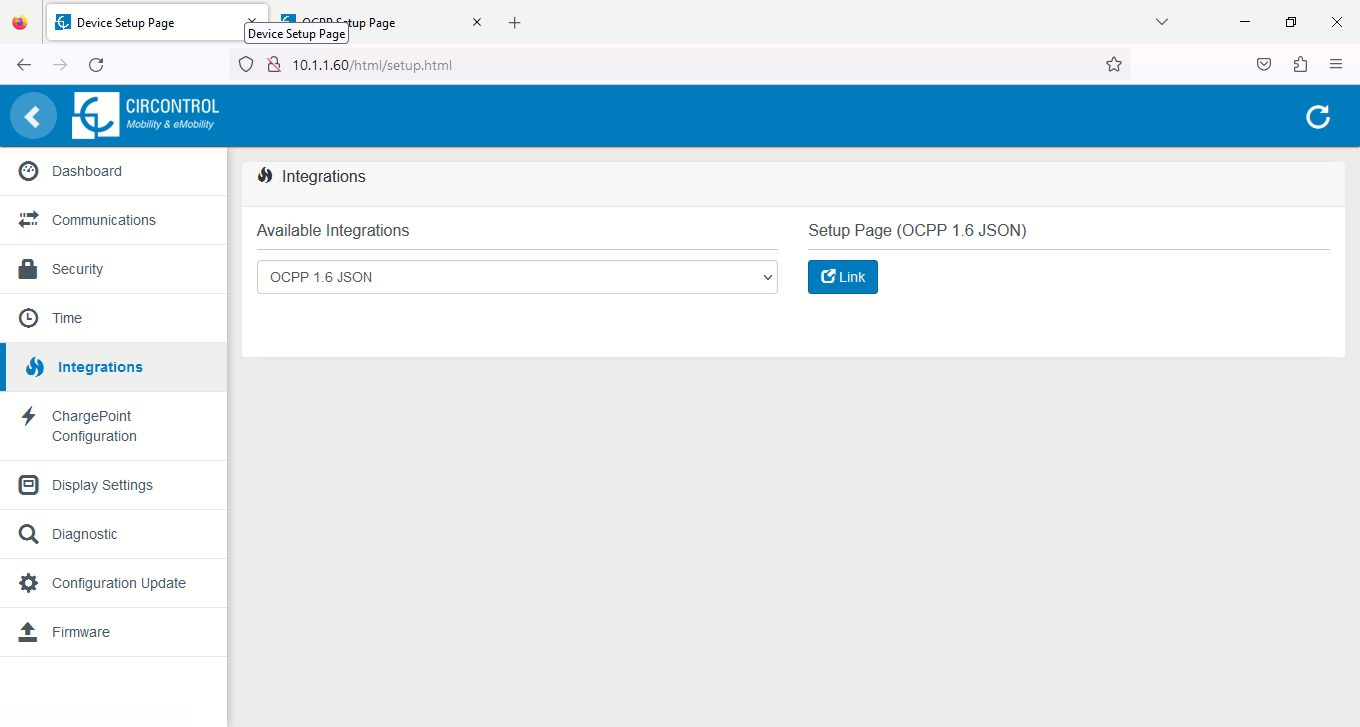
- Navigate to “Integrations” menu
- Set Available Integrations to “OCPP 1.6 JSON”
- Click the “Link” button on the right-hand side
Step 5. Configure OCPP settings
- The OCPP settings will open in a new tab/window
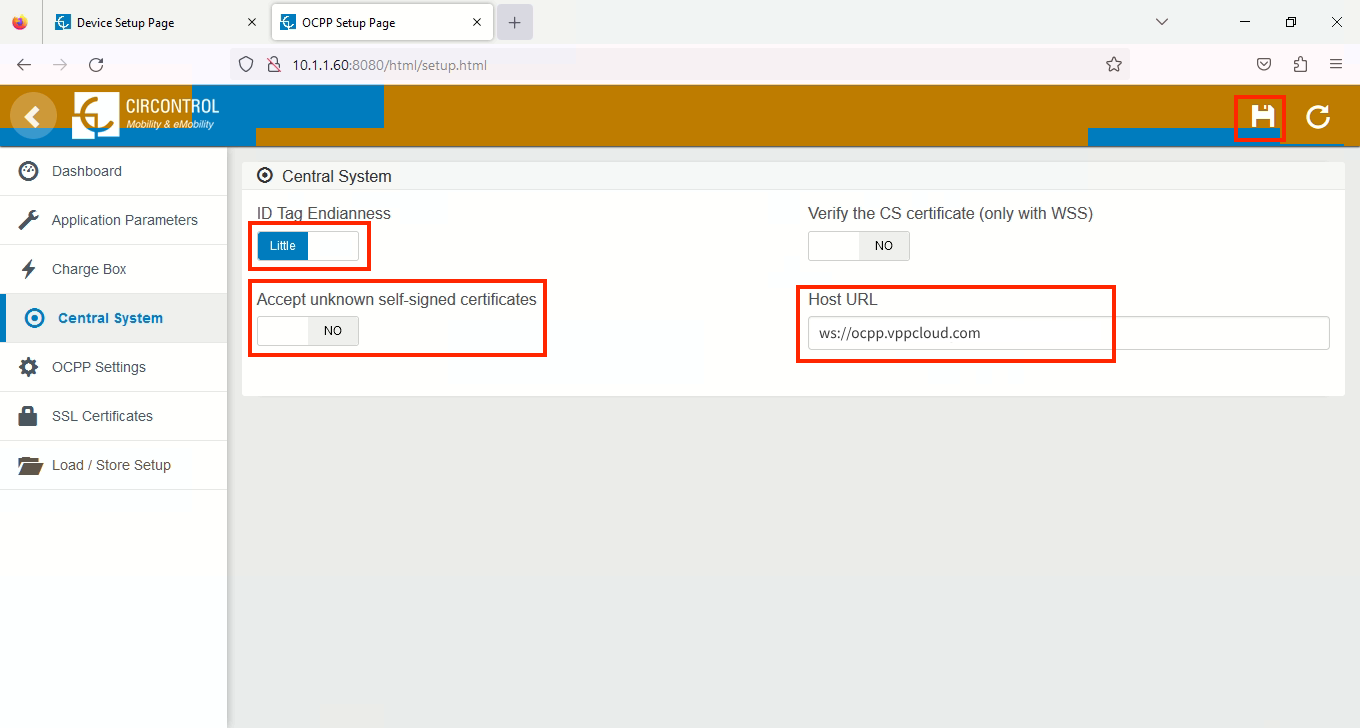
- Navigate to the “Central System” menu
- Set Accept unknown self-signed certificates: No
- Set Verify the CS certificate: “No”
- Set HOST URL: ws://ocpp.vppcloud.com
- Click the “Save” icon in the top right-hand corner
Step 6. Configure Charge Box settings
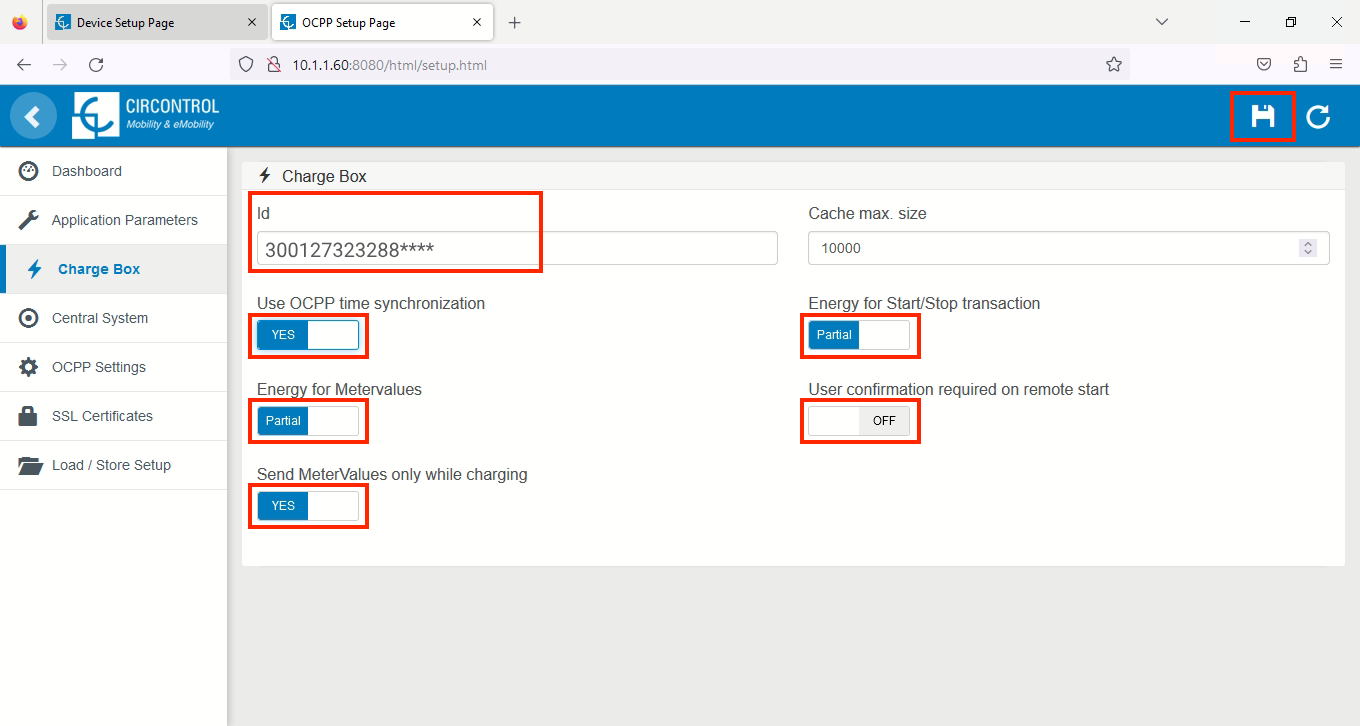
- On the navigation menu select “Charge Box”
- Set the Id field to match the Device ID obtained from the HEMS app in step 1 above
- Use OCPP time synchronization: Yes
- Energy for Metervalues: Partial
- Send MeterValues only while charging: Yes
- Energy for Start/Stop transaction: Partial
- User confirmation required on remote start: Off
- Click the “Save” icon in the top right
Step 7. Complete the Setup
After a few minutes, the charging station will be successfully added to the app. You can now see and manage it within your enjoyelec HEMS App.
