Support center
Provide you with comprehensive product operation guidelines
Installer
This page provides general instructions for configuring Delta Chargers with the enjoyelec App. For detailed configuration support on specific models, please contact us.
Step 1. Retrieve OCPP information from enjoyelec HEMS App
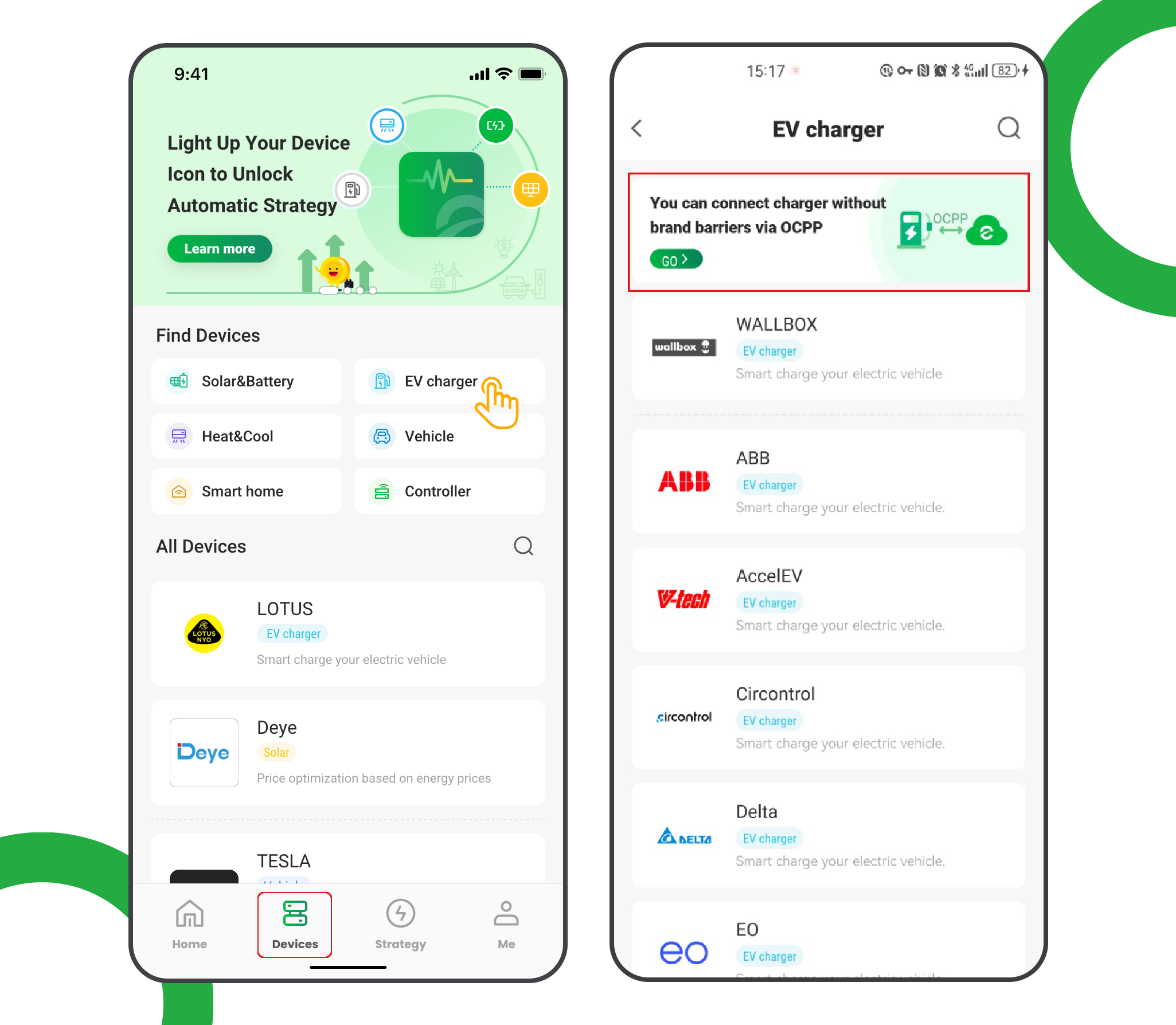
- Enter the app and open ‘Devices’
- Select ‘EV charger’
- Tap the ‘OCPP connection’ banner
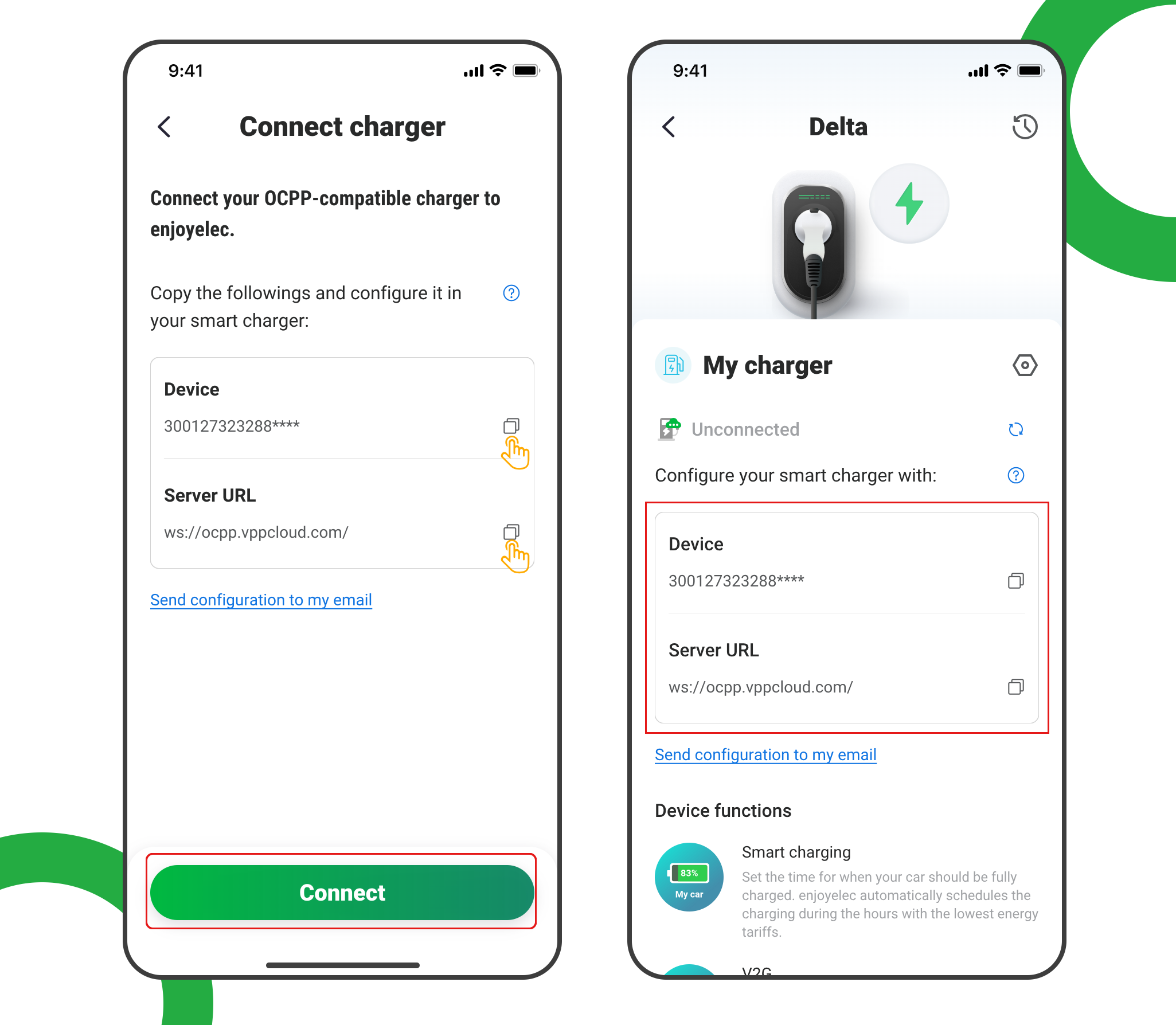
- Tap ‘Connect’ to access the OCPP information retrieval page
- Copy the Server URL and Device ID, which will be used later when configuring the charging station
Step 2. Access configuration portal
- The web configuration tool can be accessed via the charger’s Wi-Fi hotspot or Ethernet port. These tips assume the Wi-Fi hotspot method.
- The web configuration tool cannot be accessed via the home Wi-Fi network, even if the charger is connected to the home Wi-Fi network.
- The Wi-Fi hotspot SSID is the charger’s serial number, e.g. “JV99999999999WE”. The password is printed on materials included with the charger.
- With your device connected to the Wi-Fi hotspot, access the web configuration tool at http://192.168.5.1.
- Login using “admin”; the password is printed on materials included with the charger.
Step 3. Configure charger
- Navigate to Configuration tab and set:
- Charge Box ID: <as obtained from the HEMS app in Step 1 – Device ID>
- Server URL: ws://ocpp.vppcloud.com
- OCPP Version: OCPP1.6J
- Offline Policy: No Authentication
- Max Charging Current (A): the rating of the circuit. VALUE MUST BE ADVISED BY AN ELECTRICIAN
- Communication: according to your local network settings (e.g. Wi-Fi SSID, etc.).
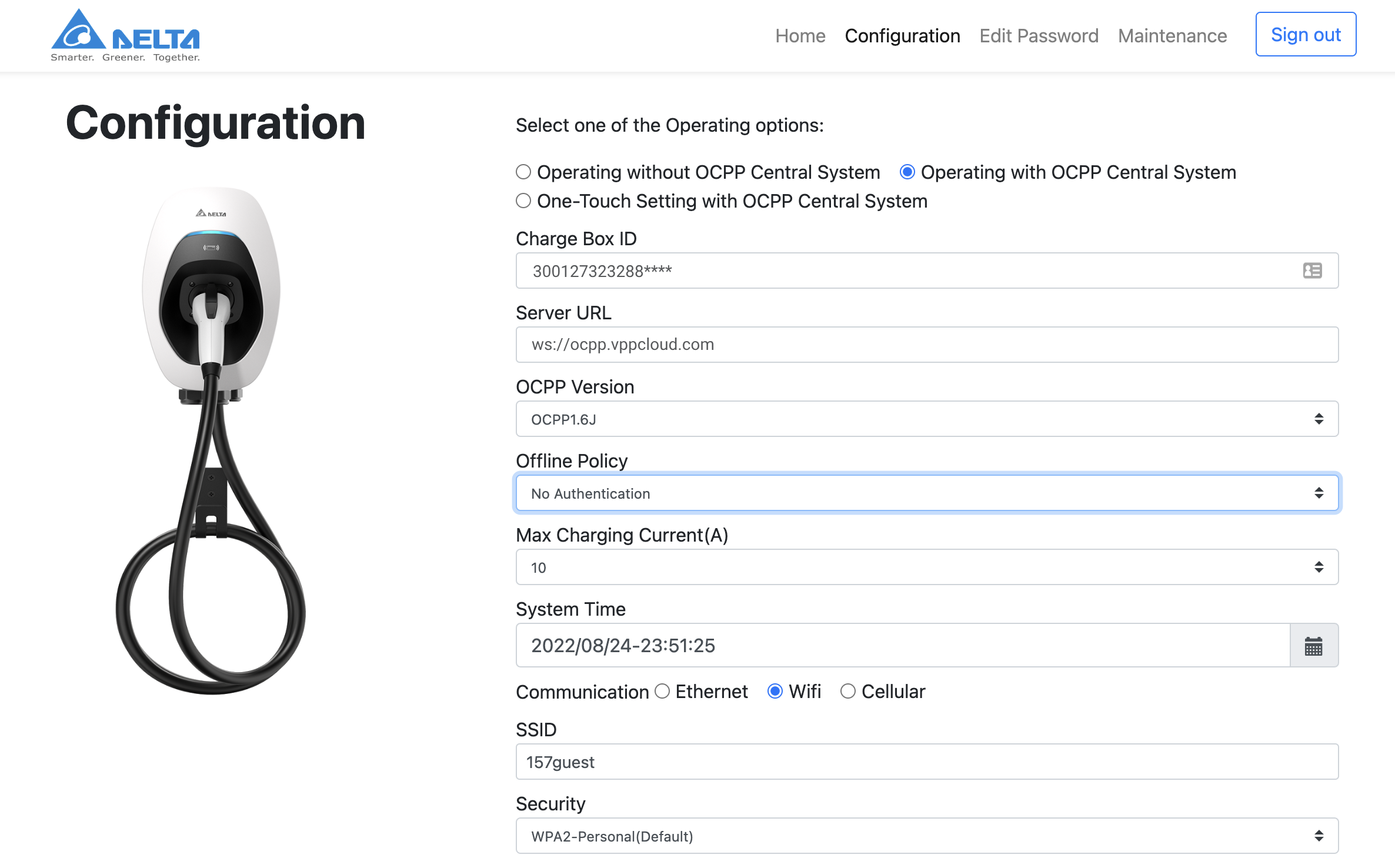
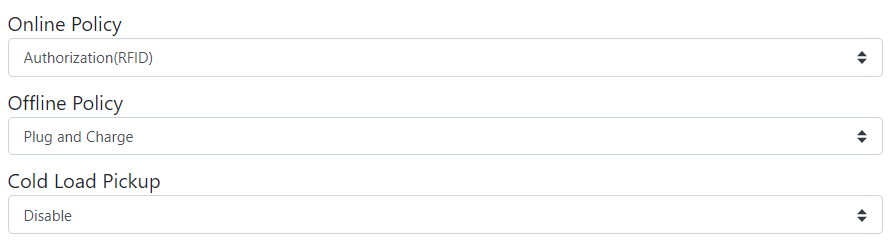
If your charger has those options, please set them as per the screenshot:
- Online Policy: Authorization (RFID) (you won’t need to tap an RFID to start charging – HEMS App does it for you)
- Offline Policy: Plug and Charge
- Cold Load Pickup: Disable
Do not set Online Policy to “Plug and Charge”. If you do, HEMS App will not be able to stop charging.
Step 4. Complete the Setup
After a few minutes, the charging station will be successfully added to the app. You can now see and manage it within your enjoyelec HEMS App.
