
Support center
Provide you with comprehensive product operation guidelines
Installer
This page provides general instructions for configuring EO Chargers with the enjoyelec App. For detailed configuration support on specific models, please contact us.
Step 1. Retrieve OCPP information from enjoyelec HEMS App
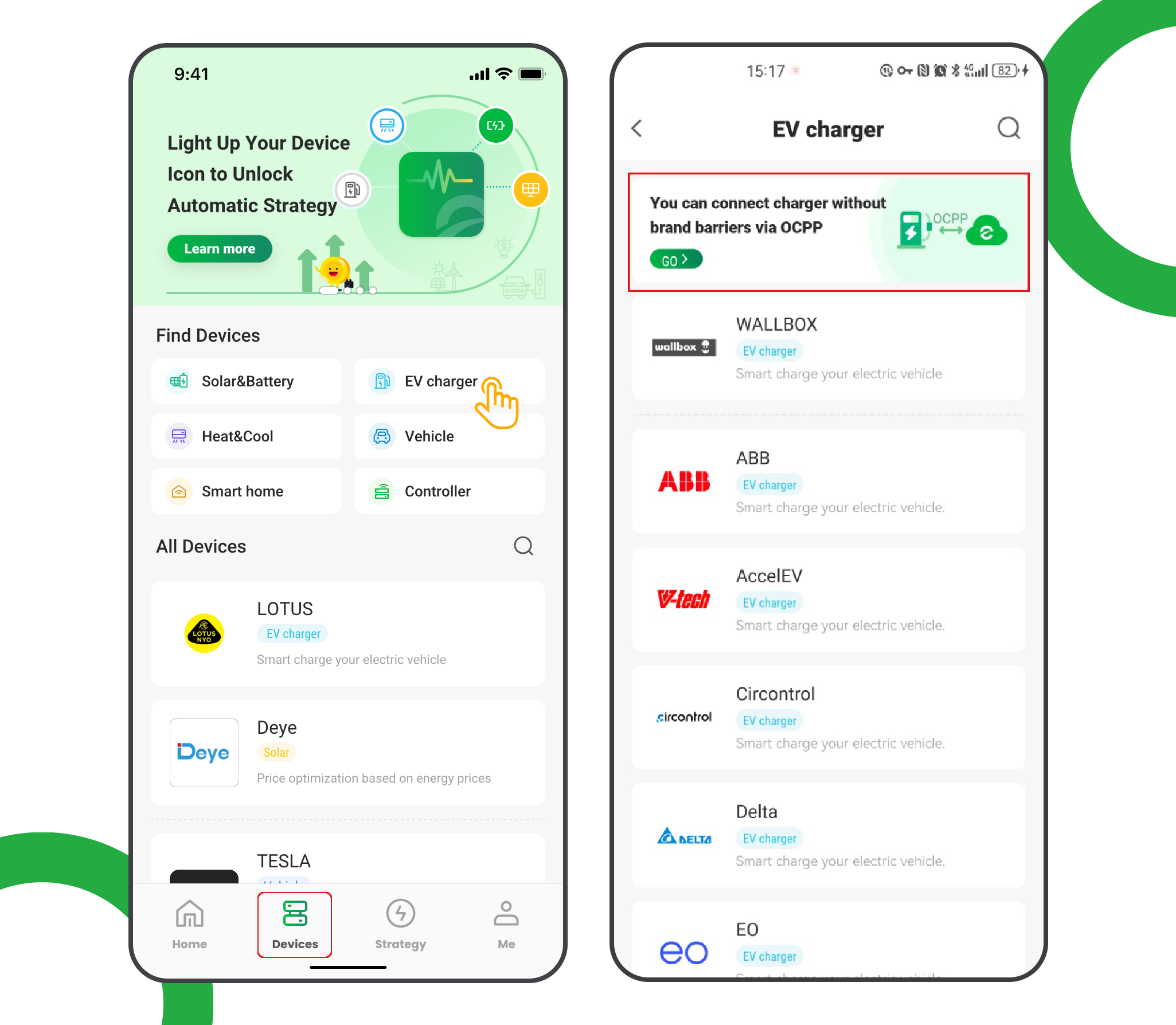
- Enter the app and open ‘Devices’
- Select ‘EV charger’
- Tap the ‘OCPP connection’ banner
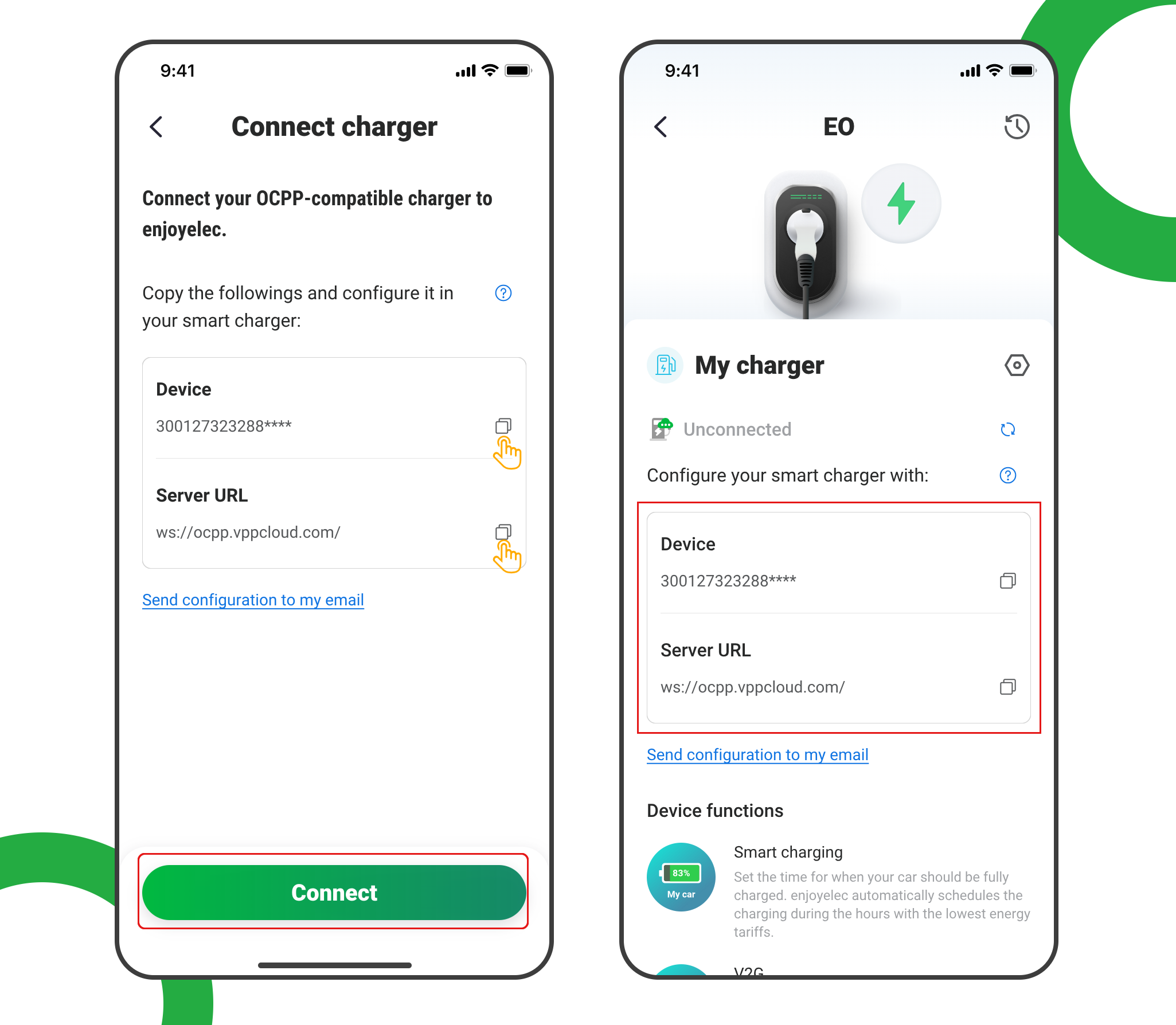
- Tap ‘Connect’ to access the OCPP information retrieval page
- Copy the Server URL and Device ID, which will be used later when configuring the charging station
Example: ws://ocpp.vppcloud.com/300127323288****
Step 2. Connect to the chargers Wi-Fi hotspot
Power up the charger
Within 10 minutes of powering up access to the Wi-Fi hotspot created by the charger.
The network name will be in the form “eo-xxxxxx” where xxxx is the serial number of your charger.
The password for the network is provided with the documentation for your charger.
Connect to this network.
Step 3. Login to the portal
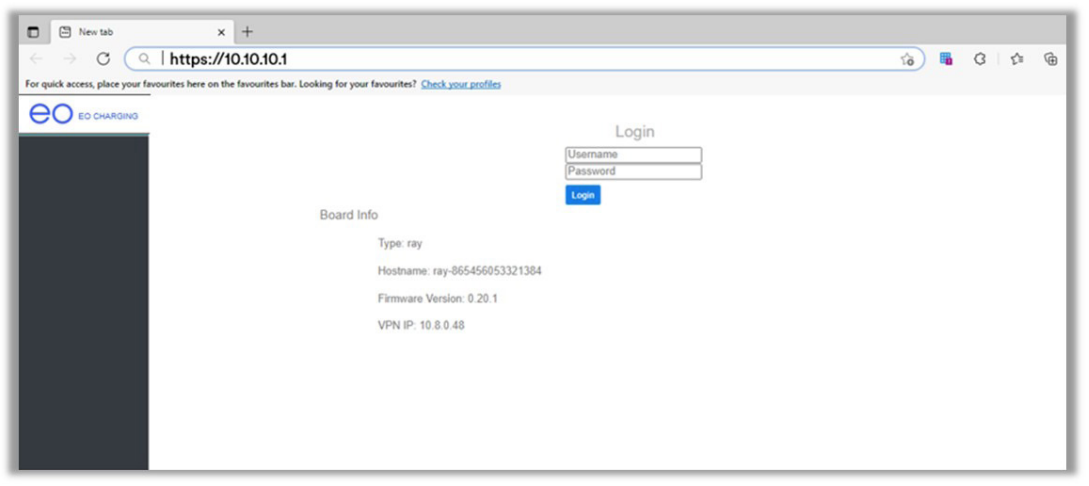
- In your web browser enter the URL http://10.10.10.1/
- Login to the portal using:
- Username: “Installer” (without the double quotes)
- Password: as specified in the documentation / manual provided with your charger
Step 4. Connect to Wi-Fi
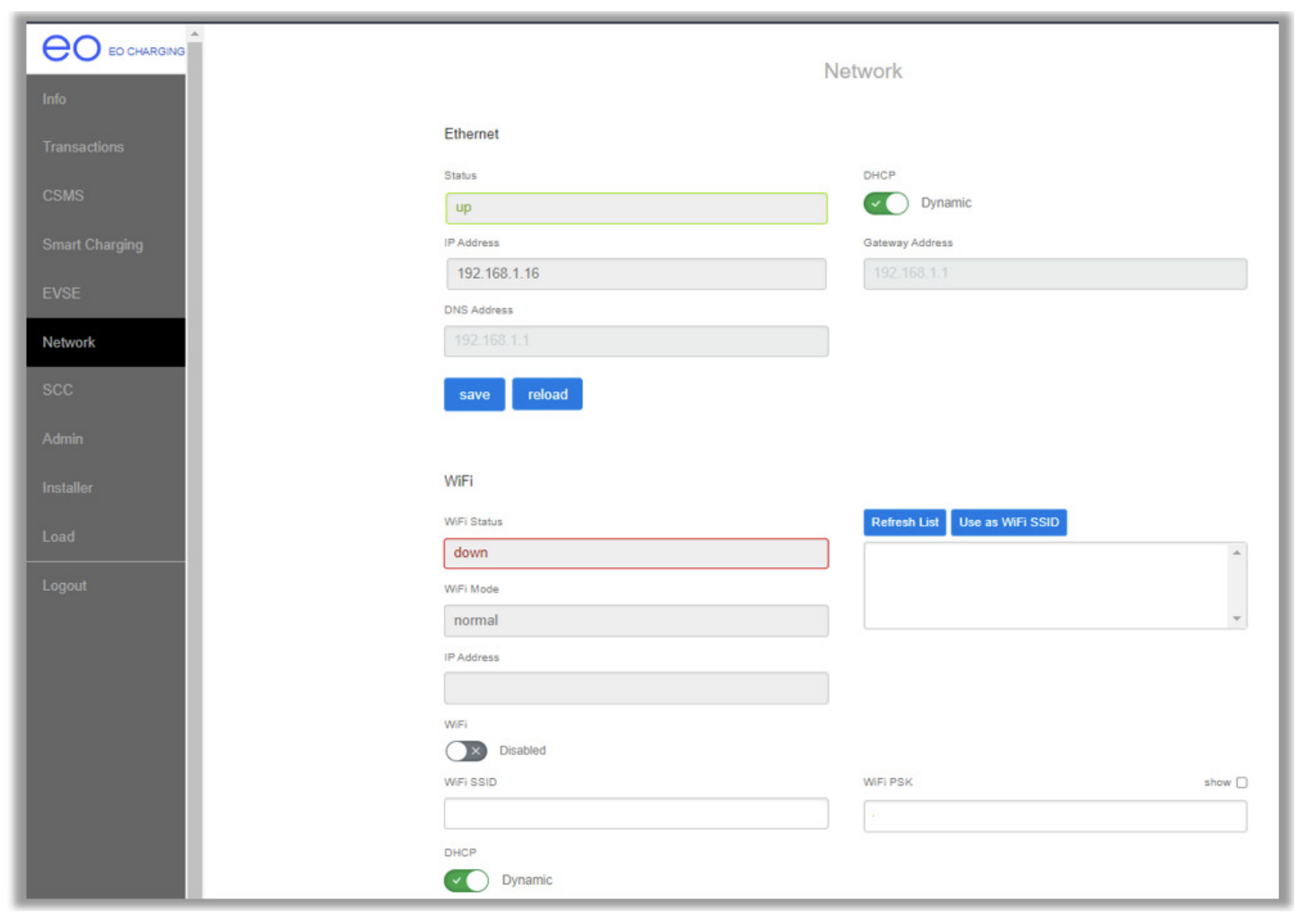
Navigate to the Network menu in the charger portal:
- Enable the Wi-Fi toggle
- Manually enter your home Wi-Fi network name and password
- Enable the DHCP toggle
- Click Save
Step 5. Configure OCPP settings
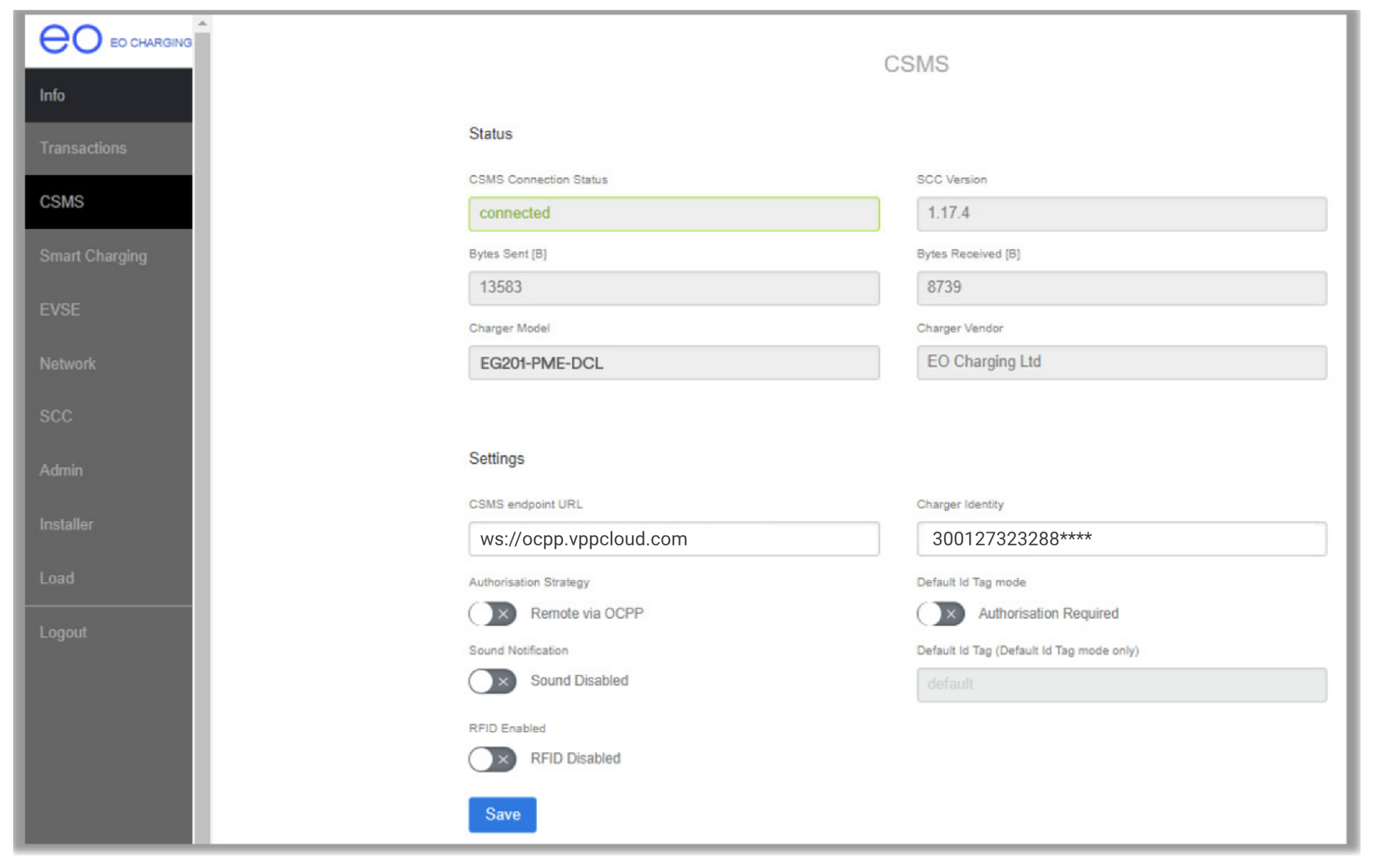
Navigate to the “CSMS” menu in the charger portal, set
- CSMS Server Address to: ws://ocpp.vppcloud.com
- Charger identity: <as obtained from the HEMS app in Step 1>
- Offline Authorisation toggle: set to disabled
- All other values can be left as the default settings.
- Click Save.
Step 6. Check Smart Charging
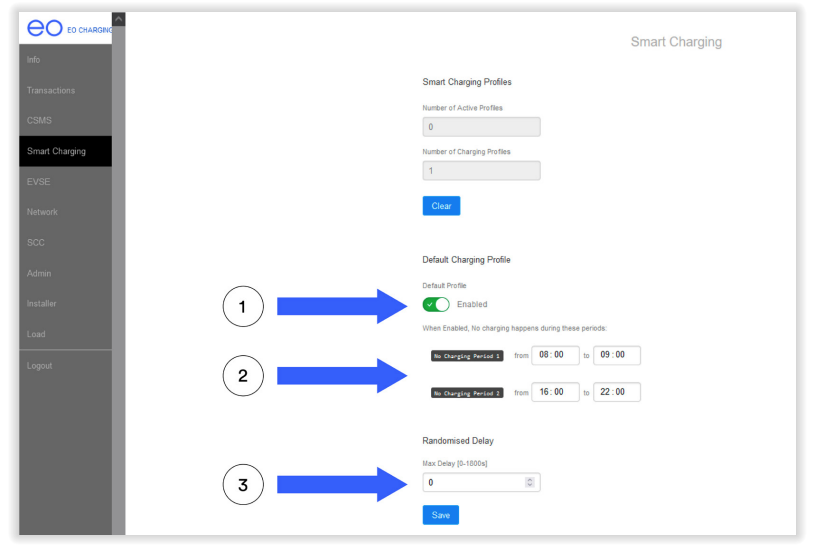
Navigate to the Smart Charging menu, check that
- Default profile is disabled
- Randomised delay is set to 0
Step 7. Restart the charger
Navigate to the Admin menu:
- Click the “restart” button next to the “SCC client” text
- Click the “restart” button below the EVSE text
Step 8. Complete the Setup
After a few minutes, the charging station will be successfully added to the app. You can now see and manage it within your enjoyelec HEMS App.
