

Support center
Provide you with comprehensive product operation guidelines
Installer
Eaton charger Integration Guide
This page provides general instructions for configuring Eaton chargers with the enjoyelec App. For detailed configuration support on specific models, please contact us.
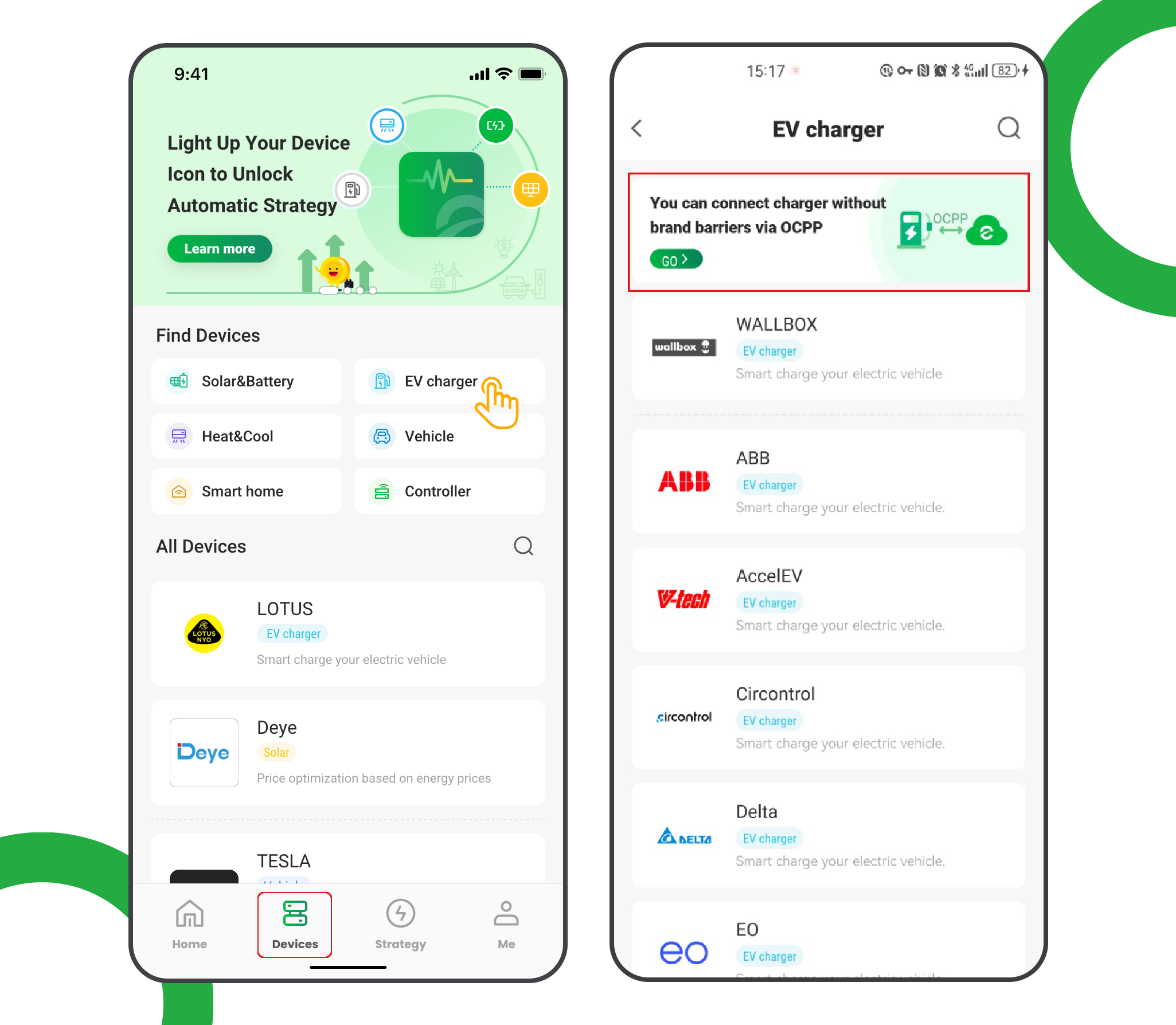
Step 1. Retrieve OCPP information from the enjoyelec HEMS App
- Open the enjoyelec HEMS App and go to ‘Devices’.
- Select ‘EV charger’
- Tap the ‘OCPP connection’ banner
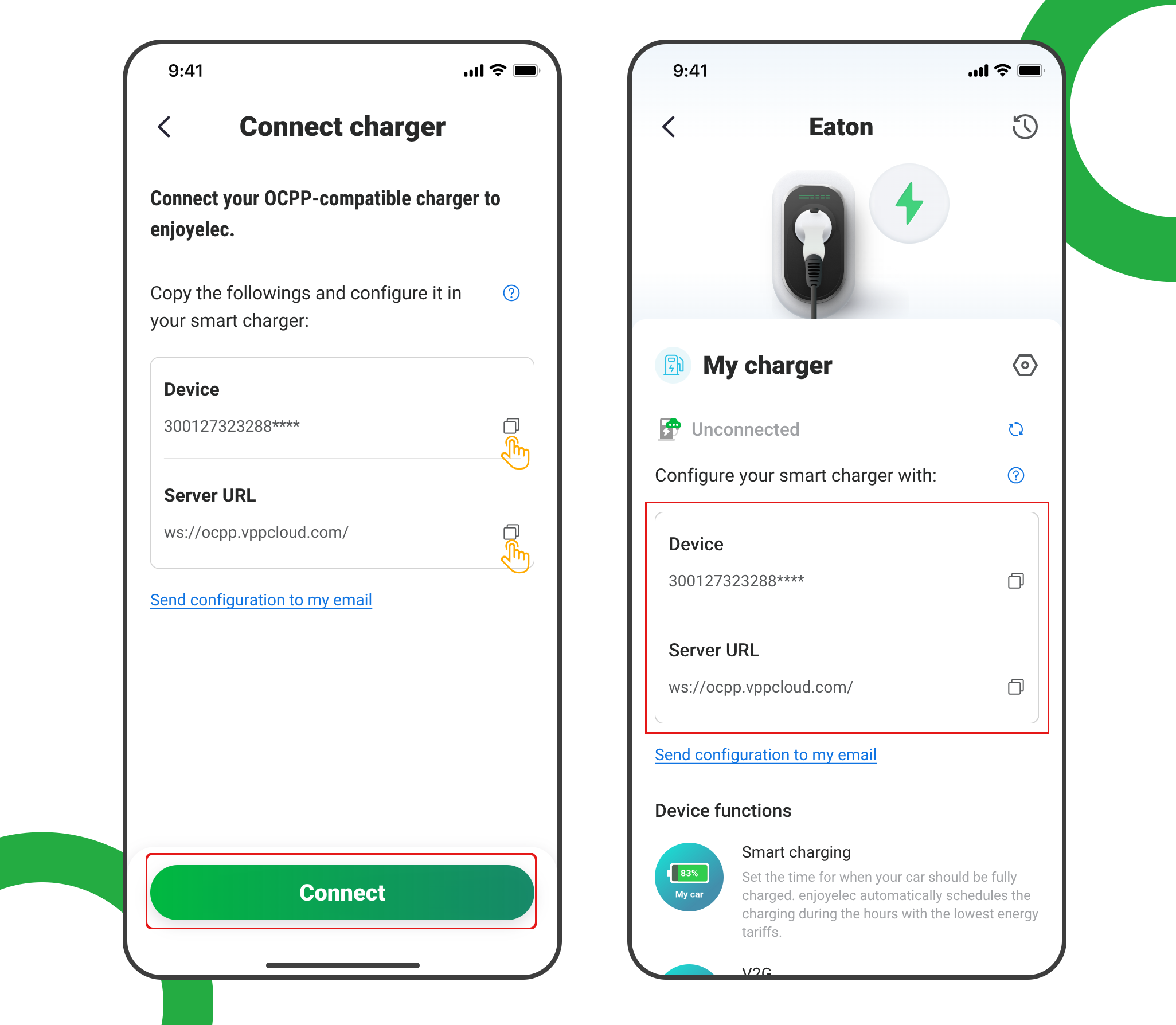
- Tap ‘Connect’ to access the OCPP information retrieval page
- Copy the Server URL and Device ID, which will be used later when configuring the charging station.
Example: ws://ocpp.vppcloud.com/300127323288****
Step 2. Connect the Charger to Wi-Fi and Access the Configuration Page
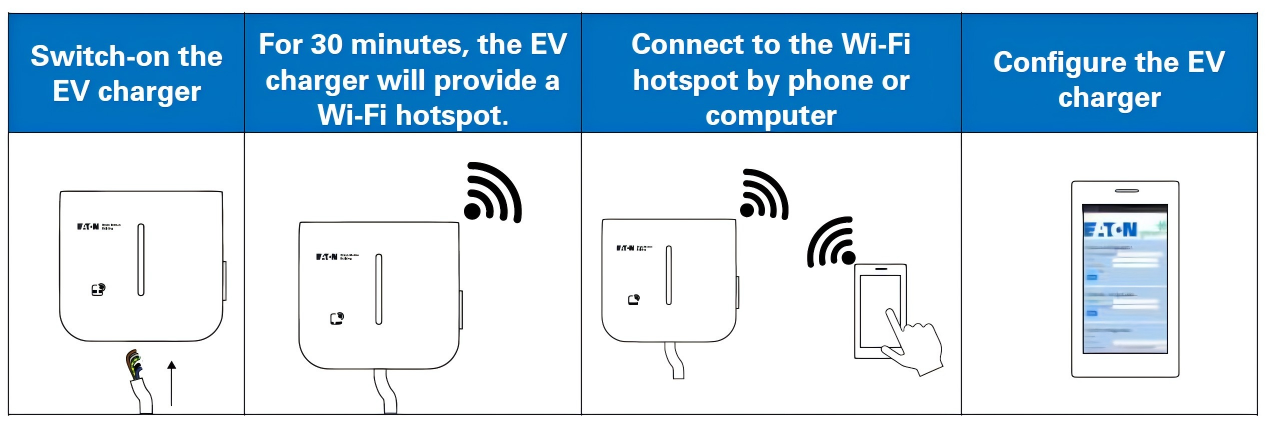
- Turn the EV charger OFF and ON using the circuit breaker. Wait for the LED indicator on the EV charger to turn green.
- Enable Wi-Fi on your phone, computer, or tablet, and search for available SSIDs(networks).
- Connect to the charger’s Wi-Fi hotspot. The network name will appear as GM_XXXXXX, where XXXXXX is the last six digits of the charger’s serial number.
- Each charger has a unique Wi-Fi hotspot password. The password is provided on the first page of the quick start guide that is included in the package. Password is provided in text and QR code format. The password should be stored safely for future use.
- Use the password provided to log in.
- Once connected, go to the address: http://192.168.53.1 in your browser.
- If the fields appear empty, try clearing your browser’s cache or verifying your Wi-Fi connection.
- To access the configuration page, enter the default username and password. By default, the username and password are both set to admin.

Step 3. Configure OCPP in the Configuration Page
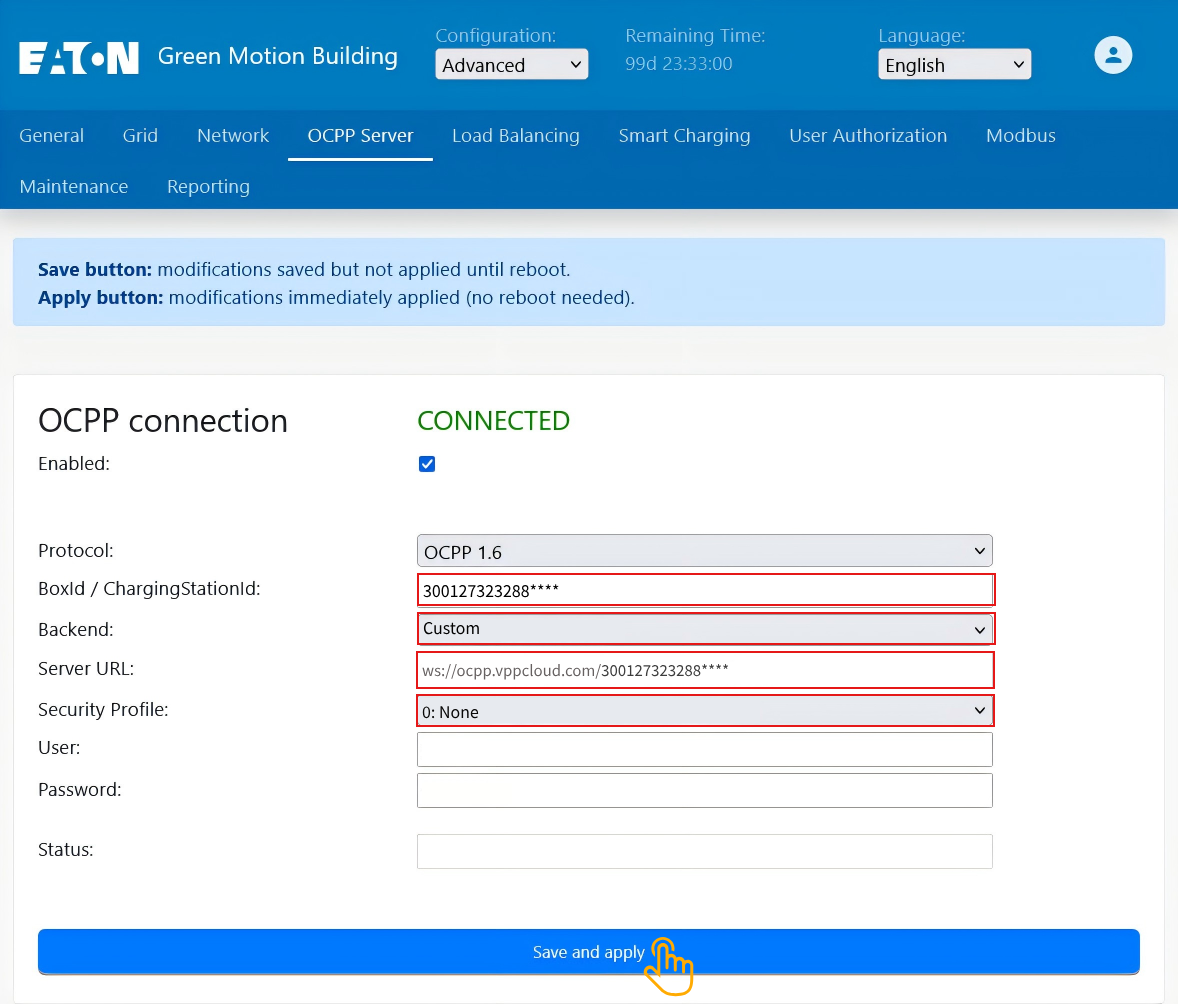
- Select OCPP Server
- In the “Backend” field, select the OCPP Server you wish to establish a connection with. Select “Custom“
- Add the Server URL you copied from your account.
For example: ws://ocpp.vppcloud.com/300127323288****
- From the drop-down menu, select ‘0: None’for the security profile.
- Click “Save and Apply” at the bottom of the tab.
Step 4. Complete the Setup
After a few minutes, the charging station will be successfully added to the app. You can now see and manage it within your enjoyelec HEMS App.