

Support center
Provide you with comprehensive product operation guidelines
Installer
LG THERMA V R290 Heat Pump Integration Guide
To ensure your Heat Pump integrates smoothly into the HEMS system, please follow the steps below:
Step 1 – Confirm connection methods and interface parameters
The enjoyelec HEMS Controller supports Modbus-RTU communication with LG THERMA V R290 Heat Pump model. A standard RS485 connection is required to link the two devices.
Please refer to the LG THERMA V R290 Heat Pump User Manual to identify the exact location of the RS485 interface, verify the factory default parameters, and understand how to modify them if necessary.
Step 2 – Connect the heat pump to the HEMS Controller
Connect the RS485 cable to the corresponding interface on the HEMS Controller based on the heat pump’s port definitions.
(Note: Detailed interface parameters and wiring examples for the HEMS Controller can be found in the examples below or in the specific HEMS User Manual.)
Step 3 – Configure interface parameters in the enjoyelec app
After completing the physical wiring, power on both devices. Open the enjoyelec app to bind the device and enter the communication parameters that match your actual setup.
(For step-by-step app instructions, please refer to the enjoyelec User Manual.)
Once configured, the LG THERMA V R290 Heat Pump will be fully integrated into the HEMS, enabling you to monitor real-time data and control the device remotely via the app.
Detailed Example: Integrating Model THERMA V R290
Step 1 – Identification and Verification
For the THERMA V R290 model, the communication interface is located at the bottom of the unit. By consulting the LG THERMA V R290 heat pump’s User Manual, you can find the communication interface on the terminal block 2 of the indoor unit the terminal 21 marked as “A” is RS485A and terminal 22 marked as “B” is RS485B ,show in the diagram below:
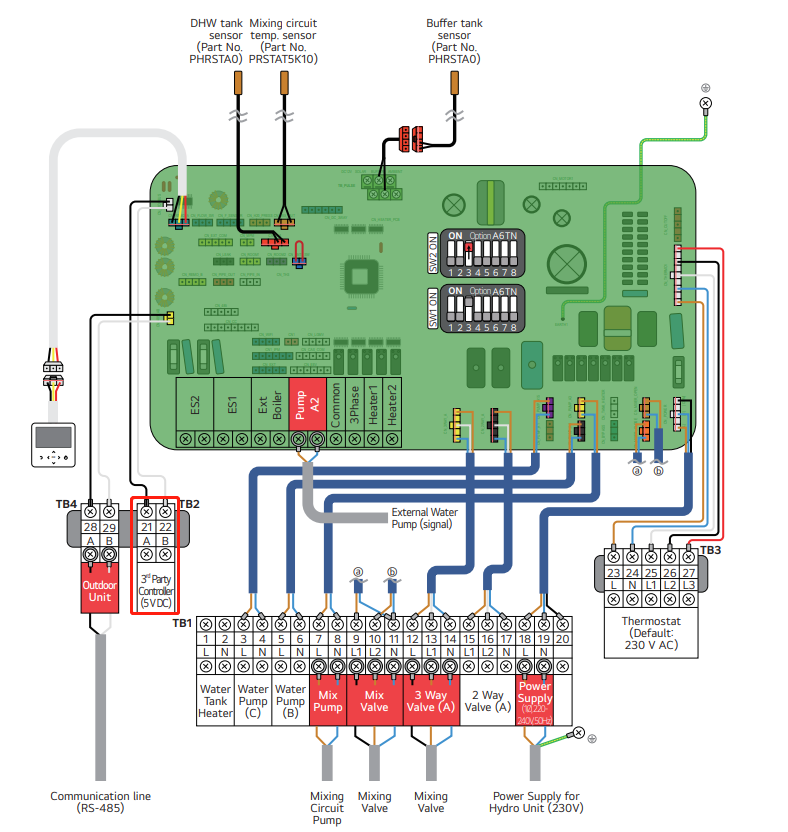
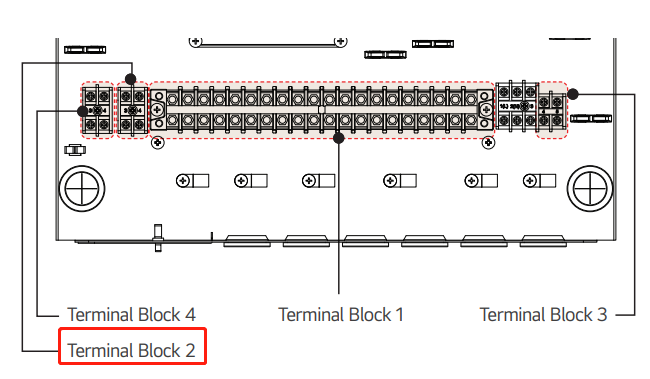
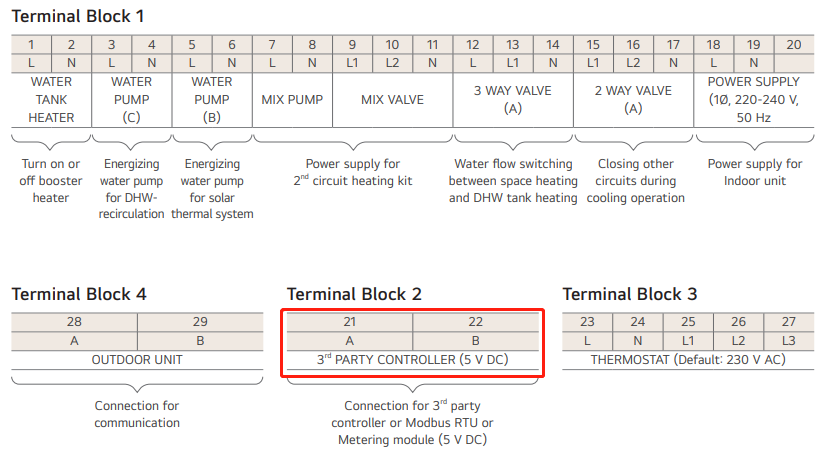
- How to wire enjoyelec HEMS controller
Follow below procedures step 1 ~ step 4.
Step 1. Check if the power of the unit is turned off.
Step 2. Disassemble front panels and distinguish control box(indoor) of the unit.
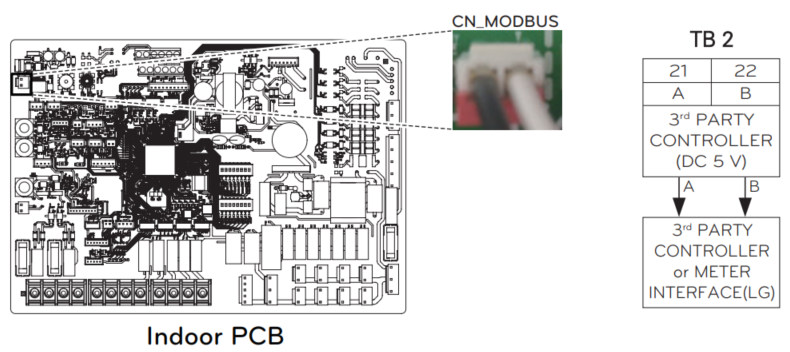
Step 3. Check if the harness (White) is inserted fully to the indoor unit PCB (CN MODBUS)
Step 4. Connect the HEMS controller to terminal block 2(21/22) completely.
Note: If the CN_MODBUS port is used to interlink with LG metering module, a 3rd-party controller cannot be connected at the same time.
The baud rate of the RS485 port on the LG THERMA V R290 heat pump is typically set to 9600 by default, and the Modbus address is typically set to 33 (If it fails, you can try address 21).
Note: To use this function, DIP switch No.1 of SW1 must be set to ON and No.2 to OFF.
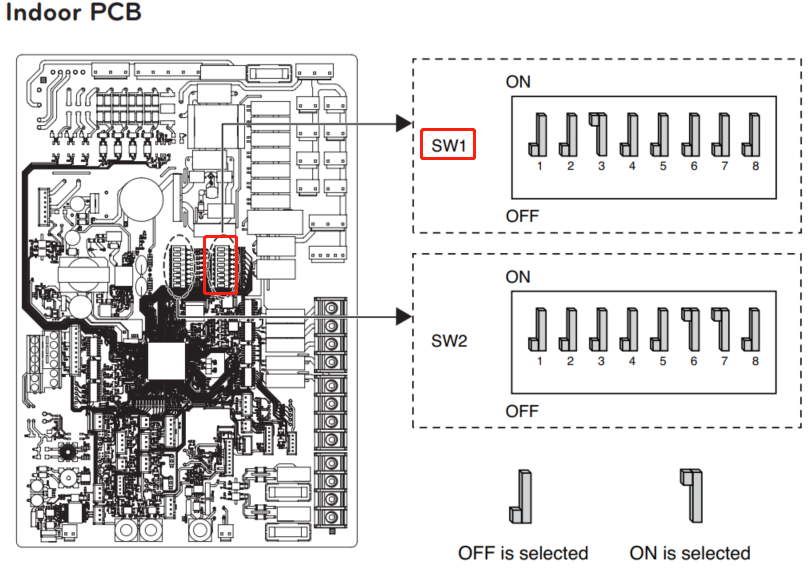
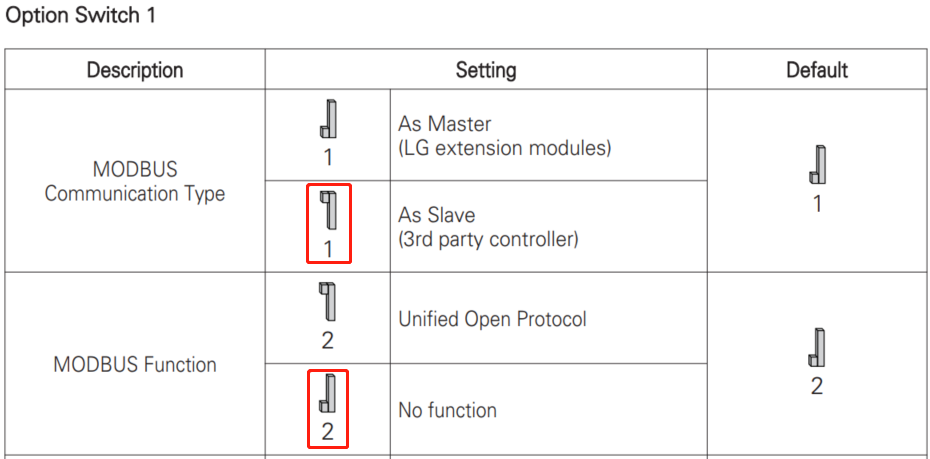
• Default Baud Rate: 9600
• Default Modbus Address:33 or 21
Step 2 – Physical Wiring
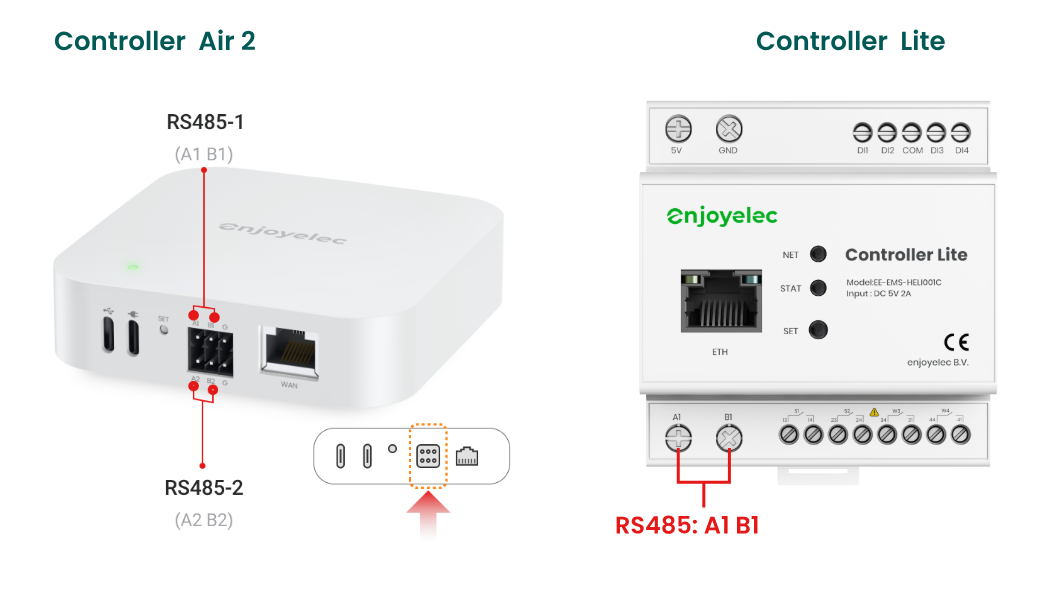
Ensure that the RS485 port parameters on both the heat pump and the HEMS Controller match. For a default baud rate of 9600, refer to the diagram for the corresponding port on the controller:
• Pay close attention to the A and B cable color coding to ensure the wiring sequence on the Controller side matches the Heat pump side perfectly.
• If a different baud rate is required, please refer to the HEMS Controller manual or use the enjoyelec app to adjust the controller’s port settings.
• The RS485 interface of Controller Air2 is “A1&B1” or “A2&B2”. The Controller Lite is “A1&B1”. Show in the diagram below:
Step 3 – App Configuration
With the physical connection established:
- Select Device: In the enjoyelec app, choose the correct device type, brand (LG), and model.
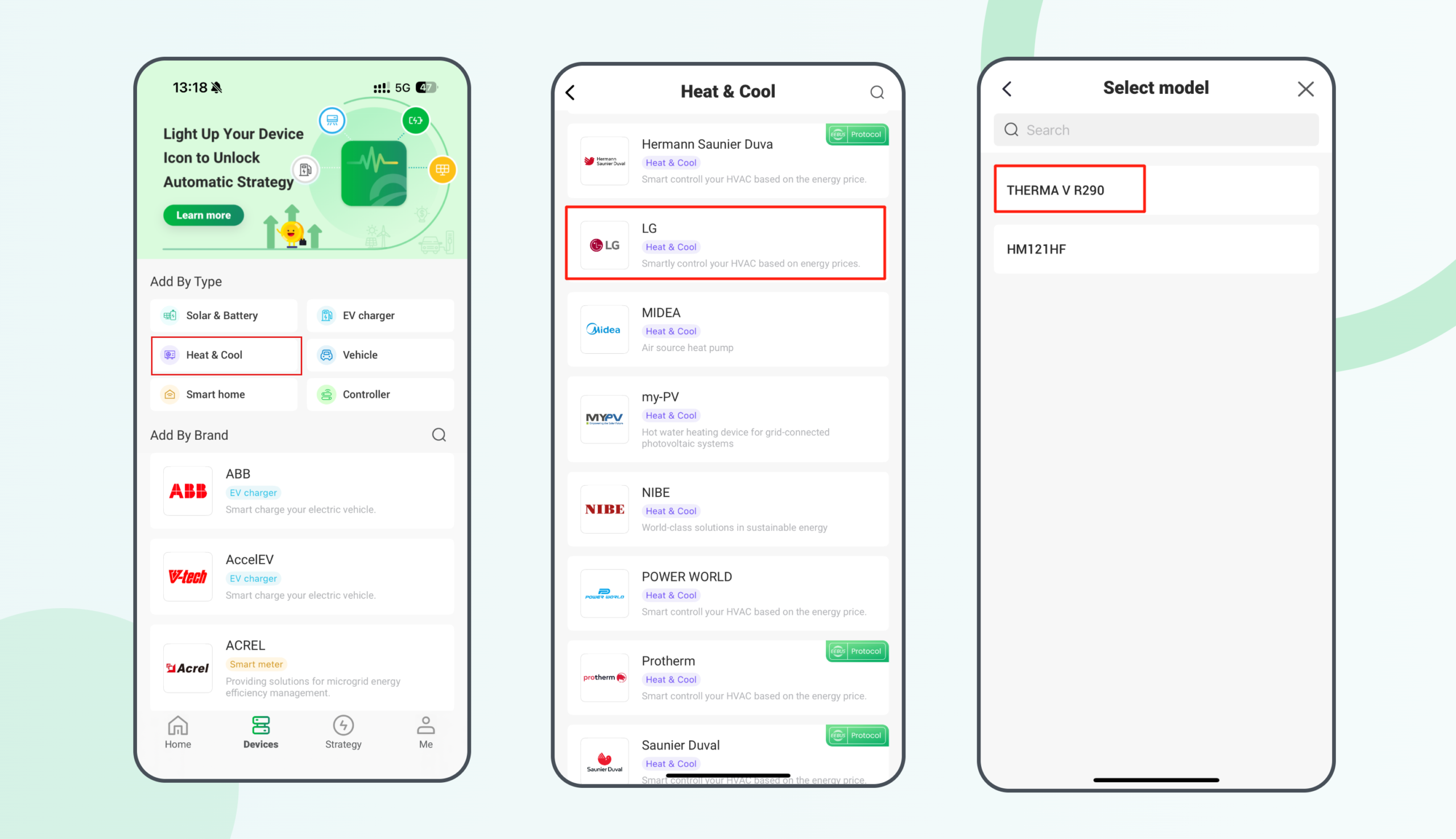
2. Set Protocol: Define the communication protocol, physical port number, and matching parameters (Baud rate/Address).
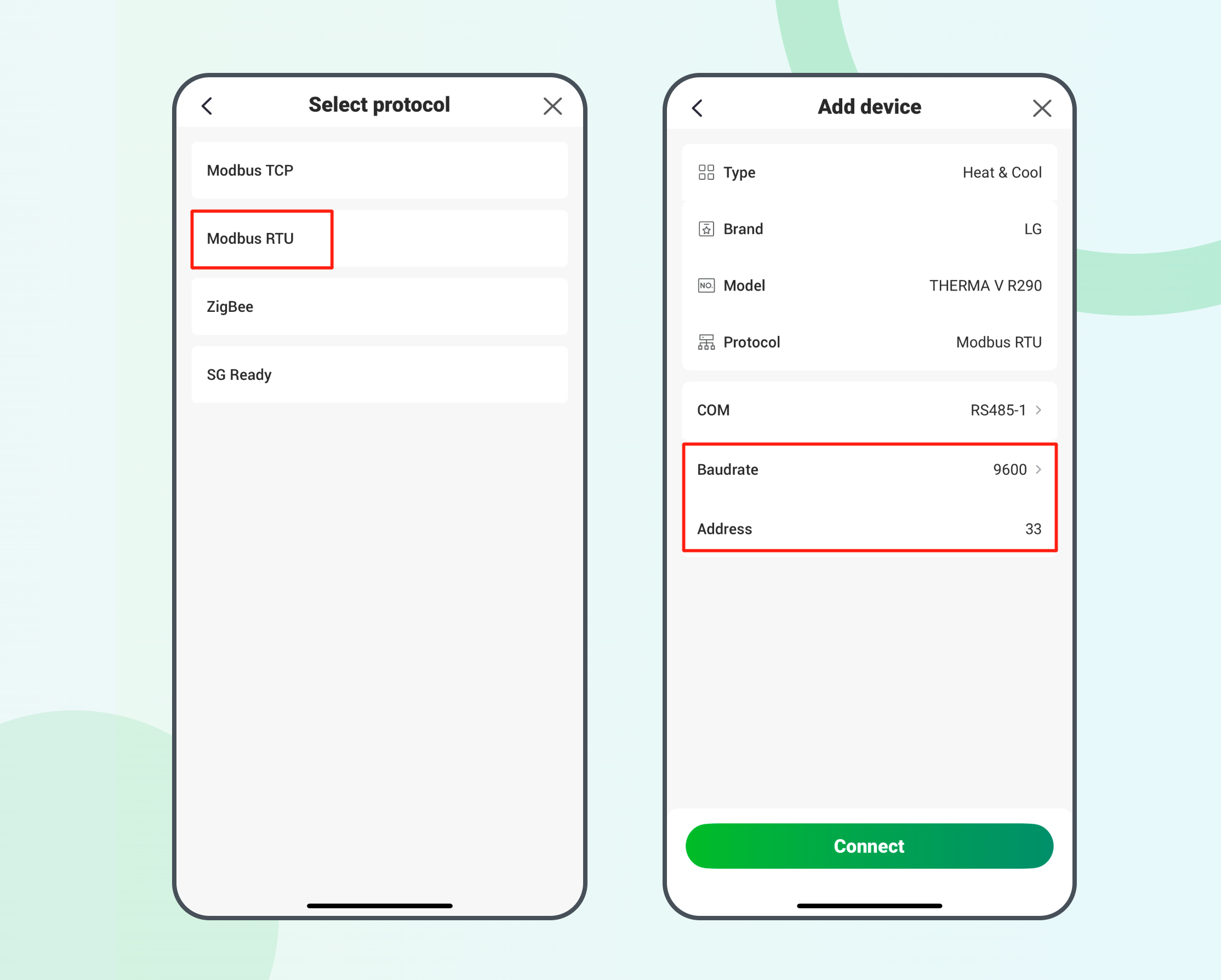
3. Establish Connection: Once saved, the Controller will pair with the heatpump. You can then begin data collection and active energy management.