

Support center
Provide you with comprehensive product operation guidelines
Installer
SAJ H2-T2 Series Inverter Integration Guide
To ensure your inverter integrates smoothly into the HEMS system, please follow the steps below:
Step 1 – Confirm connection methods and interface parameters
The enjoyelec HEMS Controller supports Modbus-TCP communication with most SAJ H2-T2 Series models. Both devices must be connected to the same router.
Please refer to the SAJ H2-T2 Series User Manual to confirm network status, verify the factory default parameters, and understand how to modify them if necessary.
Step 2 – Connect the inverter and HEMS Controller to the same local area network.
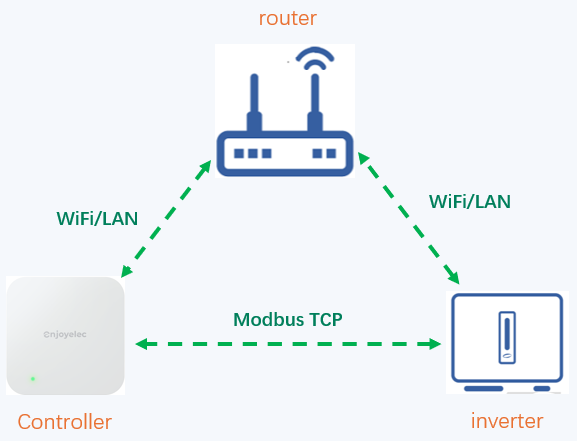
Connect the inverter to the router via Ethernet or WiFi, Additionally, connect the HEMS Controller to the same local area network via Ethernet or WiFi. For how to configure the network, please refer to the user manuals of the inverter and HEMS Controller. The connection diagram is shown below.
Step 3 – Configure interface parameters in the enjoyelec app
After completing the network configuration, power on both devices. Open the enjoyelec app to bind the device and enter the communication parameters that match your actual setup.
(For step-by-step app instructions, please refer to the enjoyelec User Manual.)
Once configured, the SAJ H2-10K-T2 inverter will be fully integrated into the HEMS, enabling you to monitor real-time data and control the device remotely via the app.
Detailed Example: Integrating Model H2-10K-T2
Step 1 – Identification and Verification
- The SAJ Inverter needs the eSolar AIO3 accessory (which can be purchased on the SAJ website) to connect to the home local area network via Wi-Fi:
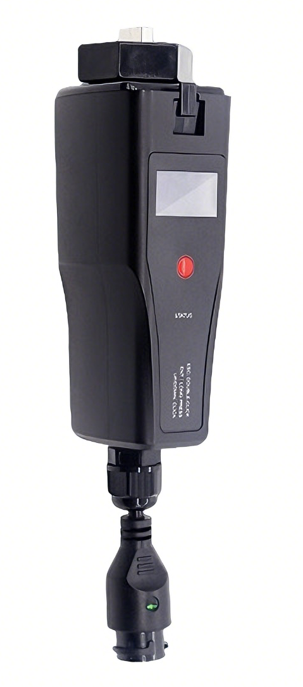
Download the SAJ app and proceed to configure the wireless parameters of the eSolar AIO3 module.Download the SAJ app and proceed to configure the wireless parameters of the eSolar AIO3 module.
• Default Port: 502
• Default Modbus Address: 1
Step 2 – To verify or modify Communication parameter
Use the SAJ Inverter App (eSAJ Home ) to scan the QR code on the side of the inverter.
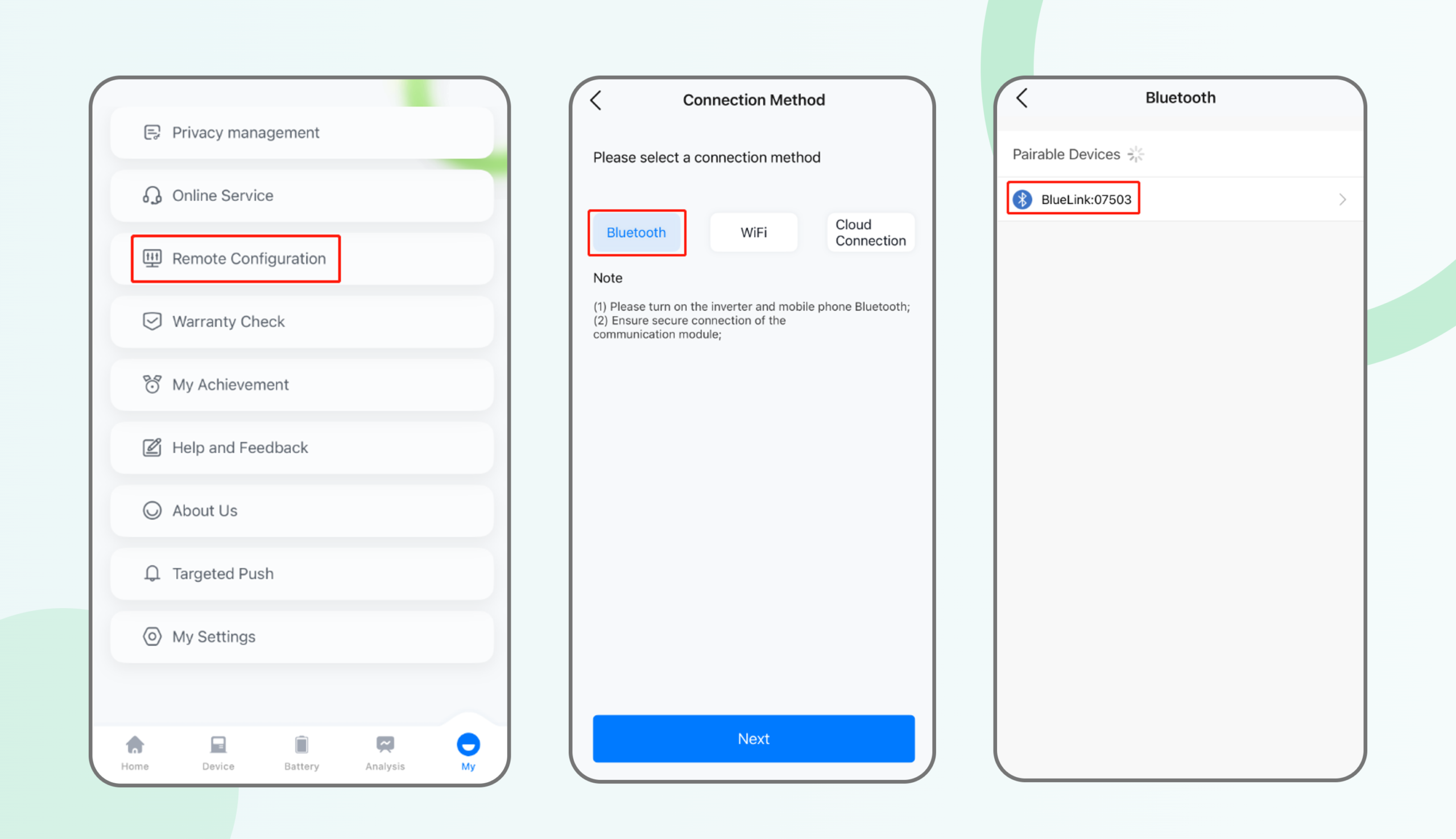
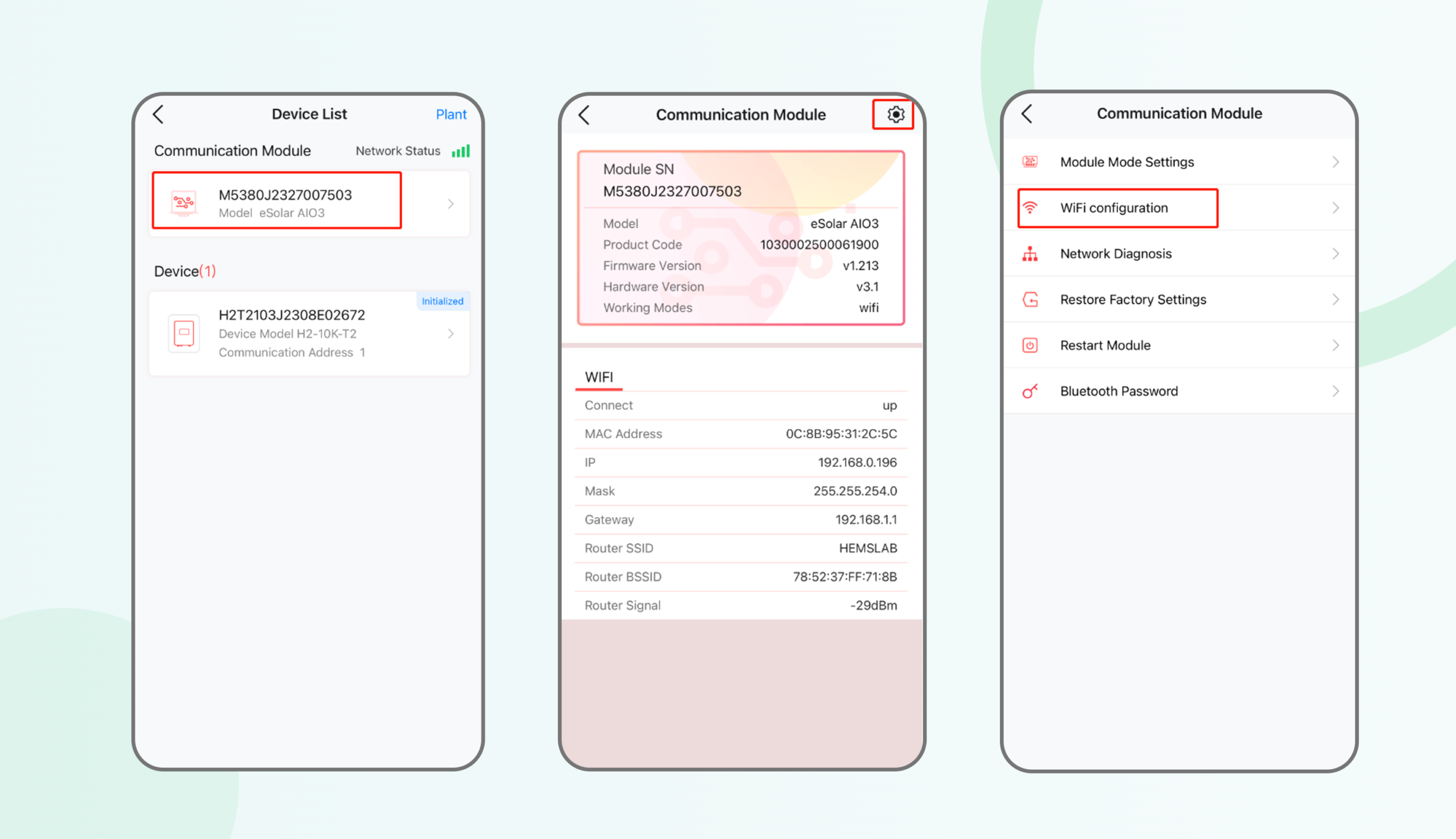
Navigate to Home > My > Remote Configuration > Bluetooth > Connect the Bluetooth of the inverter > Click Model eSolar AIO3(This interface can view the IP address of the inverter) > Click on the settings option > Click Wi-Fi configuration > Click IP configuration > Disable DHCP (dynamic configuration).
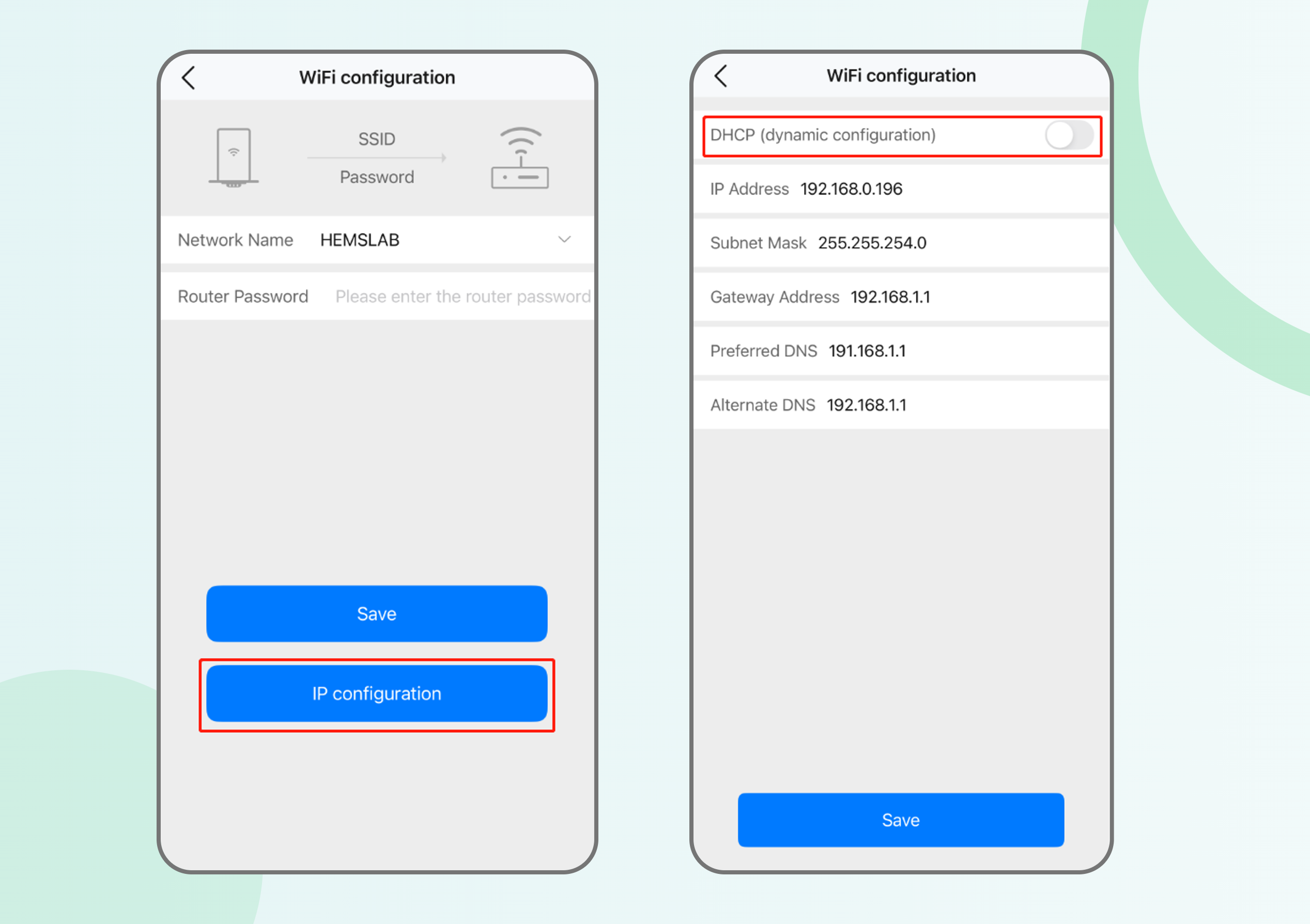
*Tips:
- It is recommended to set a fixed IP for the communication module of SAJ Inverter but be cautious not to have IP conflicts with other devices within the local area network.
- Record the fixed IP of SAJ Inverter and fill it in the enjoyelec app later.
Step 3 – App Configuration
With the physical connection established:
- Select Device: In the enjoyelec app, choose the correct device type, brand (SAJ), and model.
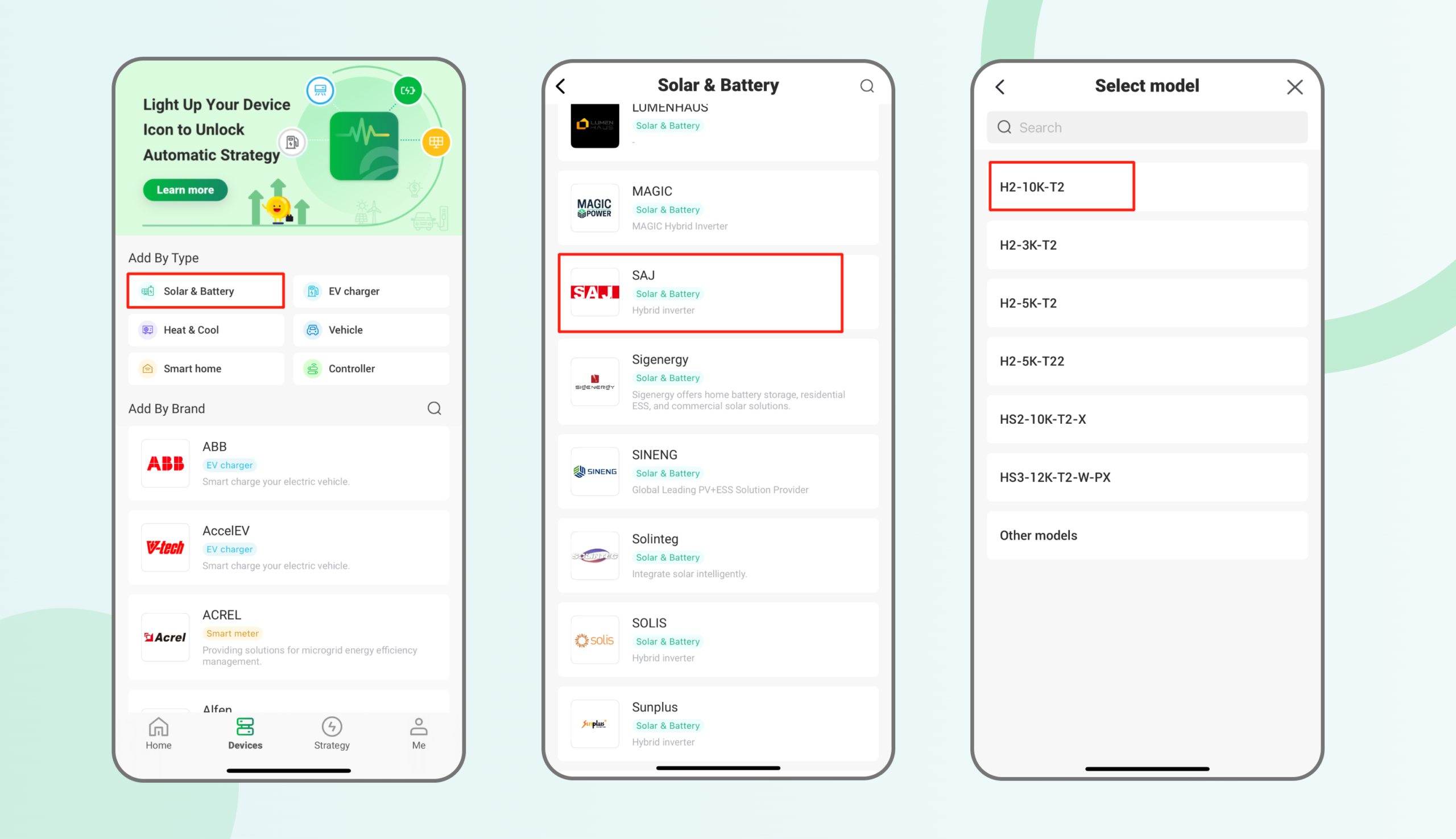
2. Set Protocol: Define the communication protocol, physical port number, and matching parameters (IP/Port/Address).
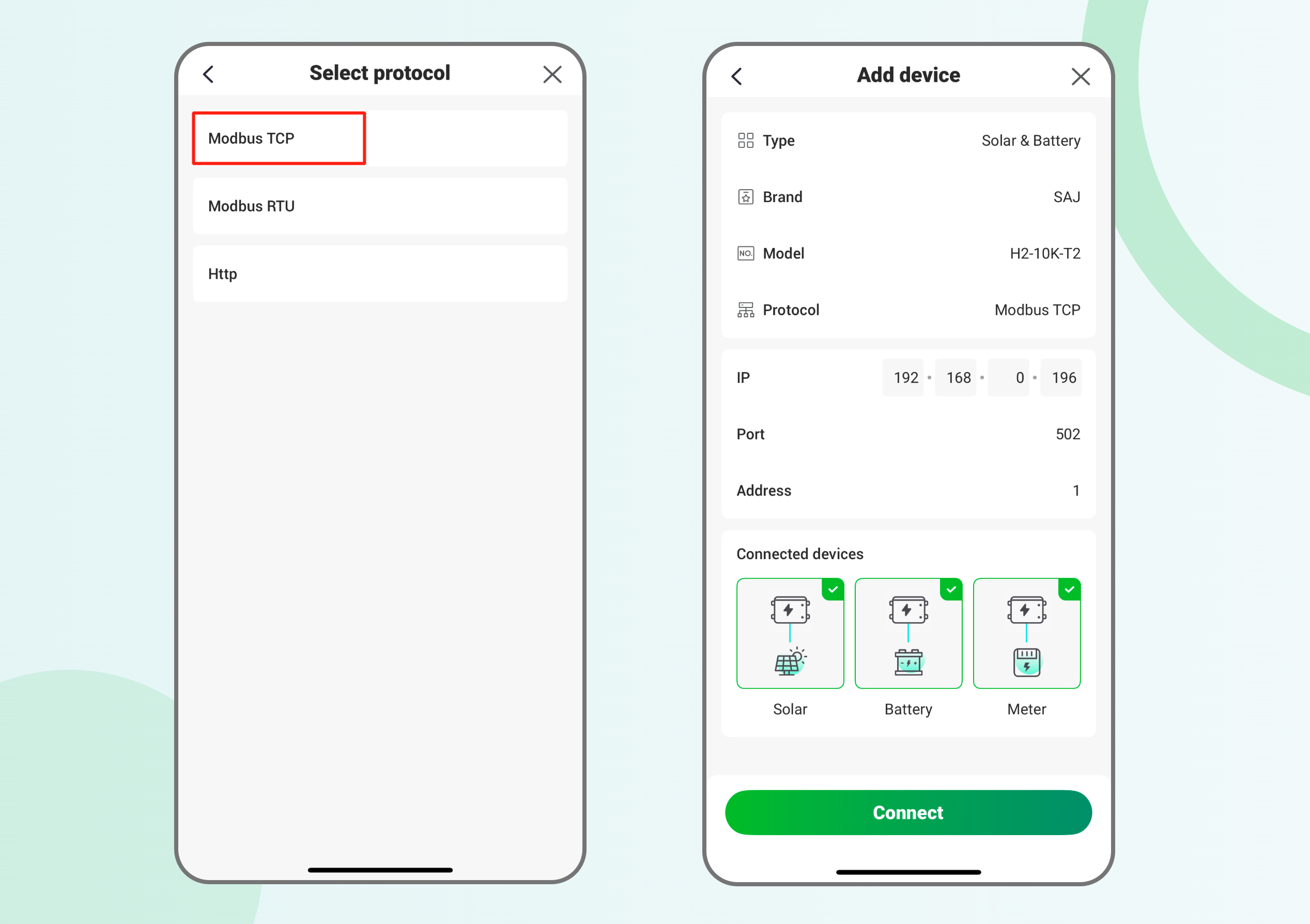
3. Establish Connection: Once saved, the Controller will pair with the inverter. You can then begin data collection and active energy management.