

Support center
Provide you with comprehensive product operation guidelines
Installer
Wallbox Charger Integration Guide
This page provides general instructions for configuring Wallbox Charger with the enjoyelec App. For detailed configuration support on specific models, please contact us.
Step 1. Retrieve OCPP information from enjoyelec HEMS App
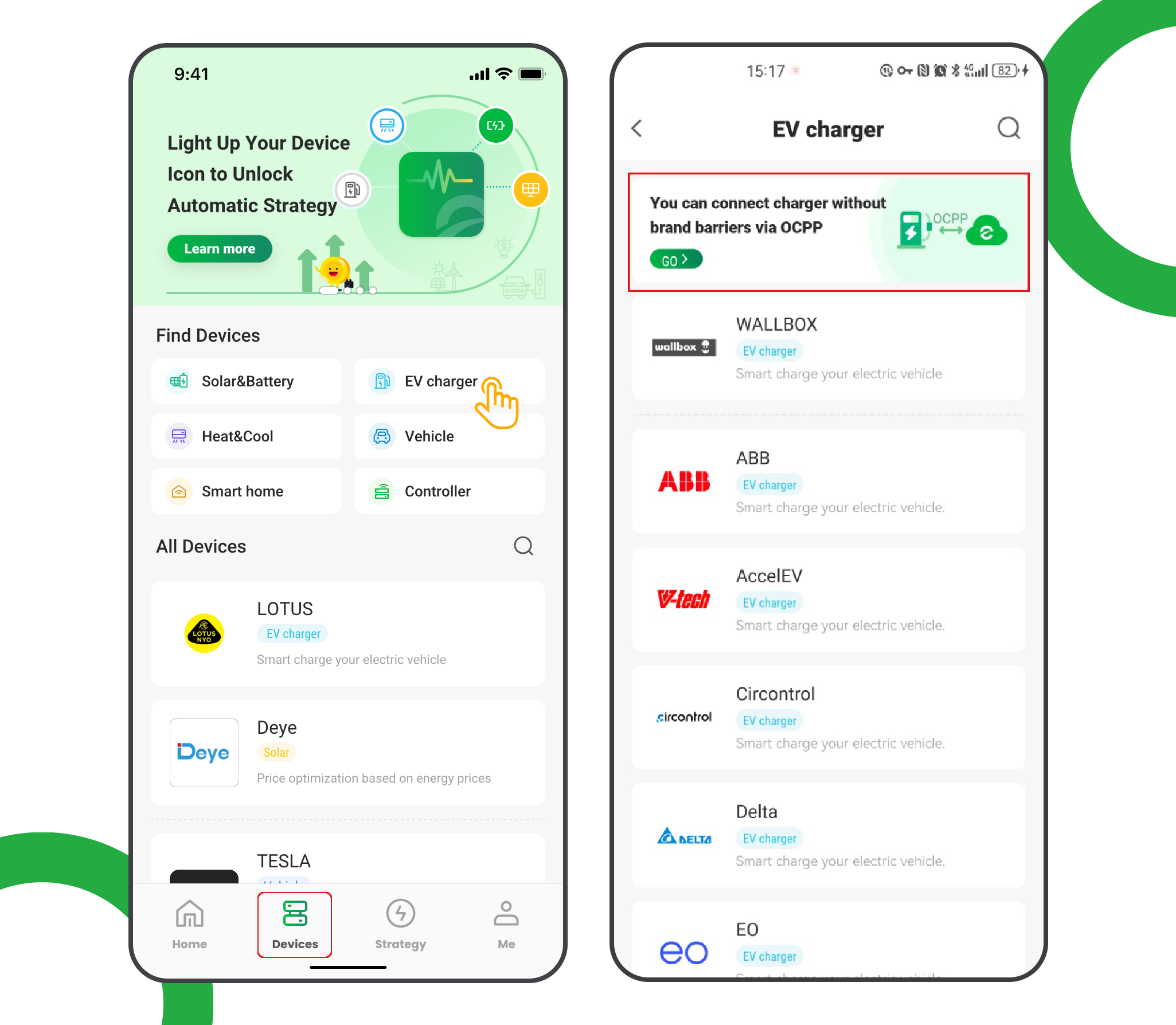
- Enter the app and open ‘Devices’
- Select ‘EV charger’
- Tap the ‘OCPP connection’ banner
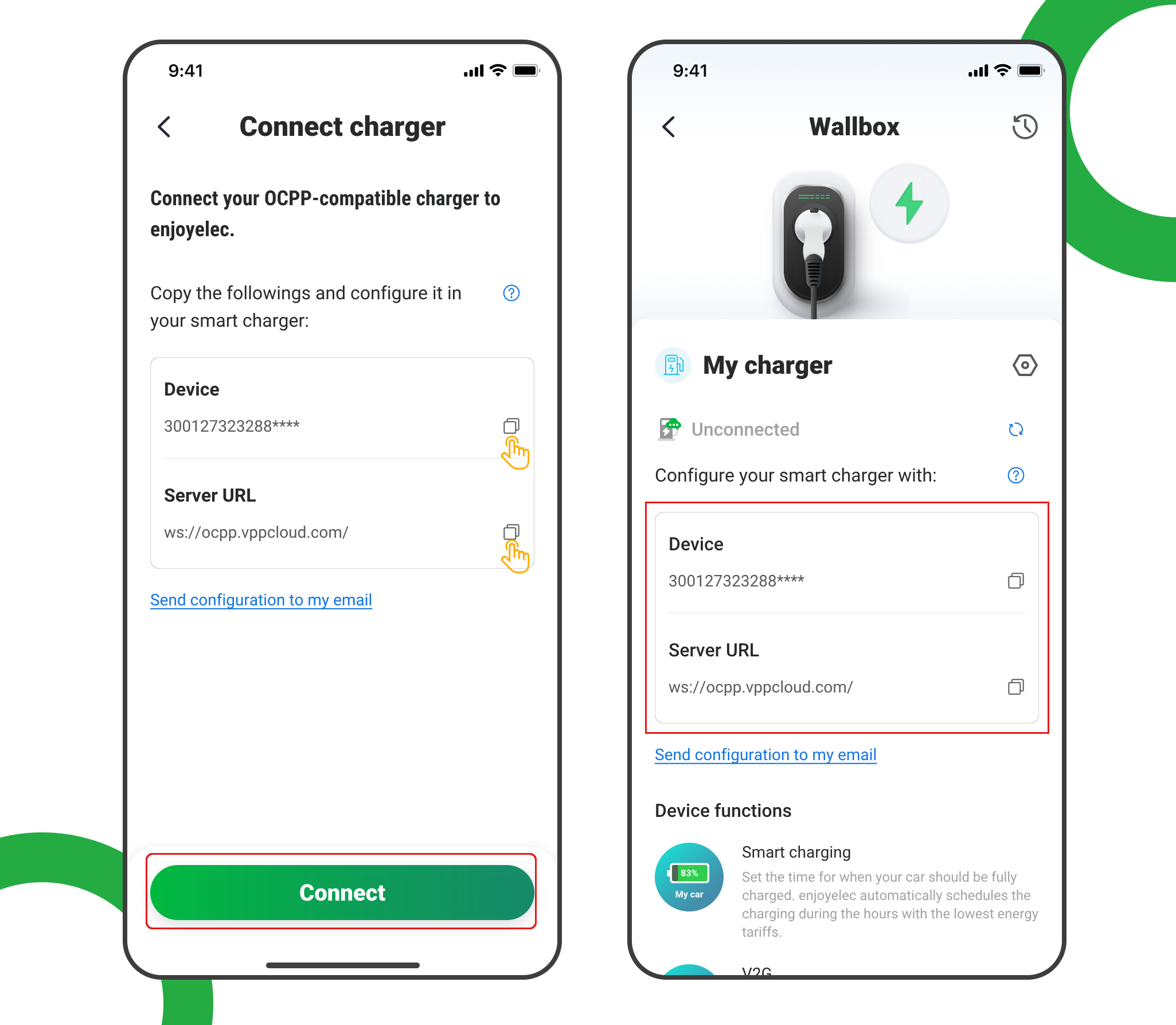
- Tap ‘Connect’ to access the OCPP information retrieval page
- Copy the Server URL and Device ID, which will be used later when configuring the charging station These are required for configuring the charging station
Step 2. Connect charger to Wi-Fi and open app
- Install the Wallbox app on your phone (available on the app stores) and follow the prompts to connect to your charger. This is usually done via Bluetooth.
- The charger must be configured to connect to your home Wi-Fi network as it requires internet access.
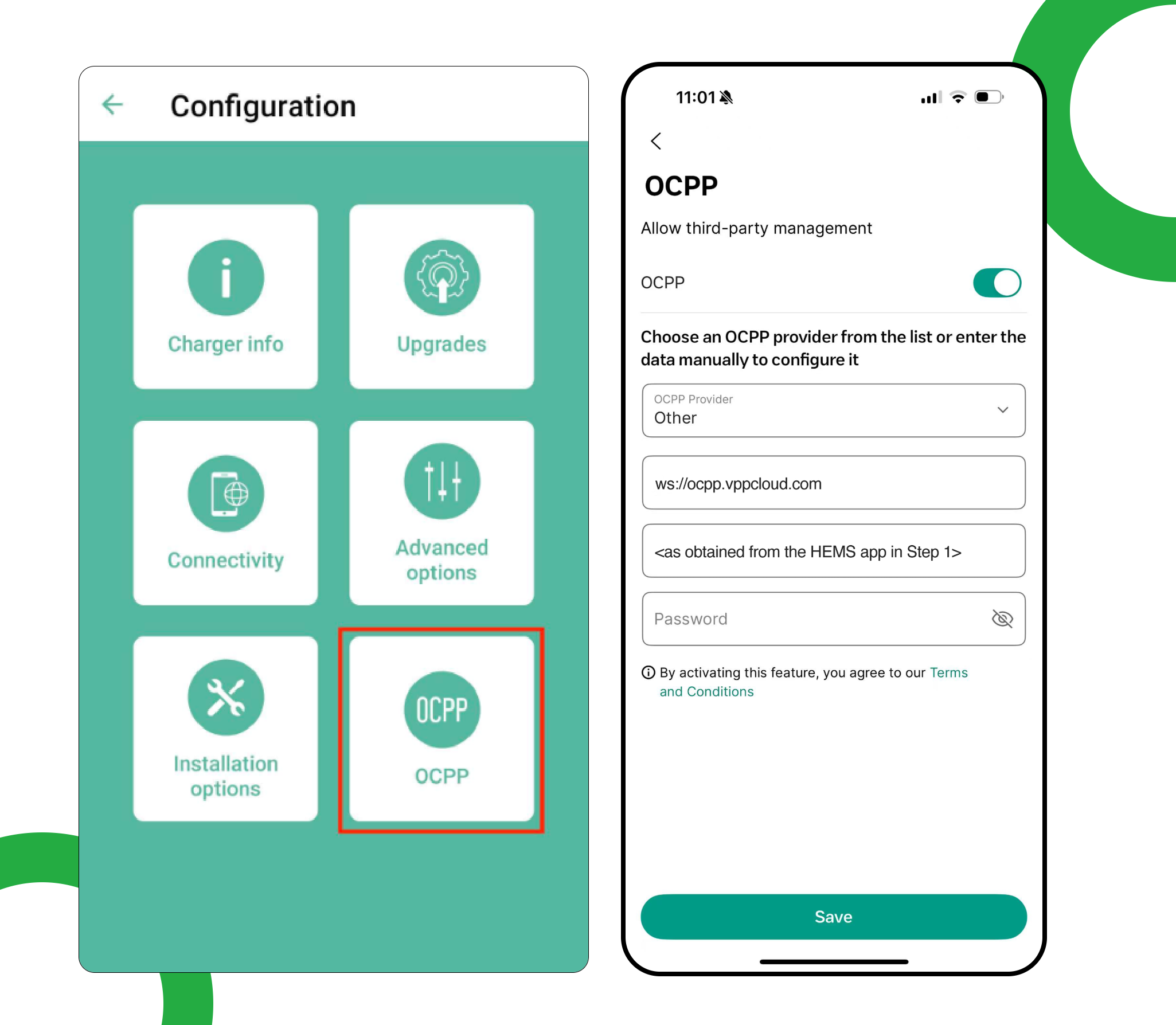
Step 3. Configure OCPP in the Wallbox app
- URL: ws://ocpp.vppcloud.com
- Charge point identify: <as obtained from the HEMS app in Step 1>
- Password:<blank>
- Click “Save”
Step 4. Ensure Eco-Smart mode is disabled
HEMS App cannot be used in combination with Eco-smart modes on the Wallbox charger. Please ensure they’re disabled via:
- Open the wallbox app
- Under Settings select Upgrades
- Set the Eco-Smart feature to Off
Step 5. Complete the Setup
After a few minutes, the charging station will be successfully added to the app. You can now see and manage it within your enjoyelec HEMS App.