

Support center
Provide you with comprehensive product operation guidelines
Installer
go-e Charger Integration Guide
This page provides general instructions for configuring go-e Chargers with the enjoyelec App. For detailed configuration support on specific models, please contact us.
IMPORTANT:
The firmware of the charger must contain at least version 055.0.
If you activate the charger with an RFID card, the charging process must be terminated on the car side.
Step 1. Retrieve OCPP information from enjoyelec HEMS App
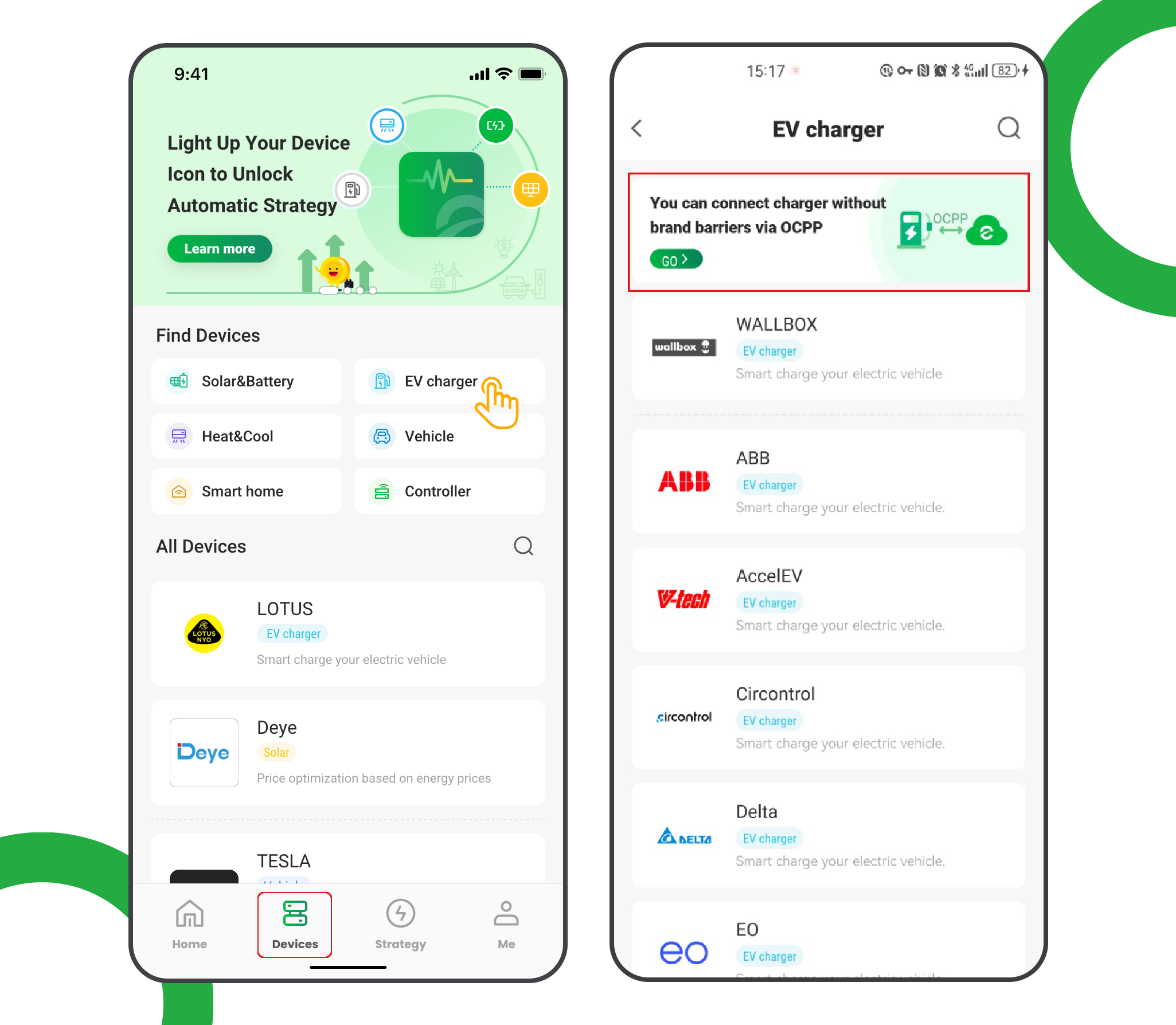
- Enter the app and open ‘Devices’
- Select ‘EV charger’
- Tap the ‘OCPP connection’ banner
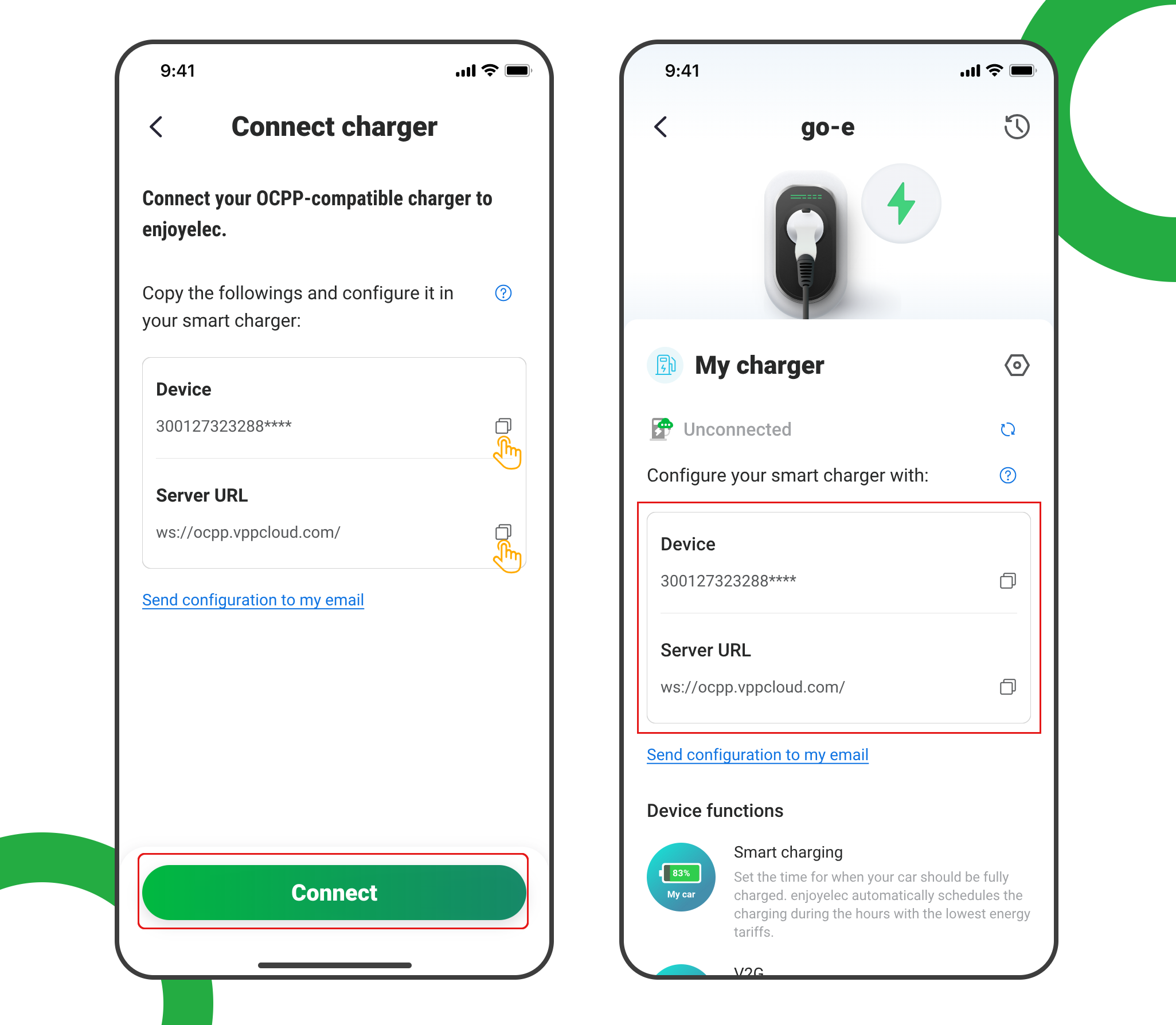
- Tap ‘Connect’ to access the OCPP information retrieval page
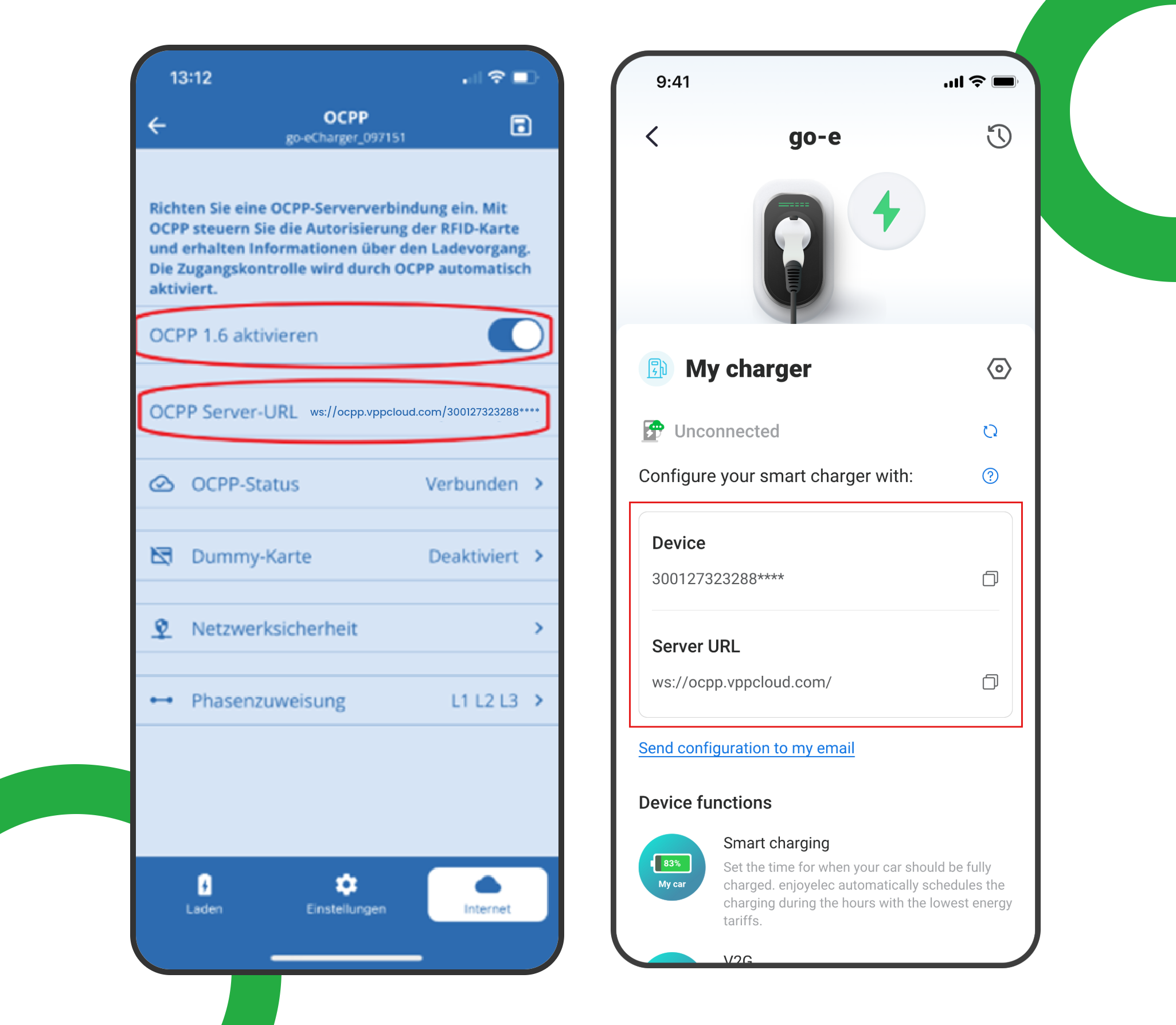
- Copy the Server URL and Device ID, which will be used later when configuring the charging station
Example: ws://ocpp.vppcloud.com/300127323288****
Step 2. Install the go-E charger app on your mobile phone.
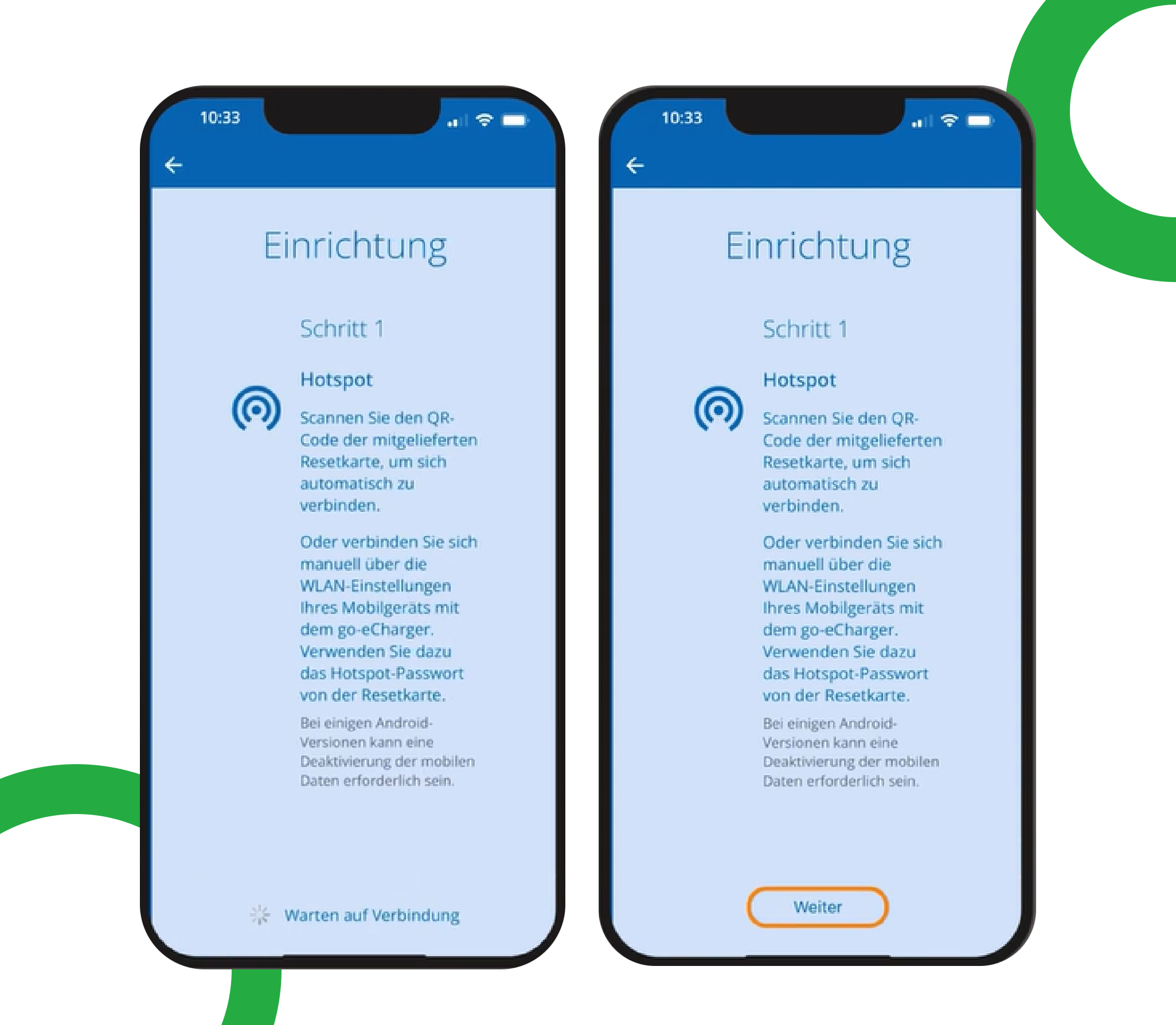
Step 3. Now connect your charger to the app (setup via hotspot or internet).
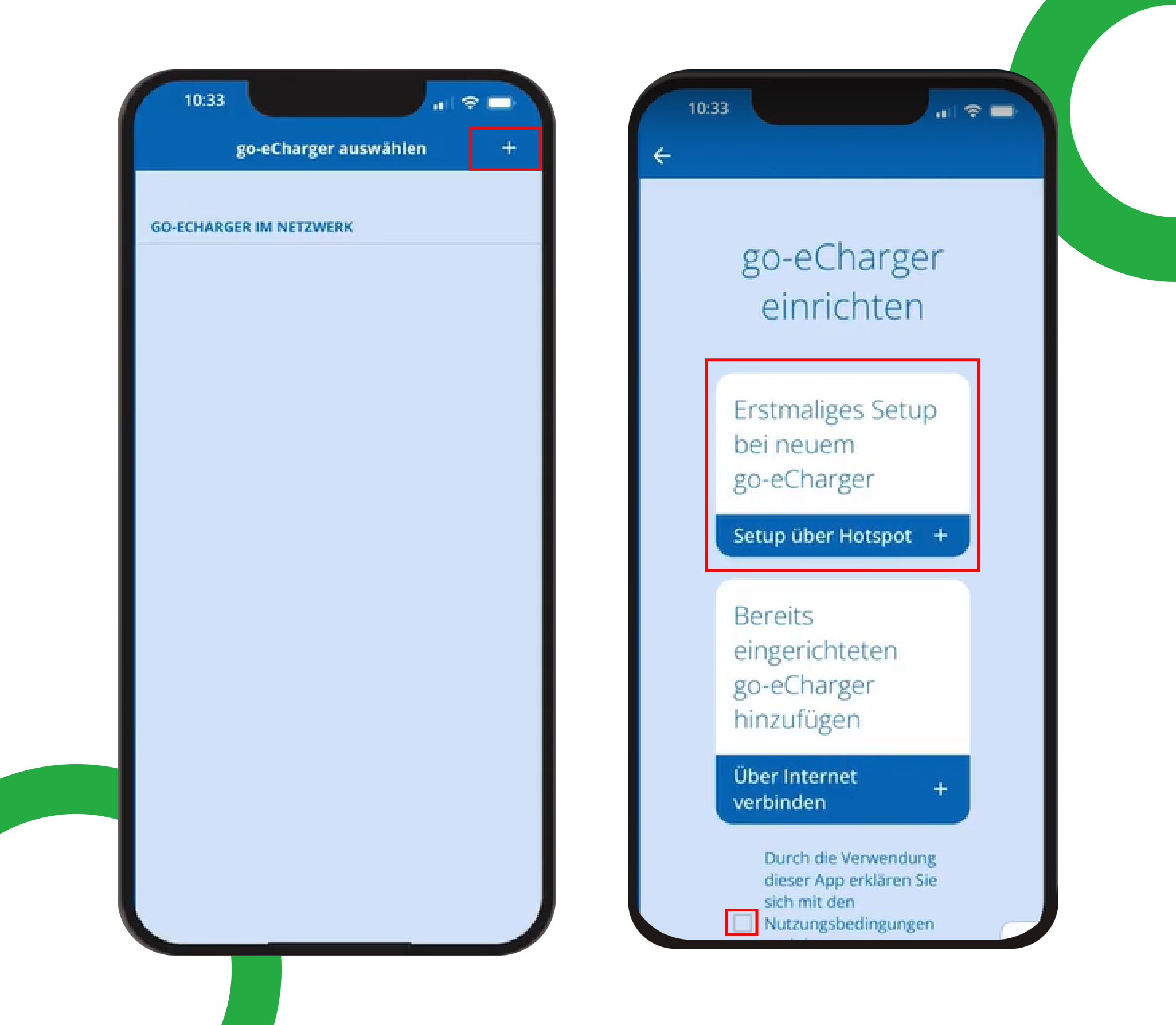
- Click on the “+” in the upper right corner of the app
- Choose to set up chargers through hotspots
- Use reset card to obtain charger WLAN
- Scan the QR code with a camera
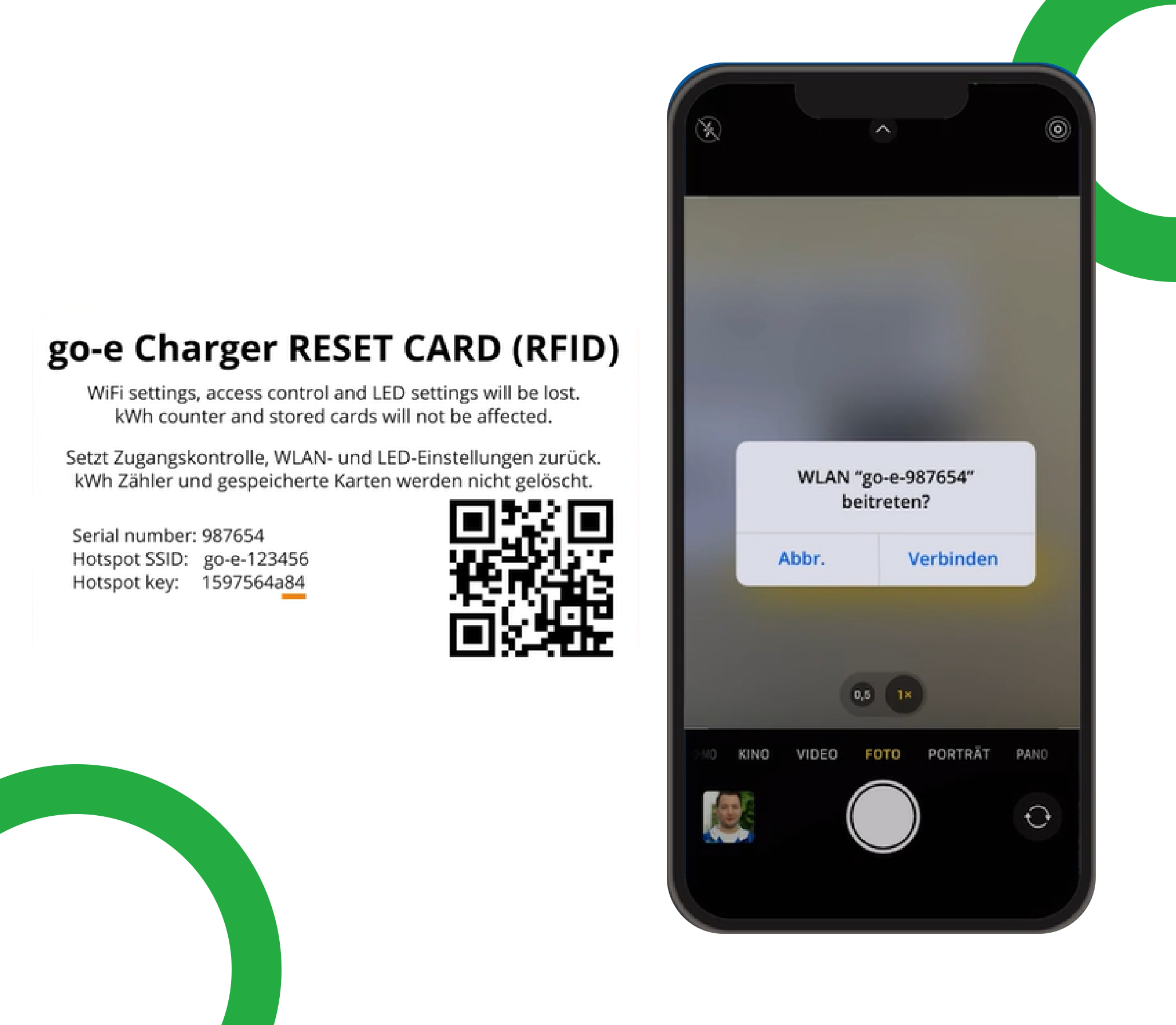
- Waiting for the charger link to proceed with the next step
- Enter your SSID and password to complete the configuration
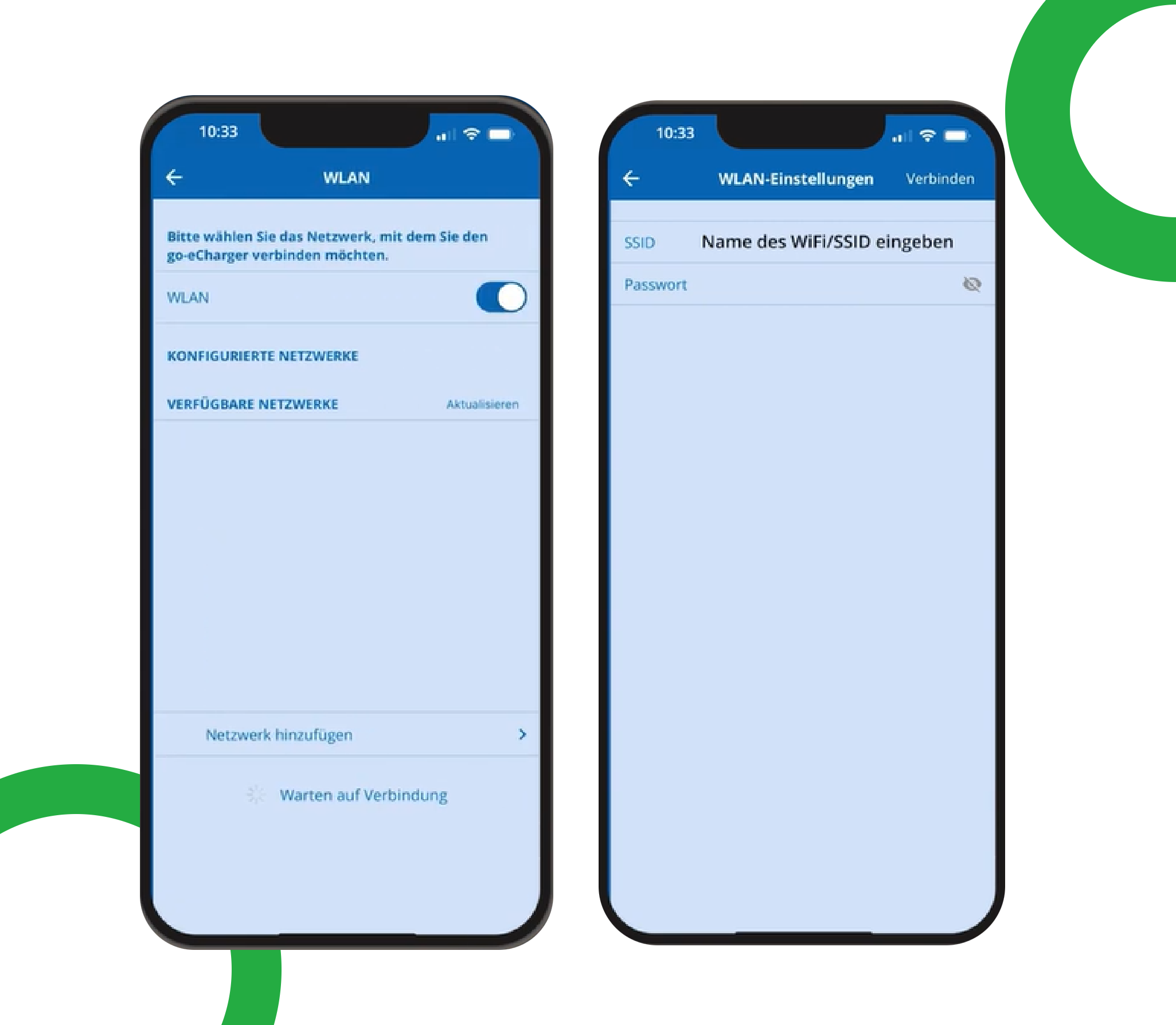
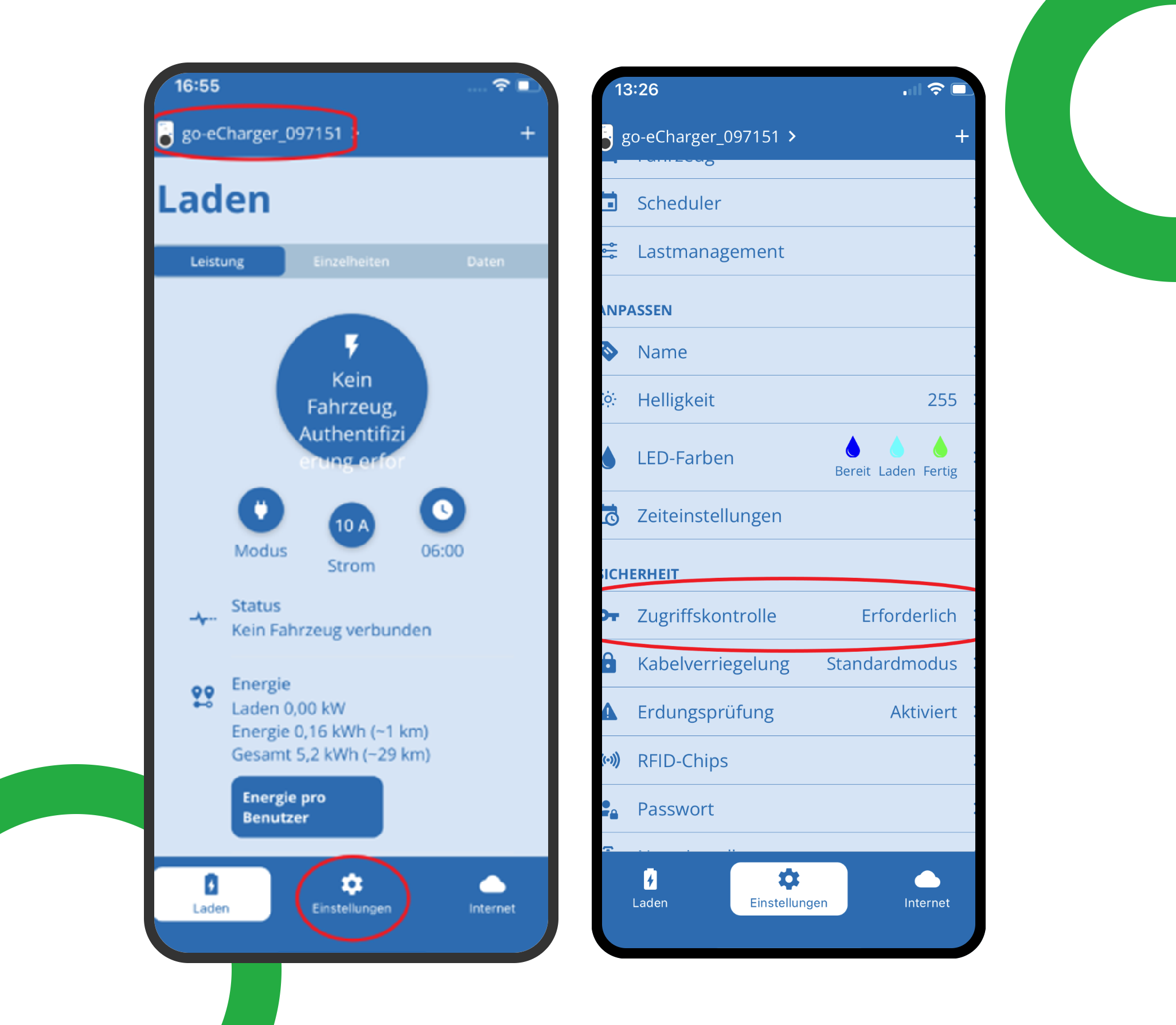
Step 4. As soon as the charger can be found in the app, please make the following settings.
- Select access control
- Authentication required and saved
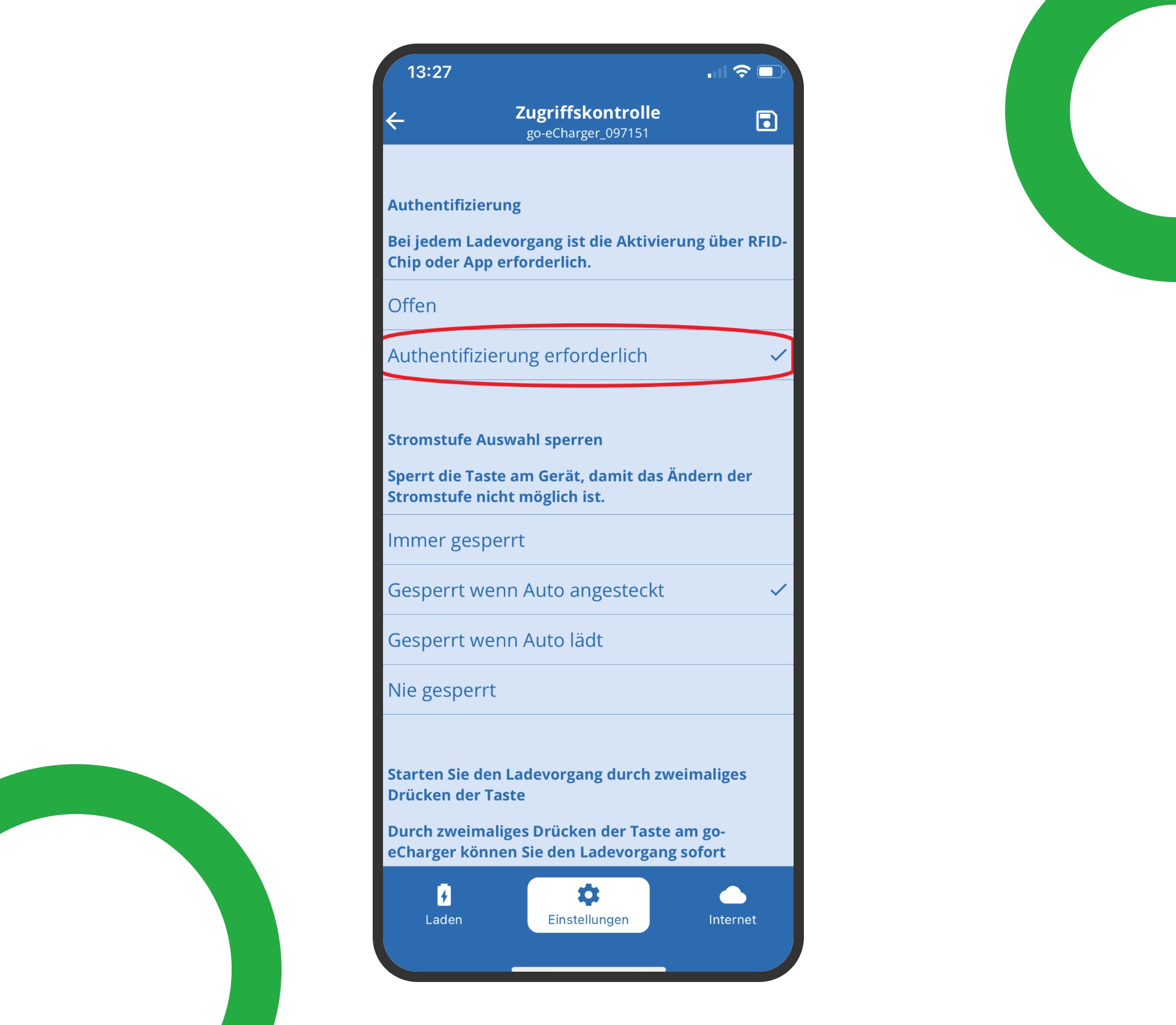
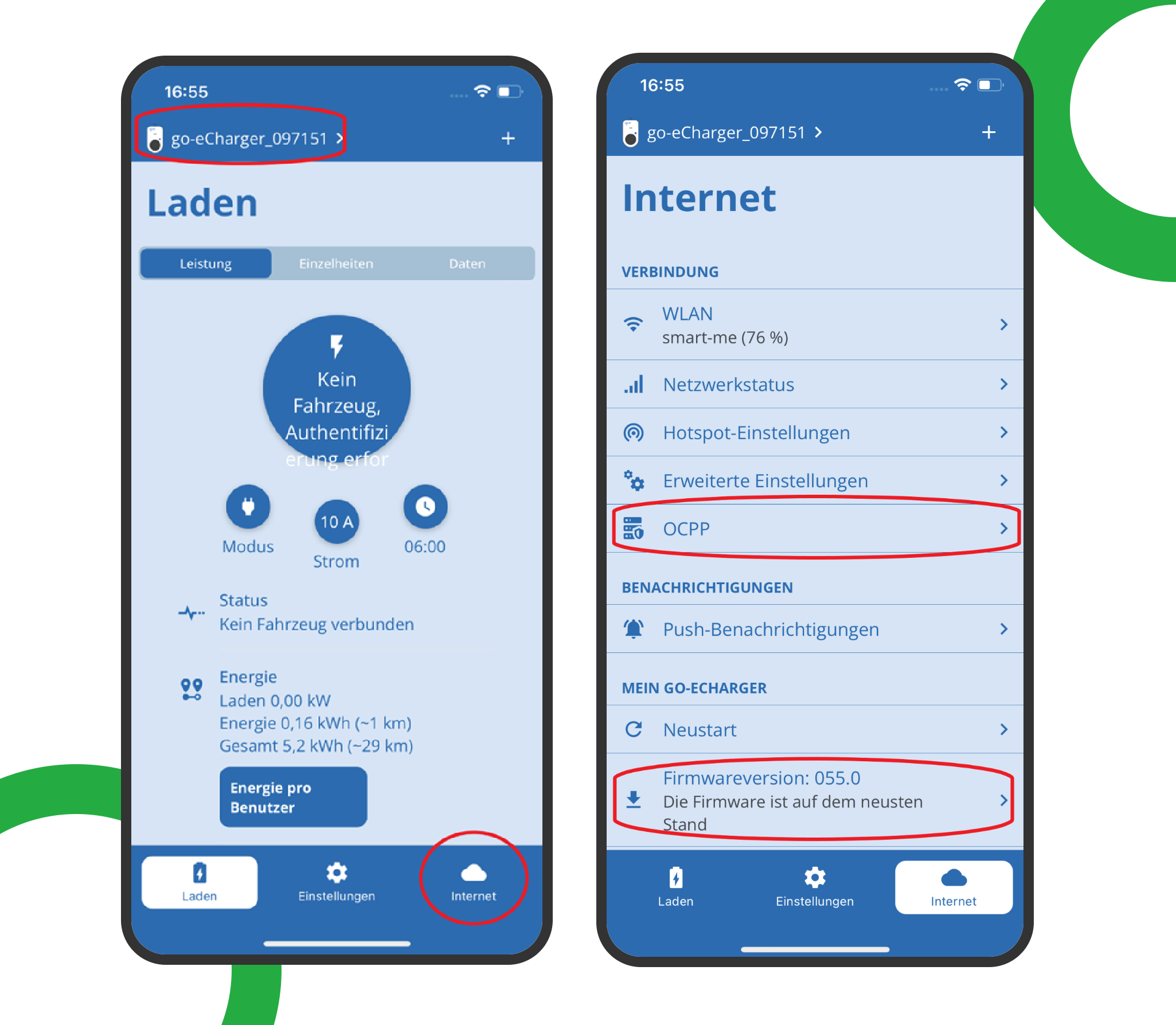
- Return to the overview and select Internet
- Check firmware status!
- Select OCPP
- Activate OCPP 1.6
- Add the OCPP link you have prepared
- Save and restart
Step 5. Complete the Setup
After a few minutes, the charging station will be successfully added to the app. You can now see and manage it within your enjoyelec HEMS App.