

Support center
Provide you with comprehensive product operation guidelines
Installer
ZJ Beny Charger Integration Guide
This page provides general instructions for configuring ZJ Beny Charger with the enjoyelec App. For detailed configuration support on specific models, please contact us.
Step 1. Retrieve OCPP information from enjoyelec HEMS App
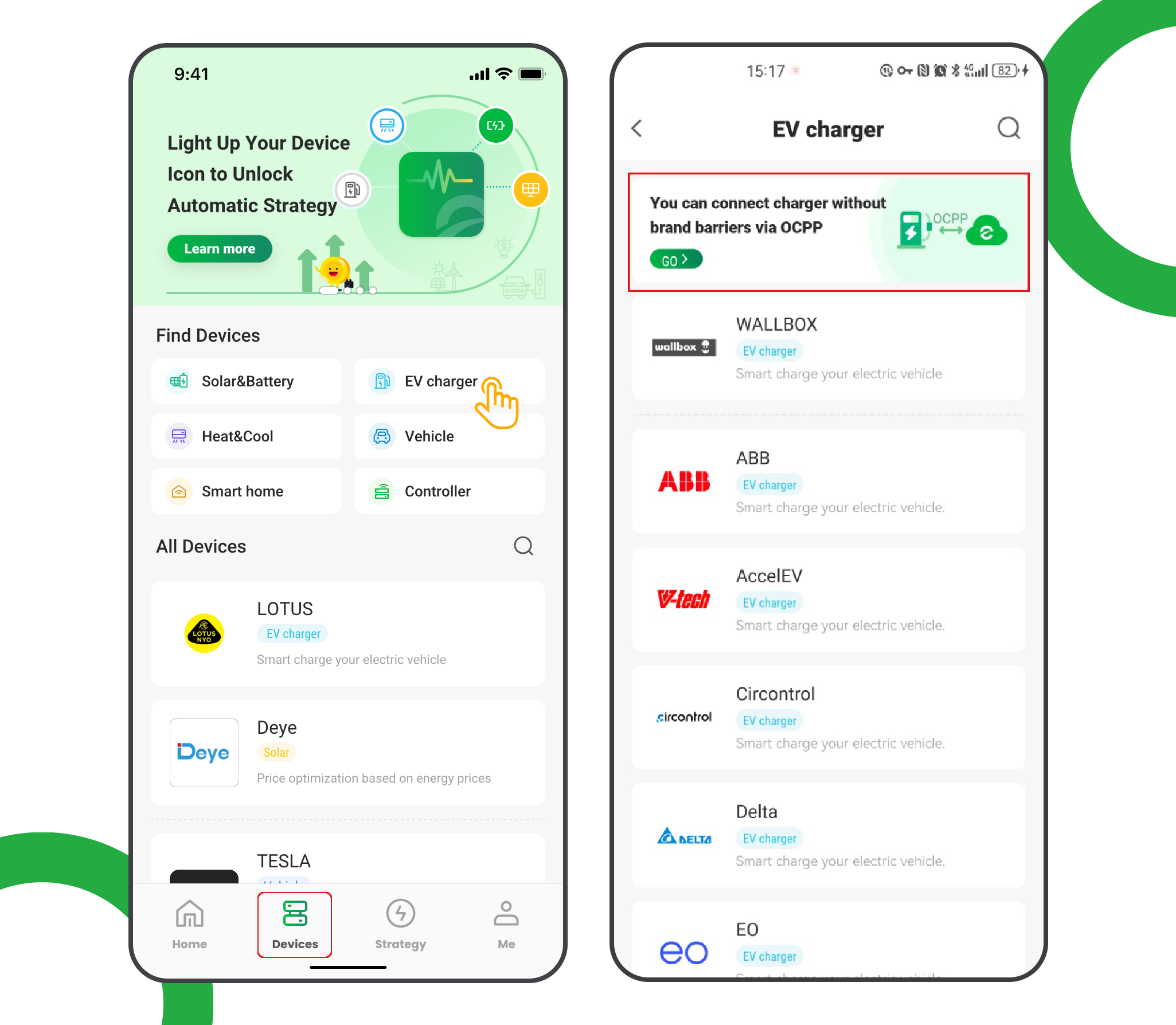
- Enter the app and open ‘Devices’
- Select ‘EV charger’
- Tap the ‘OCPP connection’ banner
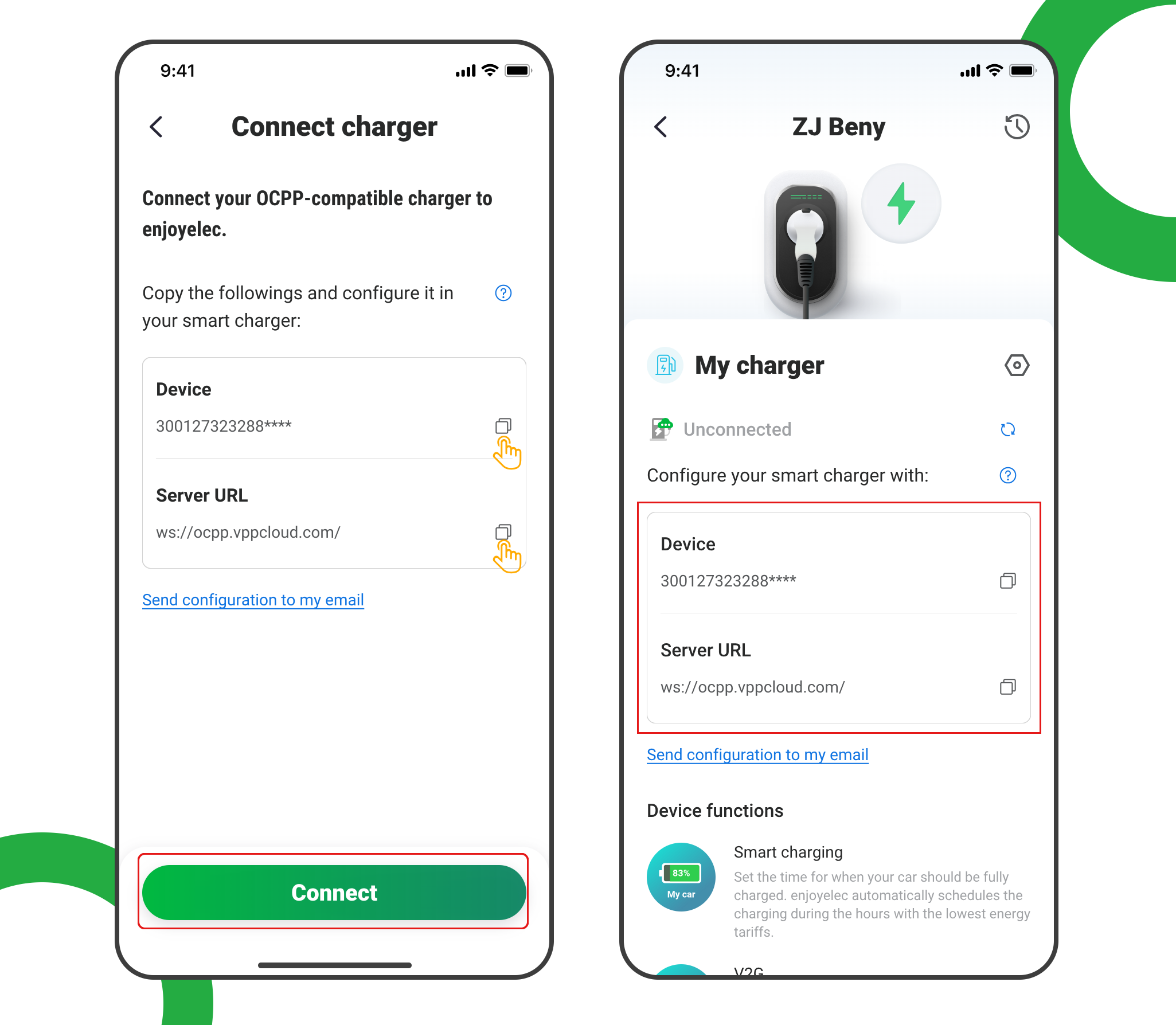
- Tap ‘Connect’ to access the OCPP information retrieval page
- Copy the Server URL and Device ID, which will be used later when configuring the charging station
Step 2. Enable configuration mode
If the charger is new and hasn’t been configured or used, skip to Step 3.
Otherwise:
- Press the emergency stop button on the charger, it should remain depressed.
- Switch off the charger.
- Hold down the small reset button (next to the emergency stop button).
- Switch on the charger while holding down the reset button.
- A beep should be heard after a couple of seconds. Release the reset button.
- The charger LED should be flashing orange.
- The charger is now in configuration mode and should be broadcasting a Wi-Fi network.
Step 3. Connect to the configuration tool
Ensure that the charger is in configuration mode – see Step 2.
This step can be done using a laptop or phone.
- Find and connect to the charger’s Wi-Fi network. The name is e.g. “EVSE-221000001”
- The Wi-Fi password defaults to “12345678”
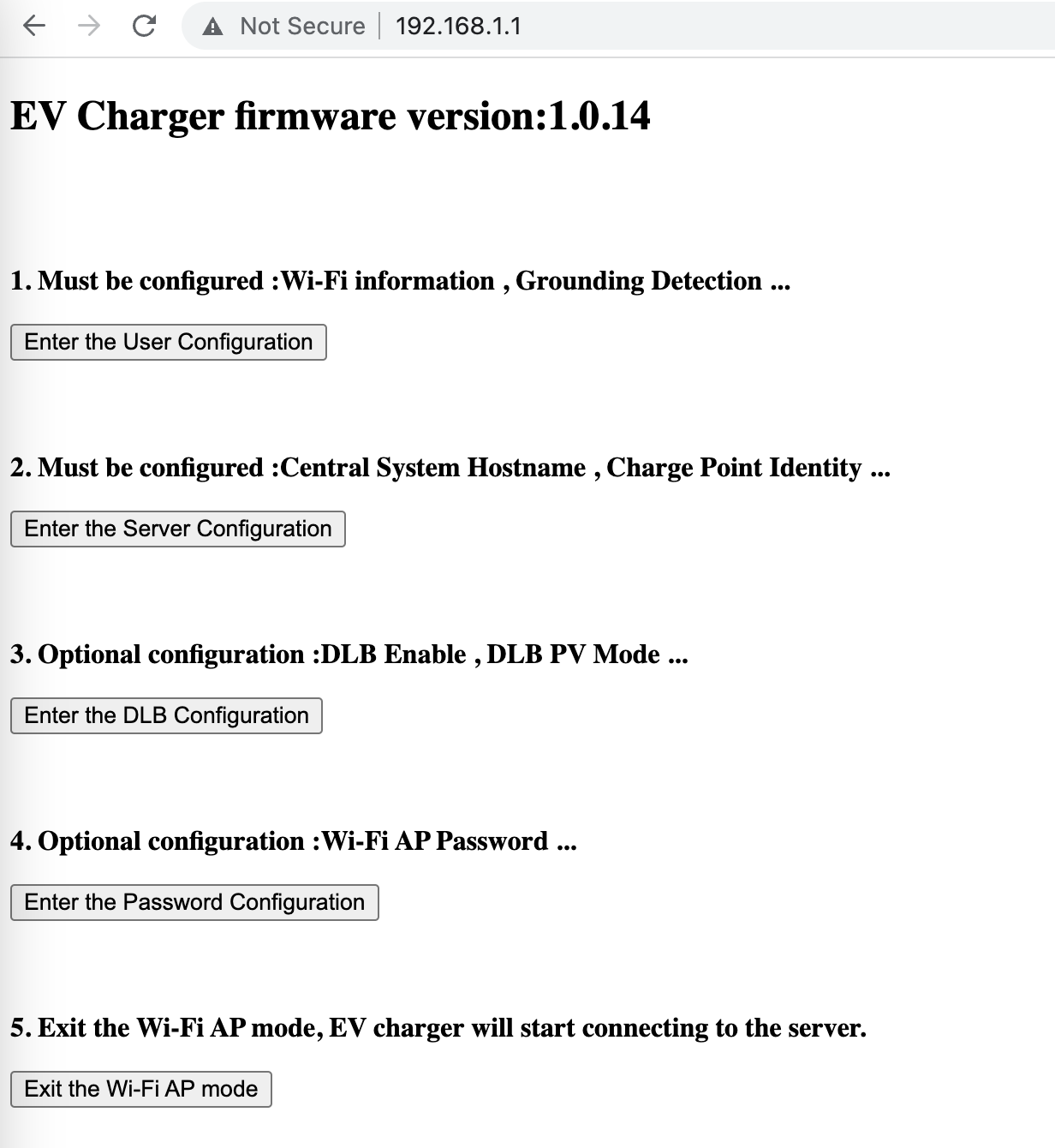
- In a browser, open the URL http://192.168.1.1
Step 4. Connect the charger to your Wi-Fi network
If your charger has already been connected to your Wi-Fi network, you can skip this step.
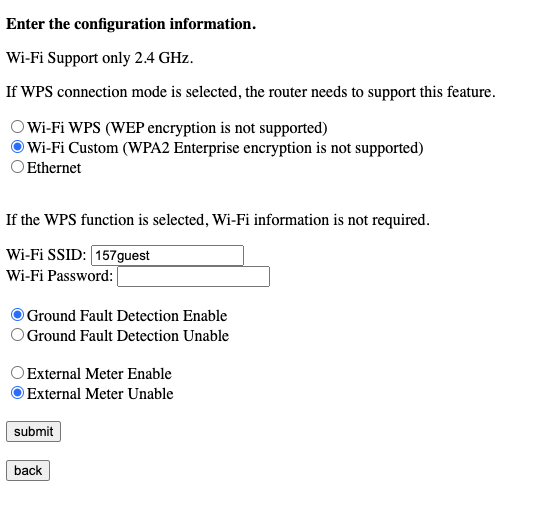
- Select “Enter the User Configuration”
- Enter your home Wi-Fi access details.
- Check that
- Ground Fault Detection Enable is chosen
- External Meter Unable is chosen
- Click Submit
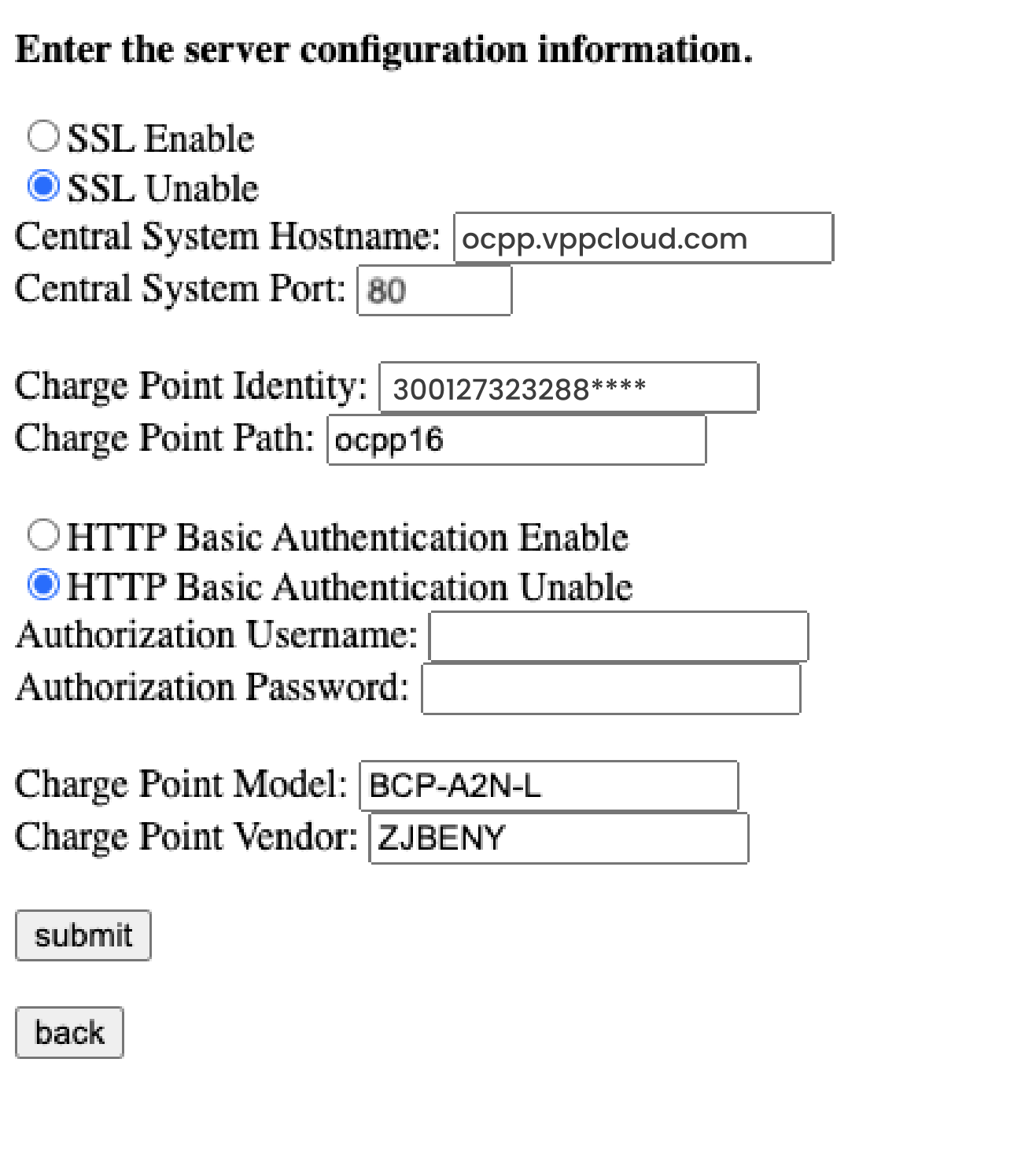
Step 5. Enter Server information in the Charger
On the admin interface for the charger that you used in Step 3 to connect the charger to your home Wi-Fi network:
- Selection Option 2: Central System Hostname… “Enter the Server Configuration” button
- Select SSL Unable
- Set the Central System Hostname to be ocpp.vppcloud.com
- Set the Central system Port to be 80
- Set the Charge Point Identity to the Device ID you obtained from the HEMS app in step 1, (e.g. 80828318231), replace the 80828318231 in the example below with this value.
- Set Charge Point Path to ocpp16
- Select HTTP Basic Authentication Unable
- Leave all other fields blank or as their default settings
- Leave Charge Point Model as set
- Ensure Charge Point Vendor is ZJBENY
- Click Submit
- A beep should be heard from the charger, and a success message appears on screen
- Click back
Step 6. Exit configuration mode
On the config home screen, select “Exit the Wi-Fi AP Mode”
A message should appear like this:
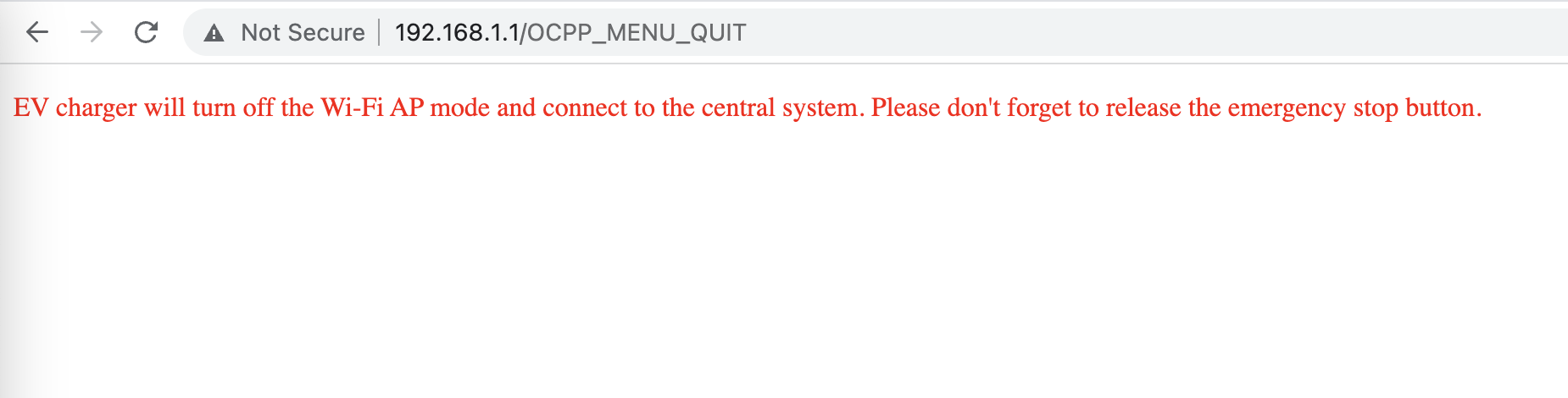
IMPORTANT!! Release the emergency stop button by twisting it clockwise all the way until it pops out. The charger’s LED should change from orange to green. Charging is not possible with the emergency stop button depressed.
Step 7. Complete the Setup
After a few minutes, the charging station will be successfully added to the app. You can now see and manage it within your enjoyelec HEMS App.