

Support center
Provide you with comprehensive product operation guidelines
Installer
Homewizard P1 Meter Integration Guide
To ensure your smart meter integrates smoothly into the HEMS system, please follow the steps below:
Step 1 – Confirm connection methods and interface parameters
The enjoyelec HEMS Controller supports LOCAL API communication with most Homewizard P1 Meter module. Within the same network is required to link the two devices.
Please refer to the Homewizard P1 meter User Manual to identify the network connection is normal, and understand how to modify them if necessary.
Step 2 – Connect the smart meter to the HEMS Controller
Connect the P1 meter to the HEMS controller via WiFi connection.
(Note: Detailed interface parameters and wiring examples for the HEMS Controller can be found in the examples below or in the specific HEMS User Manual.)
Step 3 – Configure interface parameters in the enjoyelec app
After completing the network configuration, power on both devices. Open the enjoyelec app to bind the device and enter the communication parameters that match your actual setup.
(For step-by-step app instructions, please refer to the enjoyelec User Manual.)
Once configured, the Homewizard P1 Meter will be fully integrated into the HEMS, enabling you to monitor real-time data via the app.
Detailed Example: Integrating Model Homewizard P1 Meter
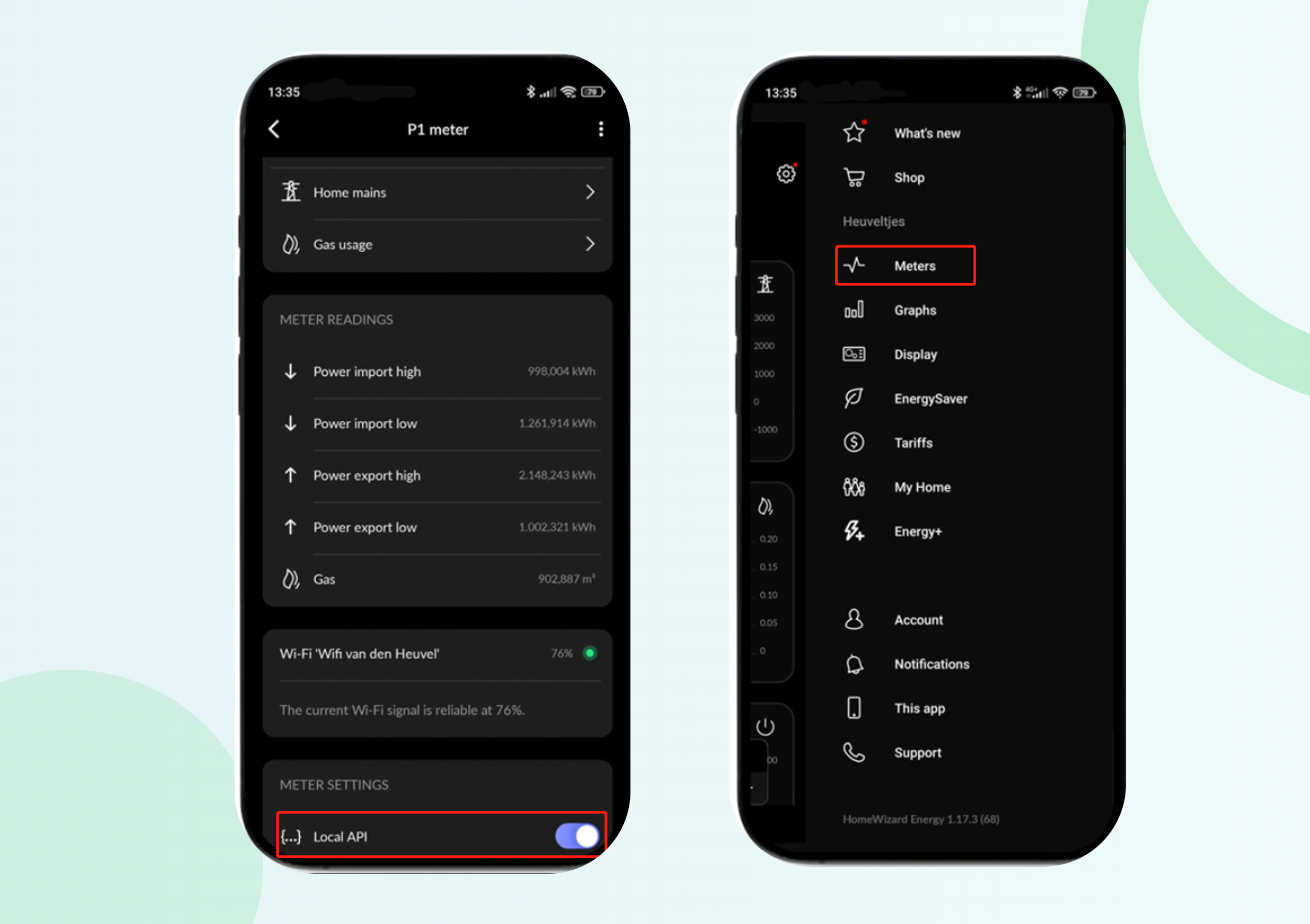
Step 1 –Turn on the local API port
Use the HomeWizard App to enter the settings interface.
1. Navigate to Home > Settings > Meters > Local API.
2. Turn on the local API (By default, it is open).
Step 2 – App Configuration
With the physical connection established:
1. Select Device: In the enjoyelec app, choose the correct device type, brand (Homewizard), and model.
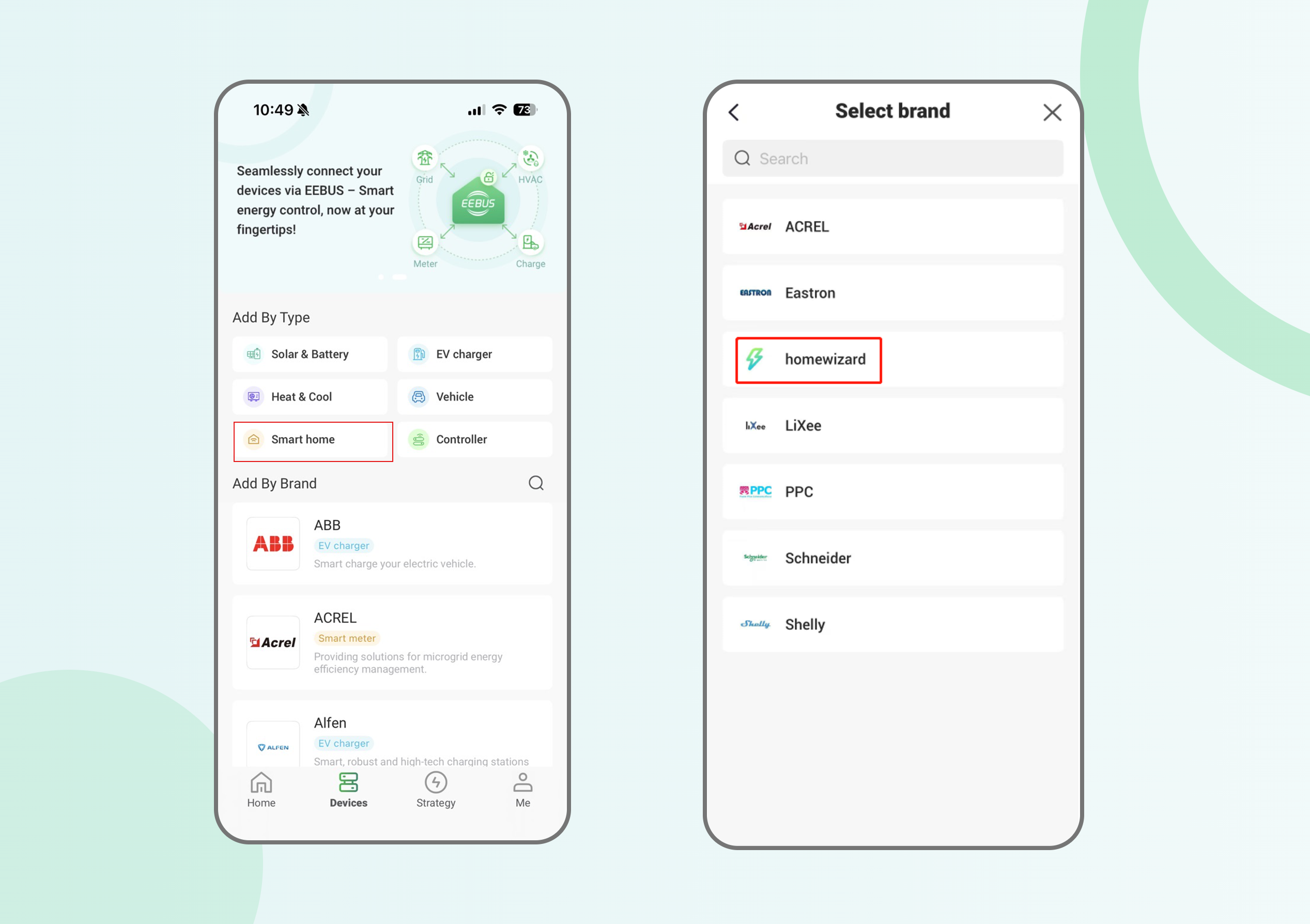
2. Connect: Click the connect button, and the controller will automatically search for the P1 meter and connect it.
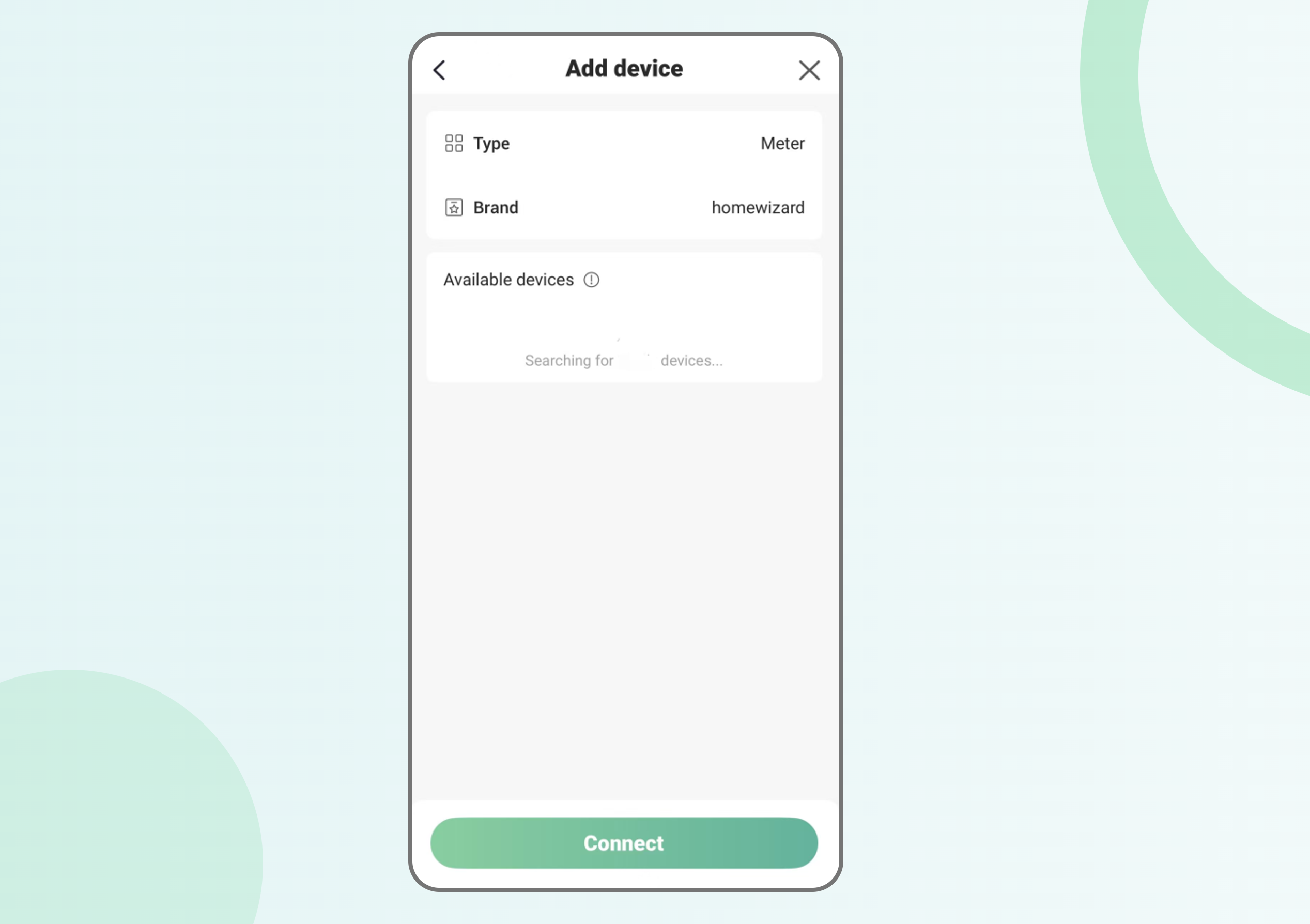
3. Establish Connection: Once saved, the Controller will pair with the meter. You can then begin data collection and active energy management.