

Support center
Provide you with comprehensive product operation guidelines
Installer
Ampace PR-P3 Series Integration Guide
To ensure your inverter integrates smoothly into the HEMS system, please follow the steps below:
Step 1 – Confirm connection methods and interface parameters
The enjoyelec HEMS Controller supports Modbus-RTU communication with most Ampace PR-P3 Series models. A standard RS485 connection is required to link the two devices.
Please refer to the Ampace PR-P3 Series User Manual to identify the exact location of the RS485 interface, verify the factory default parameters, and understand how to modify them if necessary.
Step 2 – Connect the inverter to the HEMS Controller
Connect the RS485 cable to the corresponding interface on the HEMS Controller based on the inverter port definitions.
(Note: Detailed interface parameters and wiring examples for the HEMS Controller can be found in the examples below or in the specific HEMS User Manual.)
Step 3 – Configure interface parameters in the enjoyelec app
After completing physical wiring, power on both devices. Open the enjoyelec app to add the device and enter the communication parameters that match your actual setup.
(For step-by-step app instructions, please refer to the enjoyelec User Manual.)
Once configured, the R-A6E153B1 inverter will be fully integrated into the HEMS, enabling you to monitor real-time data and control the device remotely via the app.
Detailed Example: Integrating Model R-A6E153B1
Step 1 – Identification and Verification
For the R-A6E153B1 model, the communication interface is located at the right of the unit. According to the manual, the "COM" port (Communication port) is the designated terminal.
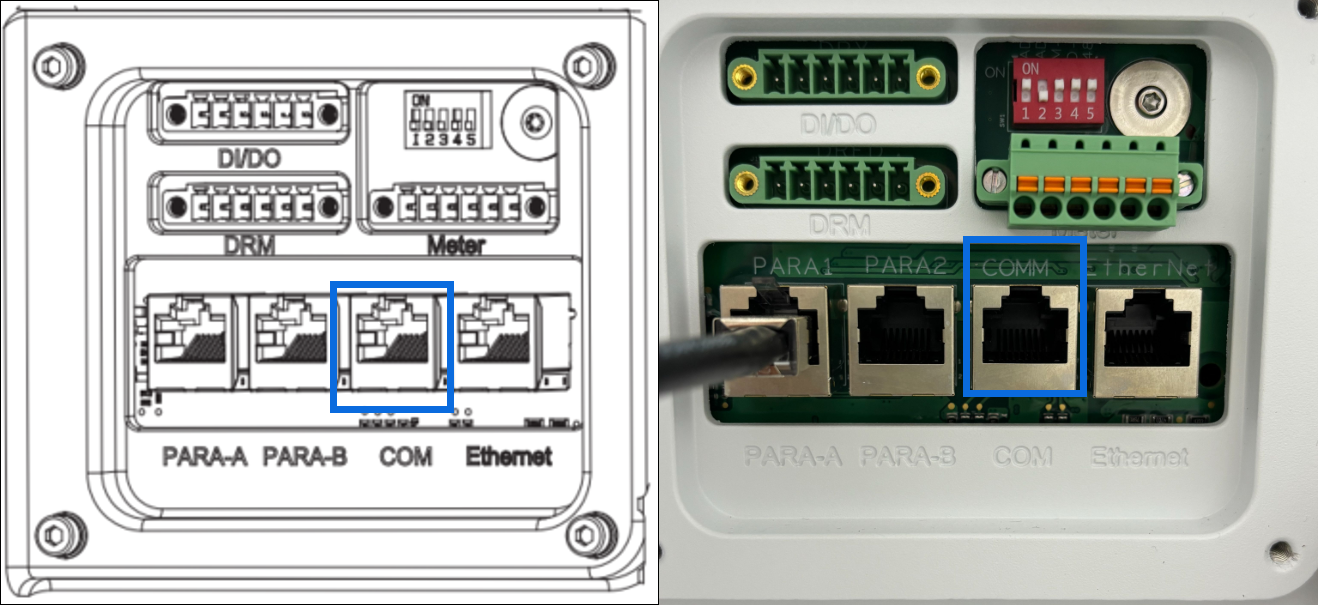
Specifically, the COM port is an 8-pin RJ45 Terminal marked as "COM". For RS485 communication, the pinout for PIN 5 (Blue & White) and PIN 4 (Blue) is shown in the diagram below:
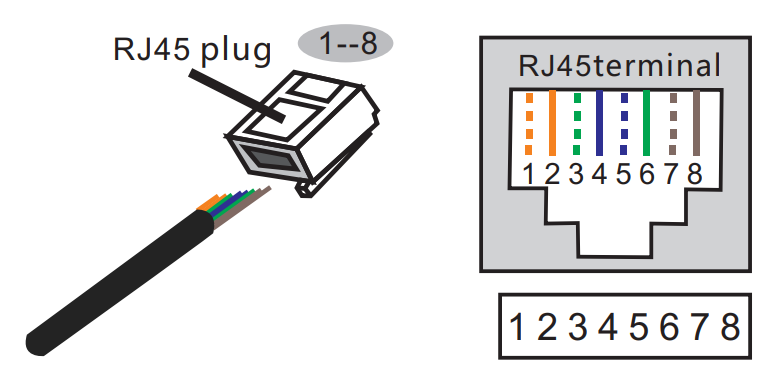
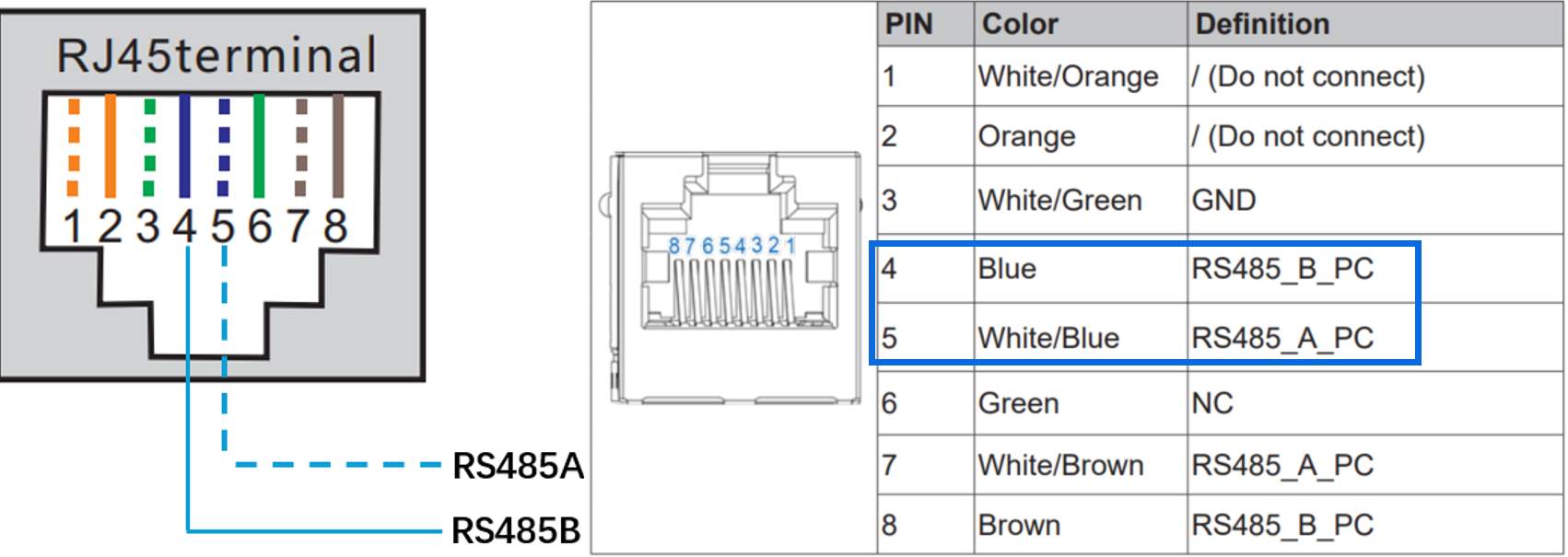
- Default Baud Rate: 115200
- Default Modbus Address: 1
Step 2 – Physical Wiring
RS485A connects to Controller A1 and RS485B connect to Controller B1.
Ensure that the RS485 communication parameters on both the inverter and the HEMS Controller are configured to match.
Please note that the Ampace inverter operates at a default baud rate of 115200, while the HEMS Controller defaults to 9600. You will need to change the Controller's port setting to 115200 via the enjoyelec app to establish successful communication.
- Pay close attention to the A and B cable color coding to ensure the wiring sequence on the Controller side matches the Inverter side perfectly.
- If a different baud rate is required, please refer to the HEMS Controller manual or use the enjoyelec app to adjust the controller's port settings.
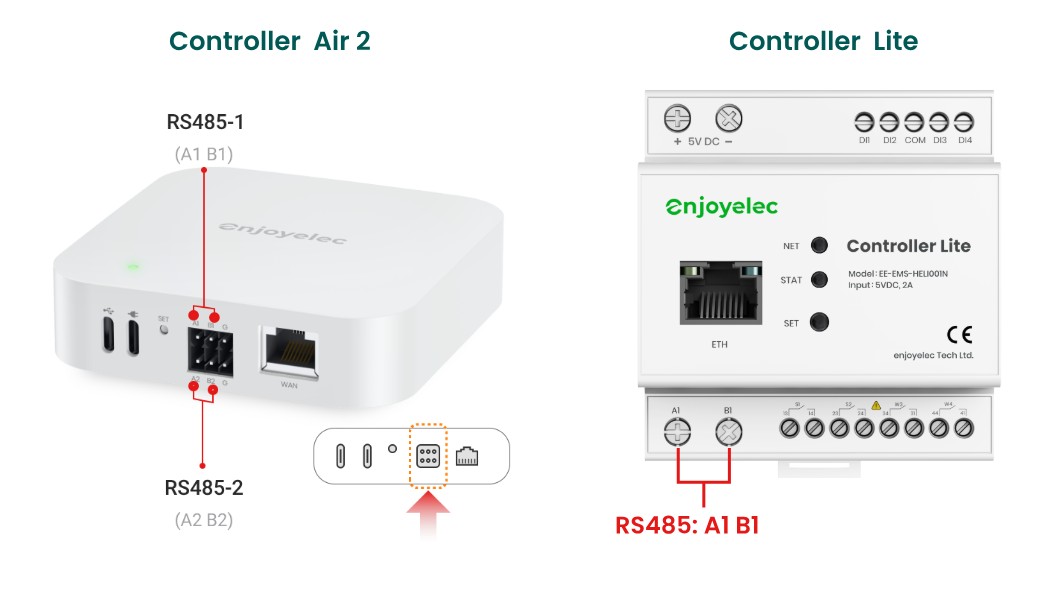
Step 3 – App Configuration
With the physical connection established:
- Select Device: In the enjoyelec app, choose the correct device type, brand (Ampace), and model.
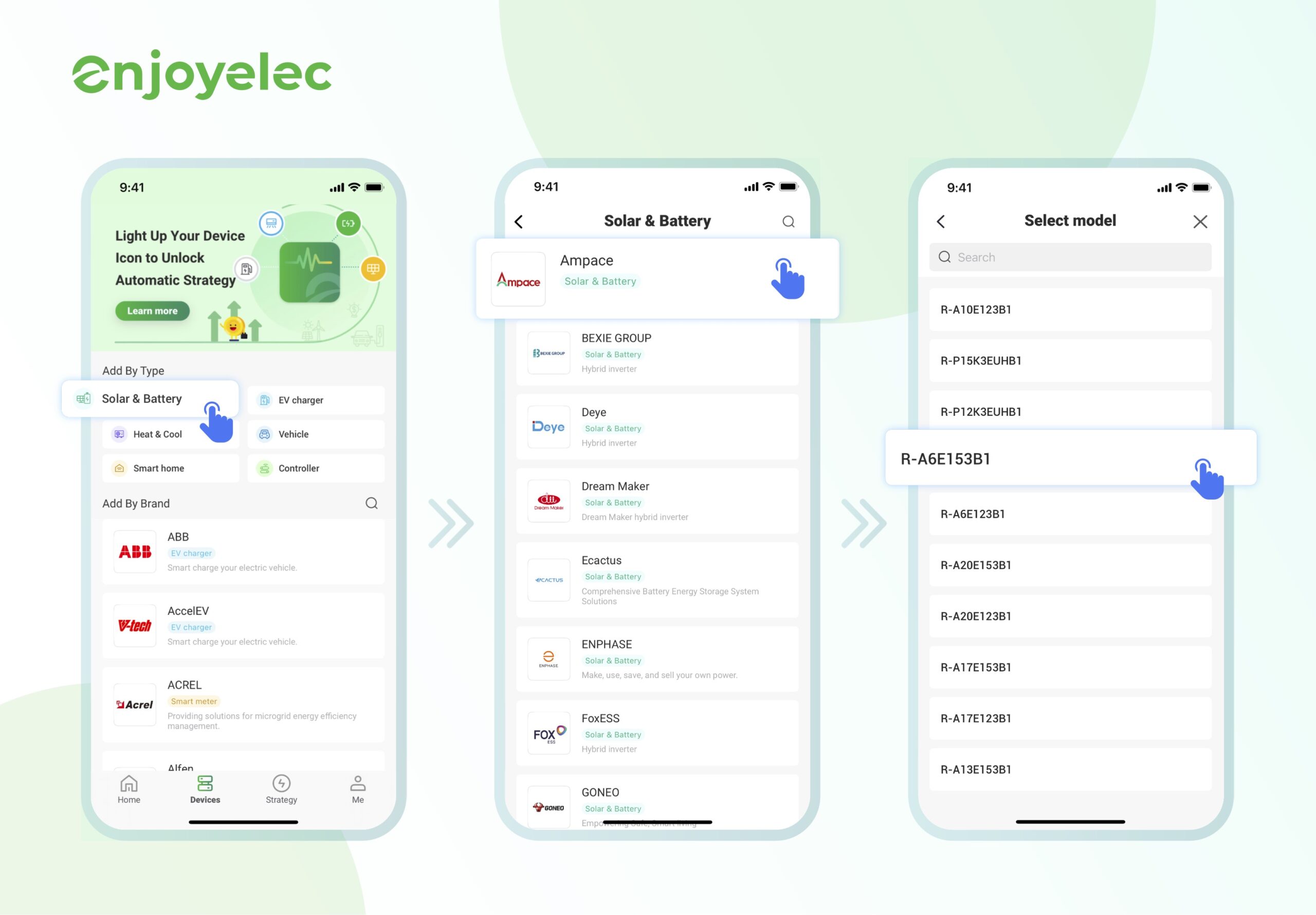
2. Set Protocol: Define the communication protocol, physical port number, and matching parameters (Baud rate/Address).
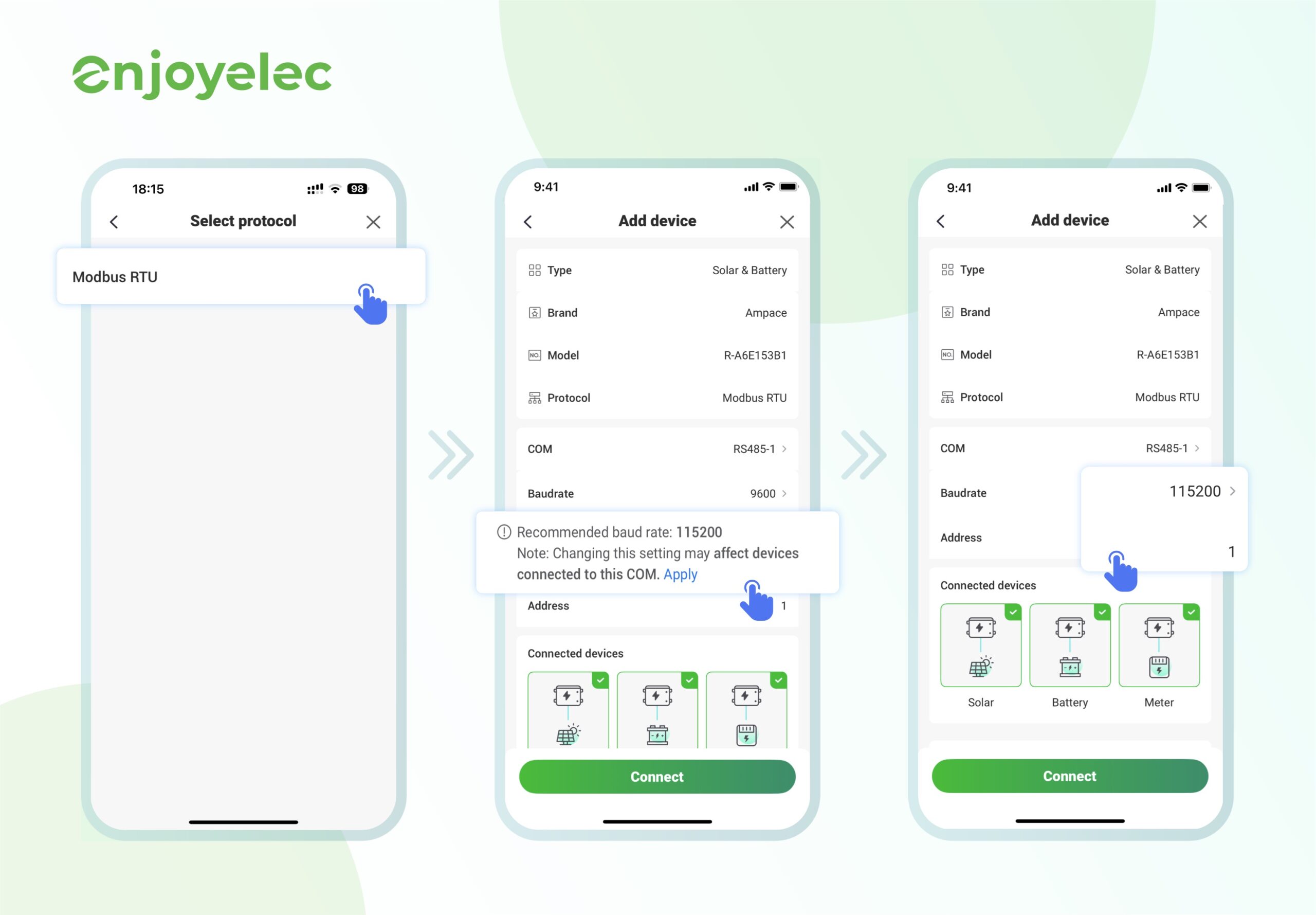
3. Establish Connection: Once saved, the Controller will pair with the inverter. You can then begin data collection and active energy management.